
پیژندنه
Thank you for choosing the Trueque Wireless Mouse. This manual provides detailed instructions to help you set up, operate, and maintain your new ergonomic wireless mouse. Designed for comfort and efficiency, this mouse features a stable 2.4GHz wireless connection, adjustable DPI levels, and six responsive buttons for enhanced productivity.
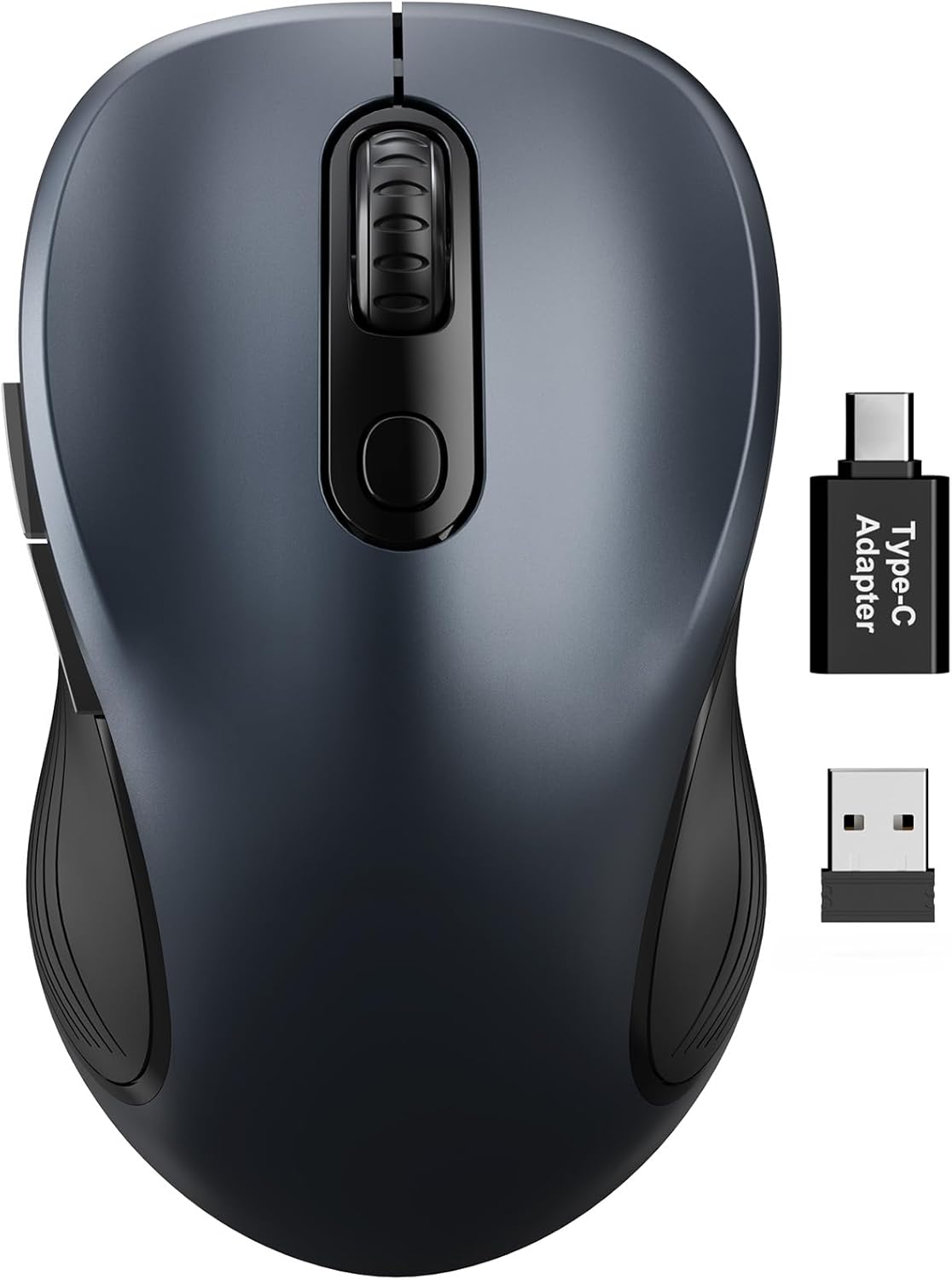
Figure 1: Trueque Wireless Mouse. یو جنرال view of the Trueque Wireless Mouse in Space Gray.
محصول پای ته ورسیدview
Familiarize yourself with the components and design features of your Trueque Wireless Mouse.
د موږک اجزا
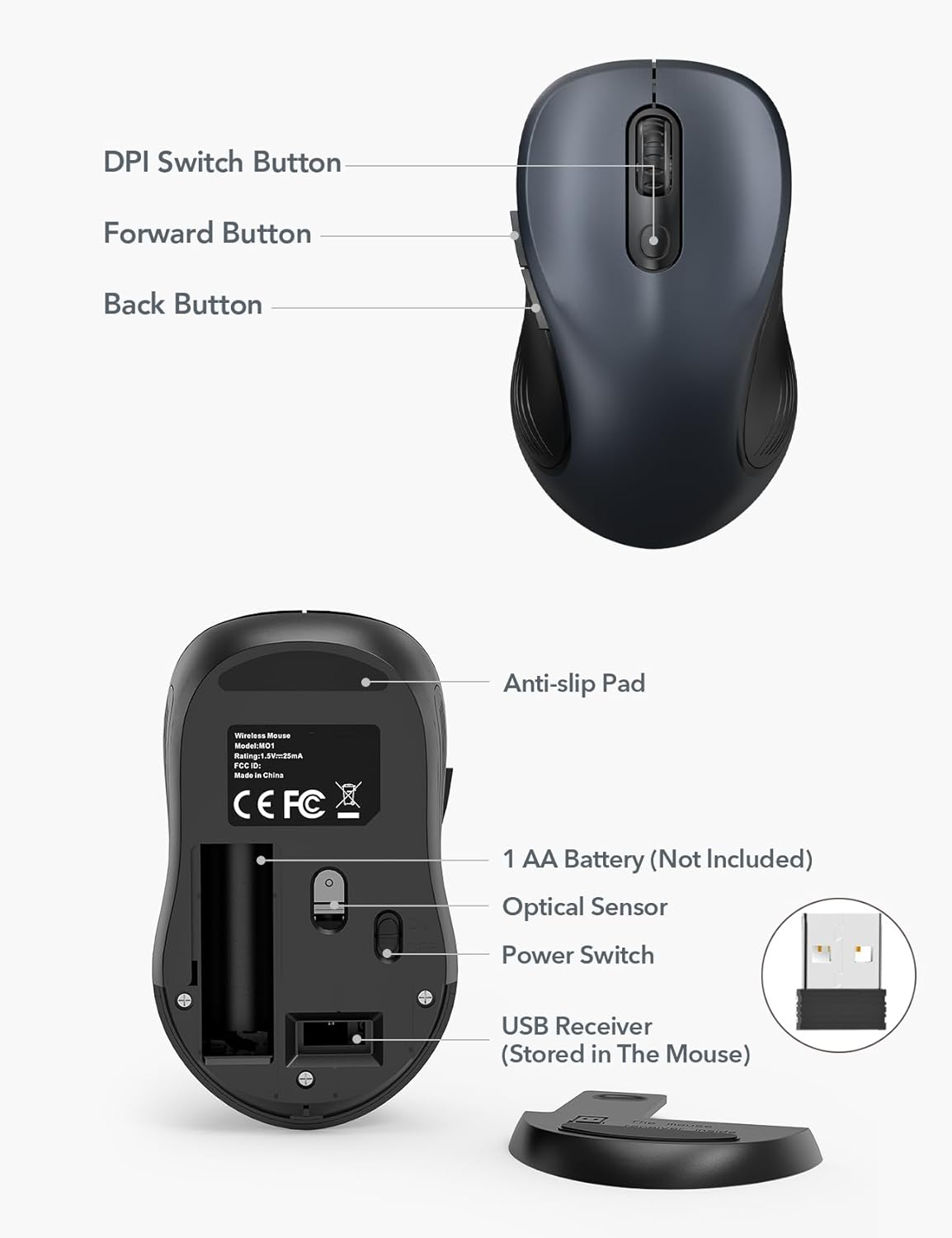
Figure 2: Mouse Components. This image shows the top and bottom views of the Trueque Wireless Mouse, highlighting key components such as the DPI Switch Button, Forward Button, Back Button, Anti-slip Pad, AA Battery compartment, Optical Sensor, Power Switch, and the USB Receiver storage slot.
- د DPI سویچ تڼۍ: د کرسر حساسیت تنظیموي.
- د وړاندې کولو تڼۍ: مخ په وړاندې ځي web براوزرونه یا file سپړونکي
- د شا تڼۍ: شاته نیویګیټ کوي web براوزرونه یا file سپړونکي
- د پرچی ضد پیډ: د کارولو پرمهال ثبات چمتو کوي.
- 1 AA Battery (Not Included): Power source for the mouse.
- نظری سینسر: د موږک حرکت تعقیبوي.
- د بریښنا سویچ: موږک آن یا بندوي.
- USB Receiver (Stored In The Mouse): Connects the mouse wirelessly to your computer.
ارګونومیک ډیزاین
The mouse features a natural curved shape and a skin-friendly silicone grip to minimize thumb and wrist strain, ensuring comfort during extended use.

Figure 3: Ergonomic Comfort. This image shows a hand comfortably resting on the Trueque Wireless Mouse, highlighting its ergonomic design for all-day use.
The mouse is designed to fit small to medium hands. Refer to the hand size guide below to determine if this mouse is suitable for your palm length and width.

Figure 4: Hand Size Guide. This image provides a guide for palm length and width to determine the ideal fit for the mouse, suggesting it's suitable for palms under 7.5 inches.
د سپک وزن ډیزاین
Weighing less than 60 grams, the mouse is lightweight and portable, ideal for everyday carry and travel.

Figure 5: Lightweight and Portable. This image shows the mouse being easily stored in a bag, emphasizing its lightweight design for portability.
د تنظیم کولو لارښوونې
Follow these steps to set up your Trueque Wireless Mouse for first-time use.
1. بیټرۍ نصب کړئ
The mouse requires one AA battery (not included).
- Open the battery compartment cover located on the underside of the mouse.
- یو AA بیټرۍ دننه کړئ، د سم قطبیت ډاډ ترلاسه کړئ (+/-).
- د بیټرۍ کمپارټ پوښ وتړئ.
Figure 6: Battery and USB Receiver Location. This image illustrates the battery compartment and the storage slot for the USB receiver on the underside of the mouse.
۲. د USB رسیور سره وصل کړئ
The USB receiver is stored within the mouse for convenience.
- Gently remove the USB receiver from its storage slot on the bottom of the mouse.
- د USB ریسیور په خپل کمپیوټر کې موجود USB-A پورټ کې ولګوئ.
- If your device only has USB-C ports, use the included USB-A to USB-C adapter. Connect the USB receiver to the adapter, then plug the adapter into your device's USB-C port.
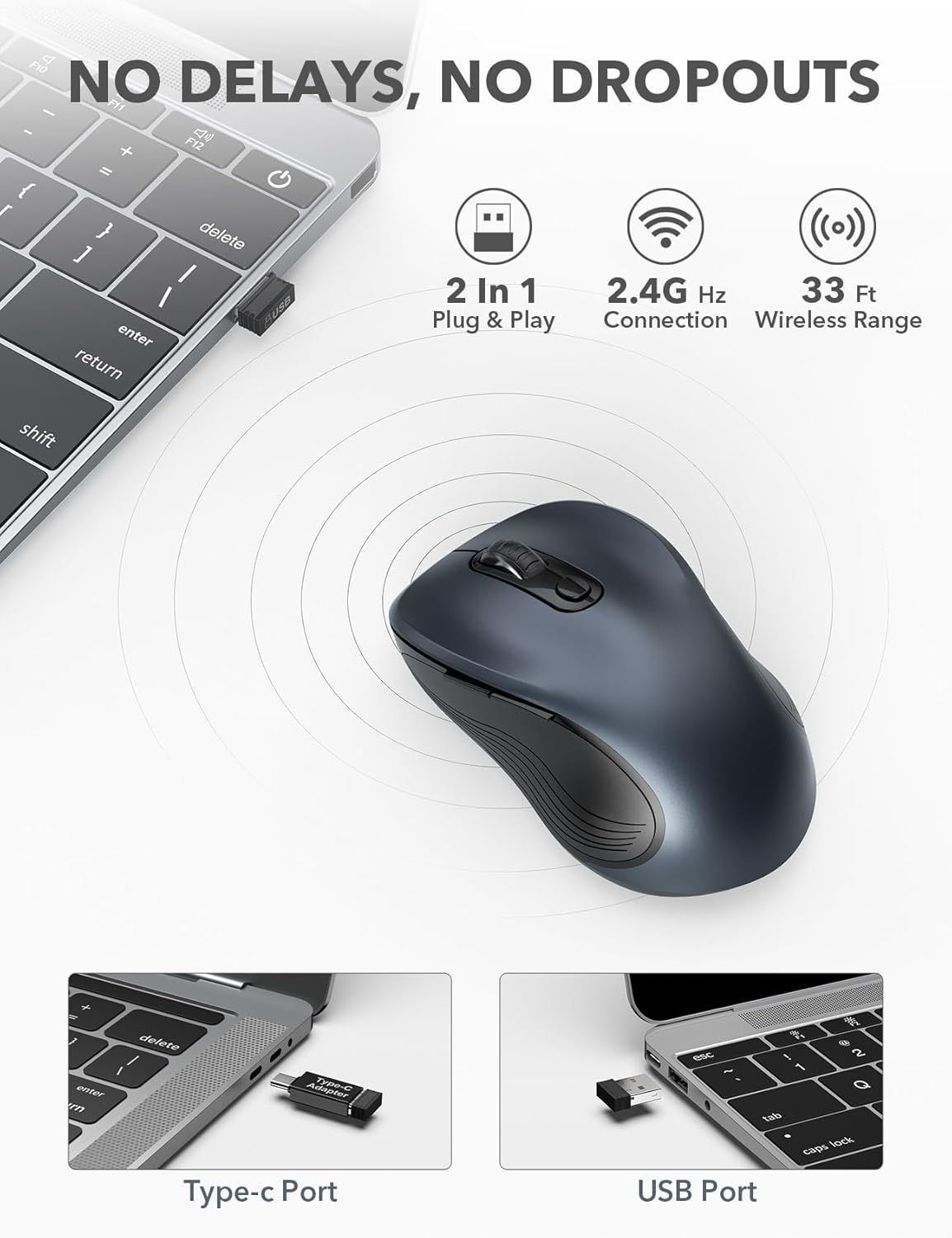
Figure 7: USB Receiver Connection. This image demonstrates how to connect the 2.4GHz USB receiver to both a standard USB-A port and a USB-C port using the provided adapter.
3. بریښنا فعاله کړئ
Slide the power switch on the underside of the mouse to the "ON" position. The mouse will automatically connect to the receiver.
4. مطابقت
The Trueque Wireless Mouse is compatible with various operating systems, including Windows, Mac OS, Linux, and Chrome OS.

Figure 8: Operating System Compatibility. This image shows the Trueque Wireless Mouse is compatible with Windows, Chrome OS, Mac OS, and Linux.
عملیاتي لارښوونې
پاور آن/بند
Use the power switch on the bottom of the mouse to turn it on or off. Turning the mouse off when not in use helps conserve battery life.
د DPI تعدیل
The mouse features 3 adjustable DPI (Dots Per Inch) levels to control cursor sensitivity.
- Press the DPI Switch Button (located behind the scroll wheel) to cycle through the available DPI settings: 800, 1200, and 1600 DPI.
- Select the DPI level that best suits your preference for speed and precision.
Figure 9: DPI Levels. This image illustrates the three adjustable DPI settings (800, 1200, 1600) available on the mouse.
د شا او خوا تڼۍ
The side buttons provide quick navigation:
- د د فارورډ تڼۍ (top side button) allows you to navigate forward in web براوزرونه یا file سپړونکي
- د د شا تڼۍ (bottom side button) allows you to navigate backward in web براوزرونه یا file سپړونکي
د خوب خوب حالت
To conserve battery, the mouse enters an auto-sleep mode after 1 minute of inactivity.
- To wake the mouse, double-click any button.
- A single AA battery can last up to 16 months thanks to this smart feature.

Figure 10: Battery Life and Auto-Sleep. This image highlights the mouse's long battery life (up to 16 months) and its power-saving auto-sleep mode.
Silent Click Feature
The mouse is designed with silent click buttons to minimize noise, making it suitable for quiet environments.

Figure 11: Silent Click Comparison. This image visually compares the low sound level of the Trueque mouse (20dB) to other common sounds like breathing (10dB), office noise (50dB), and an alarm (70dB).
ساتنه
د بیټرۍ بدلول
When the mouse performance degrades or it stops responding, it's time to replace the AA battery.
- Turn off the mouse using the power switch.
- د بیټرۍ کمپارټ پوښ خلاص کړئ.
- زوړ AA بیټرۍ لرې کړئ.
- یو نوی AA بیټرۍ دننه کړئ، سم قطبي حالت وګورئ.
- Close the battery compartment cover and turn the mouse on.
پاکول
د غوره فعالیت او حفظ الصحې ساتلو لپاره:
- Disconnect the mouse from your computer and turn it off.
- د نرم، لینټ پاک ټوکر څخه په روښانه توګه کار واخلئampد موږک بهرنۍ برخه د اوبو یا نرم پاکولو محلول سره پاک کړئ.
- په هر ډول خلاصیدو کې د رطوبت له ننوتلو څخه ډډه وکړئ.
- سخت کیمیاوي توکي او کثافات پاکونکي مه کاروئ.
د ستونزو حل کول
| ستونزه | د حل لاره |
|---|---|
| موږک ځواب نه ورکوي |
|
| د کرسر حرکت بې نظمه یا ناڅاپي دی |
|
| Back/Forward buttons not working |
|
مشخصات
| فیچر | تفصیل |
|---|---|
| برانډ | بارټر |
| ماډل | M01_19 |
| د ارتباط ټیکنالوژي | ۲.۴GHz بېسیم (USB رسیور) |
| د خوځښت کشف | نظري |
| د DPI کچه | 800 / 1200 / 1600 |
| د تڼیو شمیر | 6 (Left, Right, Scroll Wheel, DPI, Forward, Back) |
| د لاس لارښوونه | متضاد |
| د بریښنا سرچینه | 1 x AA بیټرۍ (شامل نه ده) |
| د بیټرۍ ژوند | Up to 16 months (with auto-sleep) |
| د بیسیم رینج | تر 33 فوټو پورې (10 متره) |
| د محصول ابعاد | 10.41 x 6.1 x 0.25 سانتي متره |
| د توکي وزن | 68.04 ګرامه |
| ځانګړي ځانګړتیاوې | Ergonomic Design, Silent Click, Auto-Sleep Mode, USB-A to USB-C Adapter Included |
تضمین او ملاتړ
The Trueque Wireless Mouse is backed by a 12-month warranty from the date of purchase. This warranty covers manufacturing defects under normal use.
For technical support, warranty claims, or any questions regarding your product, please contact Trueque customer service. Please have your purchase information ready when contacting support.
یادونه: تضمین د ناوړه ګټې اخیستنې، حادثې، غیر مجاز تعدیل، یا ناسم نصب له امله رامینځته شوي زیان پوښښ نه کوي.