
د خوندیتوب مهم معلومات
Please read all instructions carefully before using this monitor. Keep this manual for future reference.
- Do not place the monitor near water or in humid environments.
- د ډیر تودوخې مخنیوي لپاره د مانیټر شاوخوا مناسب هوا ورکول ډاډمن کړئ.
- یوازې هغه بریښنا اډاپټر وکاروئ چې د مانیټر سره چمتو شوی وي.
- Avoid exposing the monitor to direct sunlight or extreme temperatures.
- د مانیټر د ترمیم هڅه مه کوئ. ټولې خدمتونه وړ پرسونل ته راجع کړئ.
- سکرین د نرم، لینټ نه پاک ټوکر سره پاک کړئ. د سختو کیمیاوي موادو کارولو څخه ډډه وکړئ.
د بسته محتويات
مهرباني وکړئ تصدیق کړئ چې لاندې ټول توکي ستاسو په بسته کې شامل دي:
- 31.5-inch 2K 120Hz Monitor (x1)
- Monitor Stand (x1)
- د چټک پیل لارښود (QSG) (x1)
- HDMI کیبل (x1)
- د بریښنا اړوونی (x1)
- د بریښنا تار (x1)

An image showing the monitor's dimensions and a list of included accessories: monitor, QSG, HDMI cable, adapter, power cord, and monitor stand.
چمتو کول
د څارنې مجلس
د مانیټر سټینډ د راټولولو او د ښودنې پینل سره د نښلولو لپاره دا ګامونه تعقیب کړئ:
- د مانیټر او سټینډ اجزا په احتیاط سره له بسته بندۍ څخه لرې کړئ.
- Attach the base to the stand column, securing it with the provided screw.
- Align the assembled stand with the mounting points on the back of the monitor panel.
- سټینډ په نرمۍ سره په خپل ځای کې فشار ورکړئ تر هغه چې په خوندي ډول کلیک وکړي.
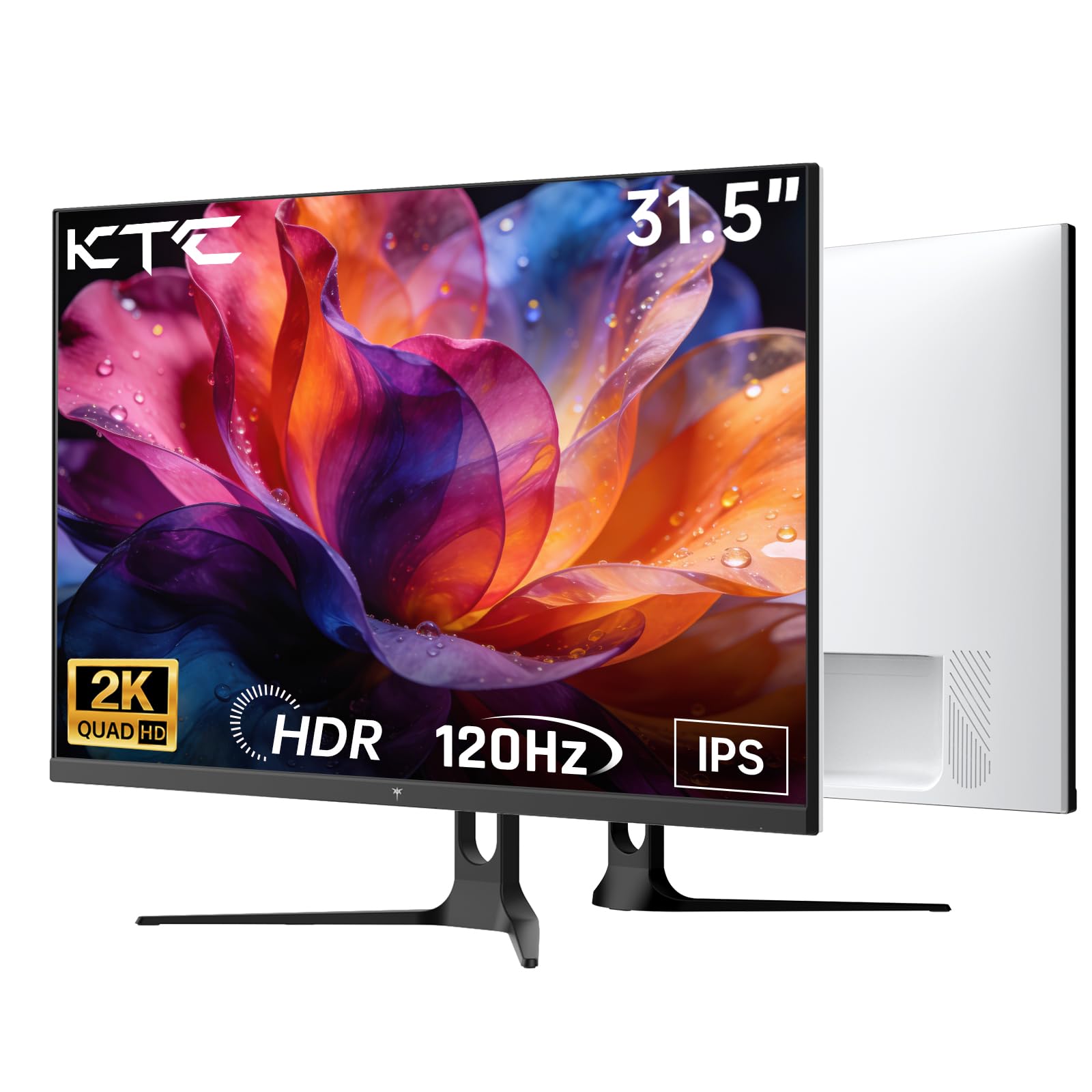
مخکی view of the KTC H32D6 31.5-inch monitor on its stand.
ارتباط
Connect your monitor to a power source and your computer using the appropriate cables:
- Connect the power adapter to the monitor's DC input port, then plug the power cord into an electrical outlet.
- For video input, connect one end of the HDMI or DisplayPort cable to your computer's graphics card and the other end to the corresponding port on the monitor.
- که وغواړئ، هیډفونونه یا بهرني سپیکرې د ایرفون جیک سره وصل کړئ.

Close-up of the monitor's rear panel, highlighting the HDMI 2.0 ports (x2), DisplayPort 1.4 (x1), and earphone jack.
دا ویډیو یو اوور وړاندې کويview of the KTC 32 Inch 2K 120Hz Computer Monitor, showcasing its features and benefits in a dynamic presentation.
عملیاتي لارښوونې
پاور آن/بند
د مانیټر د چالانولو یا بندولو لپاره د بریښنا تڼۍ (معمولا د مانیټر په شا یا ښکته ښي خوا کې موقعیت لري) فشار ورکړئ. د بریښنا شاخص څراغ به هغه وخت روښانه شي کله چې مانیټر چالان وي.
په پرده ښودنه (OSD) مینو نیویګیشن
The monitor features an intuitive OSD menu for adjusting various settings. Use the joystick or buttons (depending on your model) on the back of the monitor to navigate the menu:
- د OSD مینو د خلاصولو لپاره جویسټیک/تڼۍ فشار ورکړئ.
- Move the joystick up/down or left/right to select menu options.
- Press the joystick/button again to confirm a selection or enter a sub-menu.
- To exit the OSD menu, navigate to the 'Exit' option or hold the joystick/button for a few seconds.
د ښودنې تنظیمات تنظیم کول
د OSD مینو دننه، تاسو کولی شئ ترتیبات تنظیم کړئ لکه:
- قرارداد: Set to QHD (2560x1440) for optimal clarity.
- د تازه کولو نرخ: Adjust to 120Hz for ultra-smooth visuals.
- روښانتیا او برعکس: Fine-tune for your preferred viewتجربه
- د رنګ ترتیبات: Adjust color temperature, gamma, and other color parameters.

An image demonstrating the superior clarity of QHD (2560x1440) resolution compared to FHD (1920x1080) on the monitor screen.

A visual representation of smooth motion on the monitor, illustrating the benefit of a 120Hz refresh rate for seamless visuals.
د تطبیق وړ همغږي
This monitor supports Adaptive Sync technology (FreeSync, G-Sync Compatible) to eliminate screen tearing and stuttering during gaming or fast-paced video. Ensure Adaptive Sync is enabled in both your monitor's OSD settings and your graphics card control panel for optimal performance.

A side-by-side comparison showing the visual difference with Adaptive Sync ON (smooth image) and OFF (screen tearing) during fast-paced action.
د HDR10 ملاتړ
The monitor supports HDR10, providing a wider range of colors and contrast for a more immersive viewing experience. To utilize HDR10, ensure your content and graphics card support HDR, and enable it in your operating system display settings.

An image highlighting the enhanced color and contrast provided by HDR10 technology.
د سترګو پاملرنې ځانګړتیاوې
The KTC H32D6 monitor includes Low Blue Light and Flicker-Free technologies to reduce eye fatigue during prolonged use. These features are designed to provide a more comfortable viewتجربه

An image illustrating the eye care features, including low blue light and flicker-free technology, designed to reduce eye strain.
د خښتو سمون
The monitor stand allows for tilt adjustment from -5° to 20°. Gently adjust the monitor panel to your desired viewد ergonomic آرامۍ لپاره زاویه.

An image demonstrating the wide 178-degree viewing angle provided by the IPS panel, ensuring consistent image quality from various positions.
ساتنه
مناسب ساتنه ستاسو د مانیټر اوږد عمر او غوره فعالیت تضمینوي.
- د سکرین پاکول: په نرمۍ سره سکرین د نرم، وچ، لینټ نه پاک ټوکر سره پاک کړئ. د سختو نښو لپاره، په نرمۍ سرهampen the cloth with water or a screen-cleaning solution specifically designed for monitors. Never spray liquid directly onto the screen.
- د سي پاکولasing: د مانیټر د پاکولو لپاره نرم، وچ ټوکر وکاروئasinج. د کثافاتو پاکوونکو یا محلولونو څخه ډډه وکړئ.
- کله چې په استعمال کې نه وي بریښنا بند کړئ: Turn off the monitor when not in use to save energy and extend its lifespan.
- د خنډونو مخنیوی: Ensure that the ventilation openings on the monitor are not blocked to prevent overheating.
د ستونزو حل کول
که تاسو د خپل مانیټر سره ستونزې سره مخ شئ، لاندې عامې ستونزې او حل لارې وګورئ:
| ستونزه | احتمالي حل |
|---|---|
| په پرده هیڅ عکس نشته | Ensure the power cable is securely connected and the monitor is turned on. Check that the video cable (HDMI/DP) is firmly connected to both the monitor and your computer. Select the correct input source via the OSD menu. |
| انځور ځلیږي یا بې ثباته دی | Check the video cable connection. Ensure your graphics card drivers are up to date. Verify that the refresh rate is set correctly in your computer's display settings. Enable Adaptive Sync if supported by your graphics card. |
| رنګونه غلط ښکاري | Adjust color settings (brightness, contrast, color temperature) in the OSD menu. Ensure HDR is correctly configured in your operating system if you are using HDR content. |
| Monitor not recognized by computer | خپل کمپیوټر بیا پیل کړئ. د ویډیو بل پورټ یا کیبل هڅه وکړئ. خپل د ګرافیک کارت چلوونکي تازه کړئ. |
مشخصات
Key technical specifications for the KTC H32D6 monitor:
| فیچر | مشخصات |
|---|---|
| برانډ | KTC |
| د ماډل شمیره | H32D6 |
| د سکرین اندازه | ۷۸۷ انچه |
| قرارداد | QHD Wide 1440p (2560 x 1440 Pixels) |
| د تازه کولو نرخ | 100 Hz (up to 120Hz overclocked) |
| د ښودلو ډول | IPS |
| د غبرګون وخت | 7 ملی ثانیه |
| د اړخ نسبت | 16:9 |
| روښانتیا | ۳۰۰ کینډیلا (سي ډي/مربع مربع) |
| د تناسب تناسب | 1000:1 |
| Viewزاویه | 178 درجې |
| رنګ Gamut | 109٪ sRGB |
| Picture Quality Enhancement | HDR10 |
| ارتباط | 2 x HDMI 2.0, 1 x DisplayPort 1.4, Earphone Jack |
| د تطبیق وړ همغږي | FreeSync, G-Sync Compatible |
| اضافي ځانګړتیاوې | Eye Care, Flicker-Free, Tilt Adjustment, VESA 100x100mm Compatible |
| د بریښنا مصرف | 48 واټ |
| د توکي ابعاد (D x W x H) | ۱۶"د x ۲۶"وچ x ۴۷"ح |
تضمین او ملاتړ
د تضمین معلومات
This KTC H32D6 monitor comes with a د جوړونکي 3 کلن تضمین. دا تضمین د عادي استعمال لاندې موادو او کاریګرۍ نیمګړتیاوې پوښي. مهرباني وکړئ د تضمین ادعاوو لپاره د پیرود ثبوت وساتئ.
تضمین د ناوړه ګټې اخیستنې، حادثو، غیر مجاز تعدیلاتو، یا د بریښنا د زیاتوالي په څیر بهرنیو عواملو له امله رامینځته شوي زیانونه نه پوښي.
د پیرودونکي ملاتړ
For technical assistance, warranty claims, or any other inquiries, please contact KTC customer support through the official website or the contact information provided with your purchase. You may also refer to the Quick Start Guide for additional support resources.