
۱.۱. د خوندیتوب مهم معلومات
Please read all instructions carefully before using this monitor. Keep this manual for future reference.
- مانیټر د باران، رطوبت، یا ډیرې تودوخې سره مه مخ کوئ.
- د ډیر تودوخې مخنیوي لپاره د مانیټر شاوخوا مناسب هوا ورکول ډاډمن کړئ.
- یوازې هغه بریښنا اډاپټر وکاروئ چې د مانیټر سره چمتو شوی وي.
- د بریښنا په تار یا مانیټر باندې د درنو شیانو له ایښودلو څخه ډډه وکړئ.
- که چیرې مانیټر د اوږدې مودې لپاره ونه کارول شي، نو د بریښنا پلګ له ساکټ څخه جلا کړئ.
- د مانیټر د خدمت کولو هڅه مه کوئ. ټولې خدمتونه وړ پرسونل ته راجع کړئ.
2. د بسته محتويات
ډاډ ترلاسه کړئ چې ټول توکي ستاسو په کڅوړه کې شتون لري:
- 27-inch QHD 210Hz Monitor (1 unit)
- Monitor Stand (1 unit)
- Quick Start Guide (QSG) (1 unit)
- DP Cable (1 unit)
- د بریښنا اډاپټر (۱ واحد)
- د بریښنا تار (۱ واحد)
- Shielding Hood (2 units)

Video: KTC 27M1 27 Inch 210Hz Gaming Monitor. This video provides a visual overview of the monitor and its features.
۴. د تنظیم لارښوونې
۳.۱ د مانیټر سټینډ راټولول
- د مانیټر او سټینډ اجزا په احتیاط سره له بسته بندۍ څخه لرې کړئ.
- Attach the stand base to the stand arm using the provided screw.
- Align the stand arm with the mounting slot on the back of the monitor and push until it clicks into place.
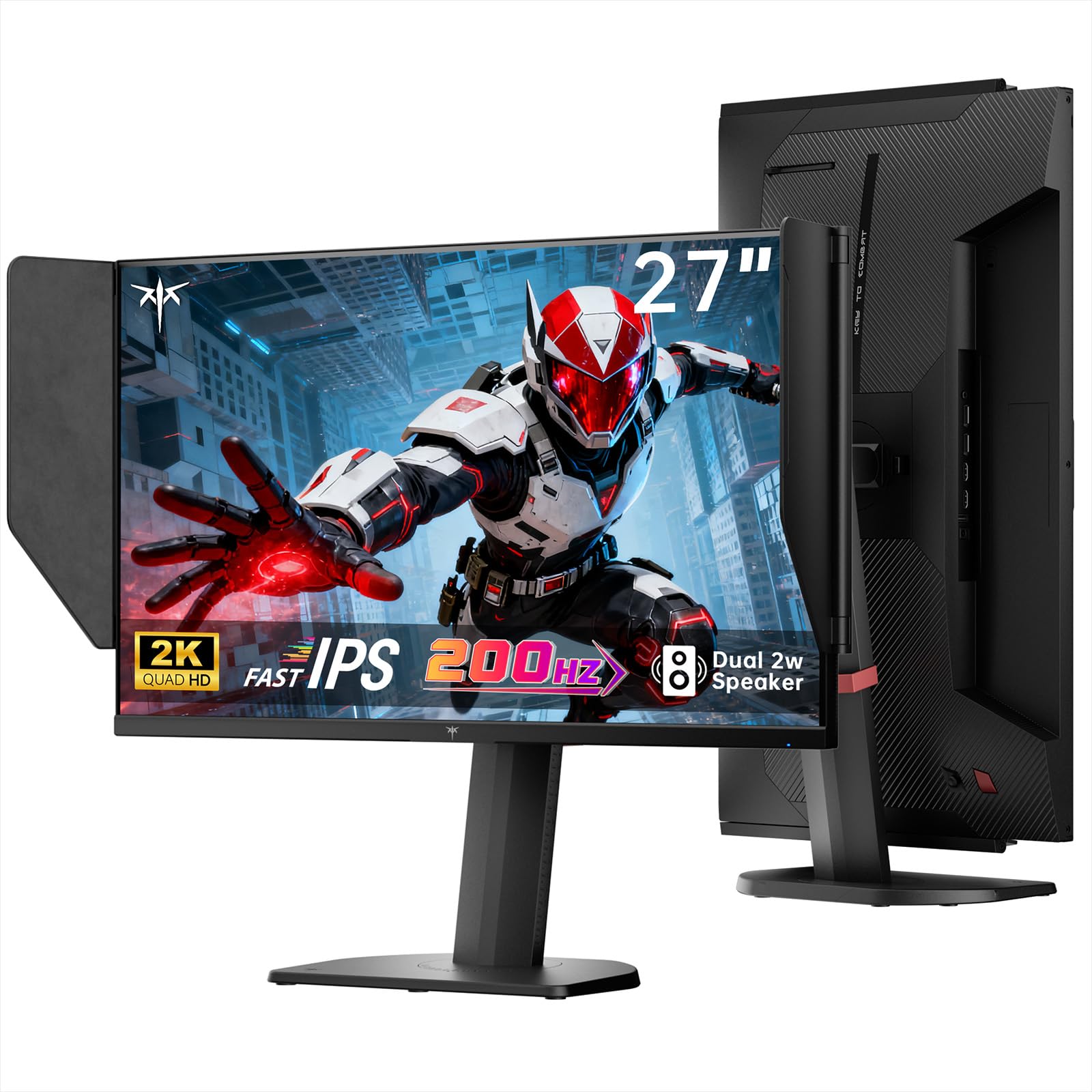
Image: The KTC 27M1 monitor with its stand fully assembled, ready for use.
3.2 Attaching the Shielding Hood
The shielding hood helps reduce glare and reflections for an optimal viewتجربه
- Locate the two shielding hood pieces.
- Align each piece with the designated slots on the sides of the monitor and gently slide them into place until secure.

Image: The KTC 27M1 monitor shown with the shielding hood attached, designed to block reflected light.
3.3 د کیبلونو نښلول
مانیټر خپل کمپیوټر یا نورو وسیلو سره د مناسب کیبلونو په کارولو سره وصل کړئ:
- DisplayPort (DP): For 200Hz (overclockable to 210Hz) refresh rates, connect the DP cable from your graphics card to the monitor's DP 1.4 port.
- HDMI: For 144Hz refresh rates, connect an HDMI 2.0 cable from your device to one of the monitor's HDMI ports.
- ځواک: Connect the power adapter to the DC input on the monitor, then plug the power cord into a wall outlet.
- آډیو: Connect headphones or external speakers to the 3.5mm earphone jack if desired.

انځور: نږدې انځور view of the KTC 27M1 monitor's rear ports, including HDMI, DisplayPort, USB, and earphone jack.
4. عملیاتي لارښوونې
۸ پاور آن/بند
Press the 5-way navigation joystick located on the back of the monitor to power it on or off.
۳.۱ د OSD مینو نیویګیشن
The 5-way navigation joystick is used to access and navigate the On-Screen Display (OSD) menu:
- د OSD مینو خلاصولو لپاره جویسټیک فشار ورکړئ.
- Move the joystick Up/Down/Left/Right to navigate through menu options.
- د انتخاب غوره کولو یا ترتیب تاییدولو لپاره جویسټیک بیا فشار ورکړئ.
- Move the joystick Left to go back to the previous menu or exit the OSD.
۵.۲ د ښودنې ترتیبات تنظیمول
د OSD مینو دننه، تاسو کولی شئ د ښودلو مختلف ترتیبات تنظیم کړئ:
- روښانتیا/ تضاد: د رڼا او برعکس عمومي کچه تنظیم کړئ.
- د رنګ ترتیبات: Modify color temperature (Warm, Cool, User), gamma, hue, and saturation. The monitor offers 130% sRGB color gamut and ΔE<2 for accurate color reproduction.
- د لوبو تنظیم: Enable/disable Adaptive Sync (FreeSync/G-Sync Compatible), adjust Overdrive (Ultra Fast recommended for gaming), and activate Game Assist features.
- پرمختللي ترتیبات: Toggle HDR (Auto/Off) and OverClock (to achieve 210Hz refresh rate).
- داخلول: Manually select the input source (DP, HDMI1, HDMI2).
- د سیسټم سیټ: Change OSD language, LED indicator, audio volume, and other system preferences.
۳.۳ ارګونومیک سمونونه
The monitor stand supports multiple ergonomic adjustments for comfortable viewing:
- د لوړوالی سمون: Adjust the monitor height by 150±5mm.
- ټیلټ: سکرین له -۵ درجو څخه تر ۲۰ درجو پورې وخورئ.
- تیر: Swivel the monitor ±60°.
- محور: Pivot the screen from -5° to 90° for vertical orientation.

Image: Visual representation of the KTC 27M1 monitor's tilt, swivel, elevate, and pivot adjustments.
5. ځانګړتیاوې
- ښکاره کول: 27-inch QHD (2560x1440) Fast IPS panel.
- د تازه کولو نرخ: 200Hz, overclockable to 210Hz.
- د ځواب وخت: 1ms (MPRT) for sharp visuals.
- د رنګ دقت: 130% sRGB color gamut, 99% DCI-P3 coverage, ΔE<2, 450 cd/m² brightness, 1.07 Billion Colors, 1000:1 Contrast Ratio.
- د تطبیق وړ همغږي: FreeSync and G-Sync Compatible to eliminate screen tearing.
- د سترګو پاملرنه: Flicker-free and low blue light modes for extended comfortable viewing.
- آډیو: Built-in dual 2W speakers.
- ارتباط: 2x HDMI 2.0 ports, 1x DisplayPort 1.4 port, 1x USB 2.0 port, 1x Earphone jack.
- پورته کول: 100x100mm VESA mount compatible.
- ډیزاین: Includes a detachable shielding hood to block reflected light.

Image: The KTC 27M1 monitor displaying vibrant colors, highlighting its color accuracy and brightness features.
6. مشخصات
| فیچر | مشخصات |
|---|---|
| برانډ | KTC |
| د ماډل شمیره | H27T8 (Marketed as 27M1) |
| د سکرین اندازه | ۷۸۷ انچه |
| اصلي حل | ۲۵۶۰x۱۴۴۰ (QHD) |
| ټیکنالوژي ښکاره کول | نږدې IPS |
| د تازه کولو نرخ | 200 Hz (Overclockable to 210 Hz) |
| د غبرګون وخت | 1 Millisecond (MPRT) |
| روښانتیا | ۳۰۰ کینډیلا (سي ډي/مربع مربع) |
| د تناسب تناسب | 1000:1 |
| رنګ Gamut | 130% sRGB، 99% DCI-P3 |
| Viewزاویه | 178 درجې |
| د HDR ملاتړ | هو |
| د تطبیق وړ همغږي | FreeSync, G-Sync Compatible |
| جوړ شوي سپیکرونه | 2x 2W Speakers |
| ارتباط | 2x HDMI 2.0, 1x DisplayPort 1.4, 1x USB 2.0, 1x Earphone |
| VESA ماونټ | 100x100mm |
| ارګونومیک | Height, Tilt, Swivel, Pivot Adjustment |
| د بریښنا مصرف | 48 واټ |
7. ساتنه او پالنه
- د سکرین پاکول: په نرمۍ سره سکرین د نرم، لینټ نه پاک ټوکر سره پاک کړئ. د سختو نښو لپاره، dampen the cloth with a mild, non-abrasive screen cleaner.
- د سي پاکولasing: د مانیټر پاکولو لپاره نرم، وچ ټوکر وکاروئ casinج. د قوي صابونونو یا د کثافاتو پاکوونکو کارولو څخه ډډه وکړئ.
- وینټیلیشن: Ensure the ventilation openings on the monitor are clear and unobstructed to prevent overheating.
- ذخیره کول: که چیرې مانیټر د اوږدې مودې لپاره ذخیره کوئ، نو له بریښنا څخه یې جلا کړئ او په یخ او وچ ځای کې یې وساتئ.
8. ستونزه حل کول
۱ برېښنا نشته
- وګورئ چې آیا د بریښنا تار په خوندي ډول د مانیټر او بریښنا سایټ سره وصل دی.
- د بل وسیلې په لګولو سره تایید کړئ چې د بریښنا آوټ لیټ په سمه توګه کار کوي.
- ډاډ ترلاسه کړئ چې د بریښنا اډاپټر په سمه توګه وصل دی.
8.2 No Signal/Blank Screen
- Confirm that the video cable (DP or HDMI) is securely connected to both the monitor and your computer/device.
- Press the OSD joystick to open the menu and manually select the correct input source.
- Ensure your computer/device is powered on and not in sleep mode.
- Try using a different video cable or port to rule out cable/port issues.
8.3 Flickering/Distorted Image
- د هر ډول زیان یا خلاص اړیکو لپاره د ویډیو کیبل وګورئ.
- Adjust the refresh rate in your computer's display settings to match the monitor's native refresh rate (200Hz or 210Hz if overclocked).
- Enable Adaptive Sync (FreeSync/G-Sync Compatible) in the monitor's OSD menu and your graphics card settings.
- ډاډ ترلاسه کړئ چې ستاسو د ګرافیک کارت چلوونکي تازه دي.
8.4 No Sound from Built-in Speakers/Earphone Jack
- Check the volume settings in the monitor's OSD menu and your computer's operating system.
- ډاډ ترلاسه کړئ چې ستاسو د کمپیوټر د غږ ترتیباتو کې سم آډیو آوټ پټ وسیله غوره شوې ده.
- Verify that the audio cable (if using external speakers) or headphones are properly connected.
9. تضمین او ملاتړ
KTC is committed to providing quality service and support for your monitor.
- تضمین: This product comes with a 3-year quality guarantee.
- تخنیکي ملاتړ: Lifetime technical support is available for all KTC products.
- موږ سره اړیکه ونیسئ: If you have any questions or encounter issues, please contact KTC customer support. Solutions will be provided within 24 hours.