
پیژندنه
This user guide provides essential information for the HP OfficeJet Pro 8125e printer. It covers initial setup, connecting to networks, performing print, scan, and copy functions, routine maintenance, and troubleshooting common issues. Follow these instructions to ensure optimal performance and longevity of your device.
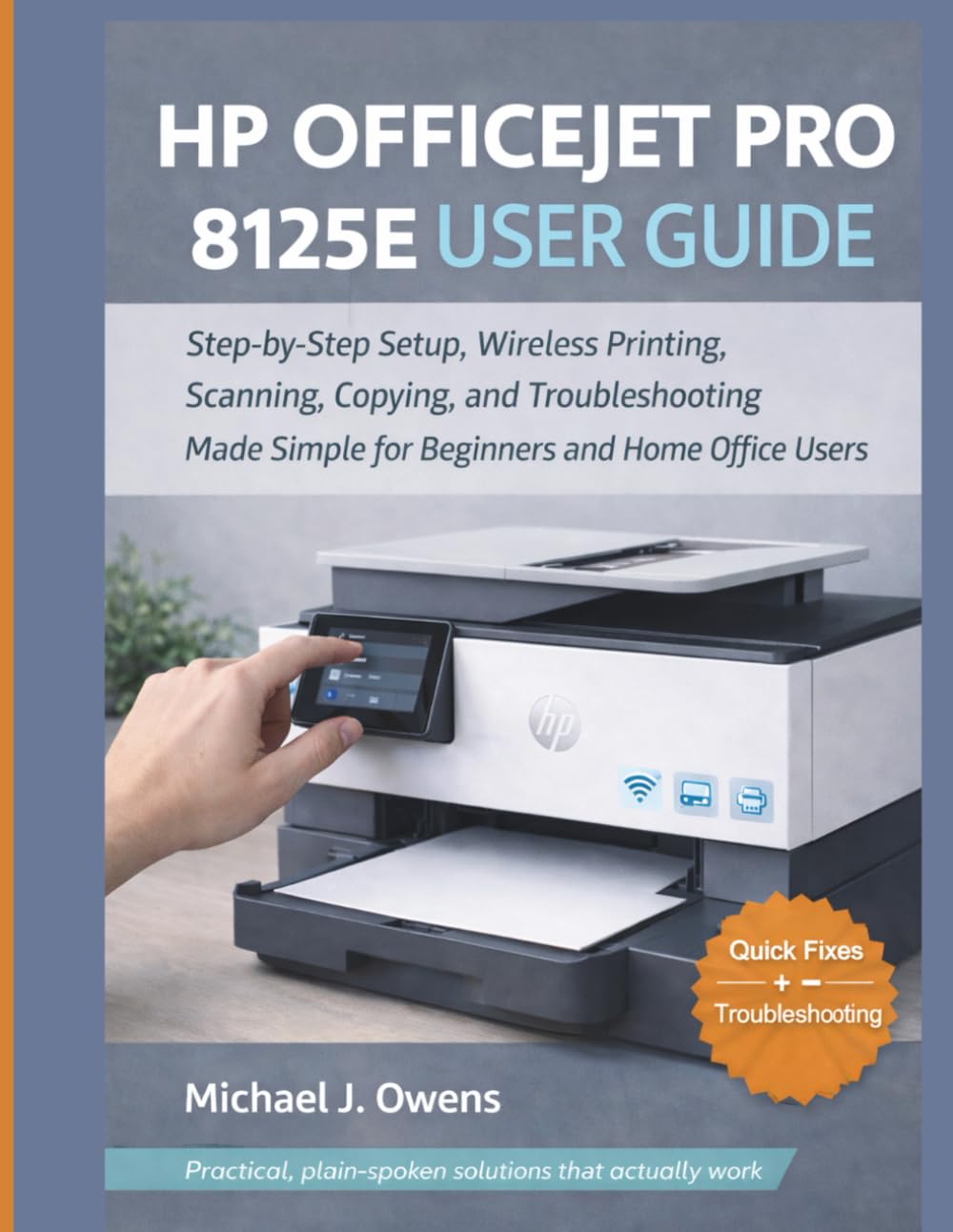
Image: Front cover of the HP OfficeJet Pro 8125e User Guide. This image represents the manual itself, designed to assist users with their printer.
1. ترتیب کول
۲.۱ د بکس خلاصول او لومړنی بریښنا فعالول
- پرنټر په احتیاط سره له بسته بندۍ څخه لرې کړئ.
- د پرنټر له بهرنۍ او داخلي برخې څخه ټول محافظتي ټیپونه او د بسته بندۍ مواد لرې کړئ.
- د برېښنا تار د پرنټر سره وصل کړئ او بیا د دیوال آوټ لیټ سره.
- د پرنټر د فعالولو لپاره د بریښنا تڼۍ فشار ورکړئ.
- Follow the on-screen prompts on the printer's control panel to select your language and region.
۵.۲ د رنګ کارتوسونو نصب کول
- د رنګ کارتریج لاسرسی دروازه پرانیزئ.
- د چاپ ګاډۍ مرکز ته د حرکت لپاره انتظار وکړئ.
- نوي رنګ کارتوسونه خلاص کړئ.
- هر کارتریج په اړونده سلاټ کې دننه کړئ، ډاډ ترلاسه کړئ چې دا په خپل ځای کې کلیک کوي.
- د رنګ کارتریج د لاسرسي دروازه وتړئ.
1.3 د کاغذ پورته کول
- د ننوتلو ټری وباسئ.
- د کاغذ لارښوونې د کاغذ د سم اندازې سره سم تنظیم کړئ.
- Load a stack of plain white paper into the tray, print side down.
- د ان پټ ټرې بیرته پرنټر ته واچوئ.
- Confirm paper type and size on the printer's control panel if prompted.
1.4 د وای فای سره نښلول
- د پرنټر په کنټرول پینل کې، د بې سیم سیټ اپ وزرډ ته لاړ شئ.
- د شته شبکو له لیست څخه خپل وای فای شبکه غوره کړئ.
- Enter the Wi-Fi password (WPA key) when prompted.
- Confirm the connection. The wireless light on the printer should turn solid blue.
1.5 د ډرایور نصب کول
For Windows and Mac computers, download the latest drivers and HP Smart software from the official HP support webسایټ. د نصبولو پرمهال په سکرین کې لارښوونې تعقیب کړئ.
۳. د پرنټر چلول
۵.۲ د اسنادو چاپول
- د کمپیوټر څخه: Open the document, select "Print," choose your HP OfficeJet Pro 8125e, and adjust settings as needed before printing.
- د موبایل وسیلو څخه (HP سمارټ ایپ): Install the HP Smart app, add your printer, and use the app to print photos or documents directly from your smartphone or tablet.
- Email Print: If enabled, send documents to your printer's unique email address.
۵.۴ د اسنادو سکین کول
- Place the document face down on the scanner glass or face up in the Automatic Document Feeder (ADF).
- On the printer's control panel or via the HP Smart app/software on your computer, select "Scan."
- Choose scan settings (e.g., color, resolution, destination).
- سکین پیل کړئ.
۵.۳ د اسنادو کاپي کول
- اصلي سند د سکینر په شیشې یا په ADF کې ځای په ځای کړئ.
- On the printer's control panel, select "Copy."
- Adjust settings such as number of copies, color/black & white, and size.
- د "کاپي پیل کړئ" تڼۍ کېکاږئ.
3. ساتنه
۴.۲ د چاپ سرونو پاکول
If print quality degrades (streaks, faded colors), perform a print head cleaning from the printer's control panel or the HP Smart software. This process uses ink, so only perform it when necessary.
۶.۱ د رنګ کارتوسونو بدلول
When an ink cartridge is low or empty, the printer will notify you. Follow the steps in Section 1.2 to replace cartridges. Use genuine HP ink cartridges for best results.
3.3 عمومي پاکول
د پرنټر بهرنۍ برخه د نرم، d سره پاک کړئamp, lint-free cloth. Clean the scanner glass regularly with a glass cleaner applied to a cloth (not directly to the glass) to prevent smudges from affecting scan quality.
4. ستونزه حل کول
| ستونزه | د حل لاره |
|---|---|
| Printer Offline Message |
|
| د کاغذ جامونه |
|
| د چاپ کیفیت ضعیف |
|
| HP Smart App Issues |
|
5. مشخصات
Note: The following specifications are typical for the HP OfficeJet Pro 8125e printer. For precise details, refer to the official HP product page or documentation.
- دندې: Print, Copy, Scan, Fax (optional, depending on region/model)
- د چاپ ټیکنالوژي: د HP حرارتي انکجیت
- Print Speed (Black): تر ۲۵ پی پی ایم پورې (ISO)
- Print Speed (Color): تر ۲۵ پی پی ایم پورې (ISO)
- Print Resolution (Best): تر ۴۸۰۰ x ۱۲۰۰ پورې مطلوب dpi رنګ
- Scan Resolution (Optical): تر 1200 dpi پورې
- ارتباط: Wi-Fi 802.11a/b/g/n, Ethernet, USB 2.0
- د کاغذ سمبالول: 250-sheet input tray, 60-sheet output tray, 35-sheet ADF
- دوه اړخیز چاپ: اتومات (معیاري)
- ښکاره کول: رنګ ټچ اسکرین
6. تضمین او ملاتړ
For warranty information, please refer to the documentation included with your printer or visit the official HP support website. HP provides various support resources, including online FAQs, driver downloads, and contact options for technical assistance.
Image: Back cover of the HP OfficeJet Pro 8125e User Guide. This image provides additional information and ISBN details for the manual.