1. محصول ختم شوview
The Gioteck EX-05S High Definition Headset is designed to deliver superior stereo game sound and crystal-clear voice communication. It is compatible with multiple platforms including PS4, PS3, Xbox 360, PC, and Mac. This headset features 40mm high-quality stereo drivers, a noise-isolating microphone, and breathable micro-fibre ear cups for extended comfort.
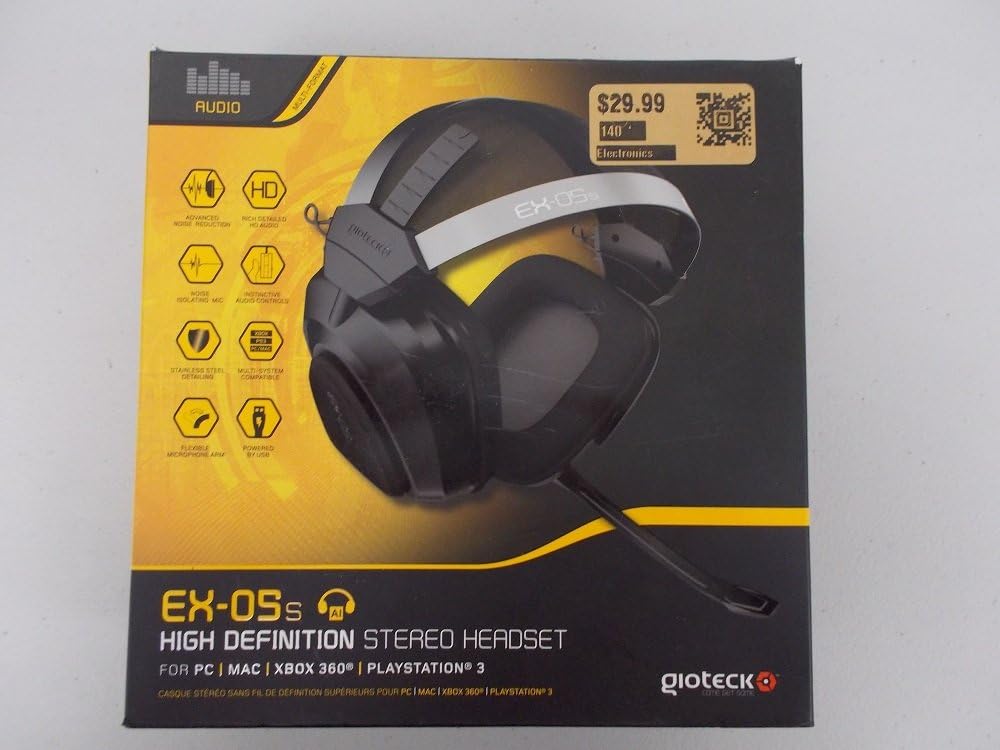
Figure 1.1: Gioteck EX-05S Headset packaging, highlighting key features and compatibility.

شکل 1.2: اړخ view of the Gioteck EX-05S Headset, showing the ear cup and microphone arm.
2. ځانګړتیاوې
- 40mm High Quality Stereo Drivers: Delivering rich, detailed audio for an immersive gaming experience.
- Noise Isolating Microphone: Designed to eliminate echo and external noise for clear communication.
- Breathable Micro-Fibre Ear Cups: Ensures comfort during long gaming sessions.
- پرمختللي شور کمول: Minimizes game sound interference from external speakers.
- Flexible and 180-Degree Rotating Microphone Arm: د مایکروفون غوره موقعیت ته اجازه ورکوي.
- Instinctive and Accessible Controls: Conveniently located controls for voice and game sound adjustments.
- Stainless Steel Detailing: Provides durability and a premium finish.
- د څو پلیټ فارم مطابقت: Works with PS4, PS3, Xbox 360, PC, and Mac.
3. د بسته محتويات
مهرباني وکړئ ډاډ ترلاسه کړئ چې لاندې ټول توکي ستاسو په کڅوړه کې شتون لري:
- Gioteck EX-05S Universal High Definition Stereo Headset
4. د تنظیم کولو لارښود
4.1 Connecting to Gaming Consoles (PS4, PS3, Xbox 360)
- Locate the 3.5mm audio jack on your gaming controller or console.
- Insert the 3.5mm connector from the EX-05S headset firmly into the audio jack.
- Ensure your console's audio settings are configured to output game audio and chat through the connected headset. Refer to your console's system settings for specific audio output configurations.
۴.۲ د کمپیوټر/میک سره نښلول
- For PCs with separate audio and microphone jacks, you may need a PC splitter cable (not included) to connect the single 3.5mm headset jack to your computer's audio output and microphone input ports.
- For devices with a combined 3.5mm audio/microphone jack, simply plug the headset's 3.5mm connector directly into the port.
- Adjust your computer's sound settings to select the EX-05S headset as the default playback and recording device.
5. عملیاتي لارښوونې
5.1 د حجم کنټرول
The EX-05S headset features an inline control box on the cable. Use the volume dial to adjust the overall audio level of your game and chat sound.
۵.۳ مایکروفون خاموش
A switch or button on the inline control box allows you to quickly mute or unmute your microphone. Ensure the microphone is unmuted when you wish to communicate.
۴.۳ د مایکروفون موقعیت
The flexible microphone arm can be rotated 180 degrees. Position the microphone approximately 1-2 inches from your mouth for optimal voice clarity and to minimize background noise.
6. ساتنه او پالنه
- پاکول: Use a soft, dry cloth to clean the headset. For ear cups, a slightly damp ټوکر کارول کیدی شي، مګر ډاډ ترلاسه کړئ چې رطوبت د سپیکر ګریلونو ته ننوځي. سخت کیمیاوي توکي یا د کثافاتو پاکونکي مه کاروئ.
- ذخیره کول: هیډسیټ په یخ او وچ ځای کې د مستقیم لمر وړانګو او سختې تودوخې څخه لرې وساتئ. د کیبل له ګډوډولو څخه ډډه وکړئ.
- سمبالول: Always grasp the plug when disconnecting the cable, rather than pulling on the cable itself, to prevent damage to the wiring.
- د غوږونو پیالې: The breathable micro-fibre ear cups can be gently wiped clean. Avoid excessive pressure or stretching.
7. ستونزه حل کول
۷.۱ د هیډسیټ څخه غږ نشته
- ډاډ ترلاسه کړئ چې د 3.5mm جیک په بشپړ ډول د آډیو بندر کې داخل شوی.
- Check the inline volume control on the headset cable and ensure it is turned up.
- Verify your device's (console, PC, Mac) audio output settings are configured to send sound to the headset.
- هیډسیټ په بل وسیله ازموینه وکړئ ترڅو د وسیلې پورې اړوند کومه ستونزه له منځه یوسي.
۷.۲ مایکروفون کار نه کوي
- Check the microphone mute switch on the inline control box and ensure it is unmuted.
- Verify your device's (console, PC, Mac) microphone input settings are configured to receive input from the headset.
- Ensure the microphone arm is positioned correctly and not obstructed.
- Test the microphone on another device or application to confirm functionality.
7.3 Static or Distorted Audio
- ډاډ ترلاسه کړئ چې اړیکه خوندي او د کثافاتو څخه پاکه ده.
- Try adjusting the volume levels on both the headset and the connected device.
- Move away from potential sources of electromagnetic interference (e.g., Wi-Fi routers, cordless phones).
- د بل آډیو سرچینې یا وسیلې سره ازموینه وکړئ.
8. مشخصات
| فیچر | تفصیل |
|---|---|
| د ماډل نوم | E5SUNI-11-MU |
| د ارتباط ټیکنالوژي | تارونه |
| شاملې برخې | هیډفونونه |
| د عمر حد (تفصیل) | بالغ |
| مواد | سټینلیس سټیل |
| د محصول لپاره ځانګړي کارول | لوبې کول |
| مطابقت لرونکې وسیلې | د لوبو کنسولونه، کمپیوټرونه |
| د کنټرول ډول | د حجم کنټرول |
| د کیبل ځانګړتیا | د بیرته اخیستلو وړ |
| د توکي وزن | 669 ګرامه (1.47 پونډه) |
| د کنټرول طریقه | غږ |
| د آډیو ډرایور ډول | متحرک چلوونکی |
| د غوږ شکل | د غوږ څخه ډیر |
| هیډفون جیک | 3.5 ملی جیک |
| د محصول ابعاد | 8.46 x 7.87 x 3.94 انچه |
9. تضمین او ملاتړ
Gioteck products are manufactured to high standards and undergo rigorous testing. For information regarding warranty coverage, technical support, or service, please refer to the official Gioteck webسایټ ته مراجعه وکړئ یا مستقیم د دوی د پیرودونکي ملاتړ سره اړیکه ونیسئ. د هر ډول تضمین ادعا لپاره د پیرود ثبوت وساتئ.
د ملاتړ په اړه د تازه معلوماتو لپاره، مهرباني وکړئ لیدنه وکړئ: www.gioteck.com/support


