پیژندنه
This manual provides instructions for setting up, operating, and maintaining your Mercury MW3030R Dual Band Wireless Router. Please read this manual carefully before use to ensure proper installation and optimal performance.
د خوندیتوب معلومات
- وسیله د اوبو یا ډیر رطوبت سره مه مخ کوئ.
- هڅه مه کوئ چې وسیله پخپله جلا کړئ یا ترمیم کړئ.
- یوازې د وسیلې سره چمتو شوي بریښنا اډاپټر وکاروئ.
- د روټر شاوخوا مناسب هوا ورکول ډاډمن کړئ ترڅو د ډیر تودوخې مخه ونیول شي.
د بسته محتويات
ډاډ ترلاسه کړئ چې ستاسو کڅوړه لاندې توکي لري:
- Mercury MW3030R Wireless Router
- د بریښنا اډاپټر
- ایترنیټ کیبل
- Quick Installation Guide (this manual serves as a detailed guide)
محصول پای ته ورسیدview
د روټر د اجزاو او شاخصونو سره ځان بلد کړئ.
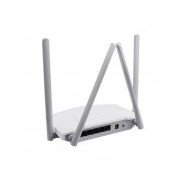
شکل 1: شاته view of the Mercury MW3030R router. This image displays the four external antennas, the WAN port (typically blue), multiple LAN ports (typically yellow), and the power input jack. The reset button and WPS button are also usually located on the rear panel.
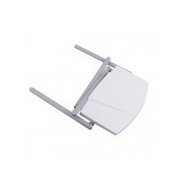
شکل 2: پورته- ښکته view of the Mercury MW3030R router with its antennas folded. This perspective highlights the router's sleek, white casing and its overall compact form factor, suitable for various placements.
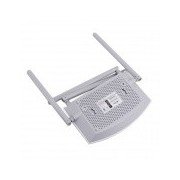
شکل 3: لاندې view of the Mercury MW3030R router. This image shows the ventilation holes designed for heat dissipation and the product label, which typically contains important information such as the default Wi-Fi name (SSID), password, and web management address.
د LED شاخصونه:
- د بریښنا LED: د روټر د بریښنا حالت په ګوته کوي.
- د انټرنیټ LED: د انټرنیټ اتصال حالت په ګوته کوي.
- WLAN LED: د بېسیم فعالیت په ګوته کوي.
- LAN LEDs: Indicate connection status for each LAN port.
چمتو کول
1. د هارډویر اتصال
- پاور آن: Connect the power adapter to the router's power port and plug it into a wall outlet. Wait for the Power LED to become stable.
- له انټرنیټ سره وصل شئ (WAN): Connect one end of an Ethernet cable to your modem's LAN port and the other end to the router's WAN port (usually distinctively colored, e.g., blue).
- د وسیلو سره وصل کړئ (LAN): For wired connections, connect your computer or other devices to the router's LAN ports (usually yellow) using Ethernet cables.
- انتن: Adjust the four antennas for optimal signal coverage.
۳. ابتدايي ترتیب (Web انٹرفیس)
- روټر سره وصل کړئ: Connect your computer to the router either via an Ethernet cable to a LAN port or wirelessly using the default Wi-Fi SSID and password printed on the router's label (refer to Figure 3).
- لاسرسی Web براوزر: خلاص a web browser (e.g., Chrome, Firefox) and type the default access address (e.g., http://192.168.1.1 or http://tplinkwifi.net) د ادرس بار ته ننوځئ او انټر فشار ورکړئ.
- ننوتل: د کارونکي نوم او پټنوم اصلي بڼه دننه کړئ (معمولا اډمین د دواړو لپاره، یا لکه څنګه چې د روټر په لیبل کې مشخص شوي).
- چټک تنظیم چلول: Follow the on-screen instructions of the Quick Setup Wizard to configure your internet connection type (e.g., PPPoE, Dynamic IP, Static IP) and wireless settings (SSID, password).
- د ډیفالټ پټنوم بدلول: د امنیت لپاره، دا ډیره سپارښتنه کیږي چې د روټر لپاره د ډیفالټ ننوتلو پټنوم بدل کړئ web مدیریت انٹرفیس.
عملیاتي لارښوونې
د وائی فای سره نښلول
- On your wireless device (smartphone, laptop), search for available Wi-Fi networks.
- Select your router's Wi-Fi network name (SSID) that you configured during setup.
- Enter the Wi-Fi password you set.
- ستاسو وسیله باید اوس له انټرنیټ سره وصل وي.
دوه ګونی بند عملیات
The MW3030R supports both 2.4GHz and 5.0GHz wireless bands. The 2.4GHz band offers wider coverage, while the 5.0GHz band provides faster speeds with less interference over shorter distances. You can connect your devices to either band based on your needs.
د میلمنو شبکه
روټر ته لاسرسی ومومئ web interface to enable and configure a separate guest network. This allows guests to access the internet without accessing your main network resources.
ساتنه
- د فرم ویئر تازه معلومات: په منظم ډول د تولید کونکي وګورئ webد فرم ویئر تازه معلوماتو لپاره سایټ. د فرم ویئر تازه کول کولی شي فعالیت ښه کړي، نوي ځانګړتیاوې اضافه کړي، او امنیتي زیانونه حل کړي.
- د روټر بیا پیل کول: If you experience network issues, try restarting the router by unplugging the power adapter, waiting 10 seconds, and then plugging it back in.
- پاکول: روټر پاک او له دوړو څخه پاک وساتئ. نرم او وچ ټوکر وکاروئ. د مایع پاکوونکو څخه کار مه اخلئ.
- ځای په ځای کول: روټر په مرکزي ځای کې ځای په ځای کړئ، د خنډونو او وسایلو څخه لرې چې ممکن مداخله وکړي (د بیلګې په توګه، مایکروویو، بې تار تلیفونونه).
د ستونزو حل کول
انټرنیټ ته لاسرسی نشته
- Check if the Internet LED on the router is lit or blinking correctly.
- ډاډ ترلاسه کړئ چې ستاسو د موډیم څخه ایترنیټ کیبل په خوندي ډول د روټر د WAN پورټ سره وصل دی.
- خپل موډیم او روټر بیا پیل کړئ.
- د روټر په کمپیوټر کې د خپل انټرنیټ اتصال ترتیبات تایید کړئ web انٹرفیس
Slow Wireless Speed
- Ensure your device is connected to the 5.0GHz band if it supports it, for faster speeds.
- Move closer to the router or adjust antenna positions.
- د نورو بریښنایی وسیلو څخه د مداخلې لپاره چیک کړئ.
- Reduce the number of devices connected to the network or bandwidth-intensive activities.
روټر ته لاسرسی نشم کولی Web انٹرفیس
- ډاډ ترلاسه کړئ چې ستاسو وسیله د روټر سره وصل ده (تار یا بېسیم).
- Verify the IP address you are typing in the browser is correct (e.g., http://192.168.1.1).
- د خپل براوزر کیش پاکولو یا بل براوزر کارولو هڅه وکړئ.
- If you forgot the login password, you may need to perform a factory reset (Warning: This will erase all your settings).
مشخصات
| فیچر | تفصیل |
|---|---|
| ماډل | MW3030R |
| بې سیم معیارونه | IEEE 802.11ac/n/g/b/a |
| فریکونسی | ۲.۴GHz او ۵GHz (دوه ګونی بند) |
| بې سیم سرعت | Up to 600Mbps (combined) |
| انتن | 4 خارجي انتن |
| انٹرفیسونه | 1x WAN Port, Multiple LAN Ports (typically 3 or 4) |
| د بریښنا رسول | External Power Adapter (provided) |
تضمین او ملاتړ
The Mercury MW3030R router comes with a standard manufacturer's warranty. For detailed warranty information, technical support, or service inquiries, please refer to the official Mercury webسایټ ته مراجعه وکړئ یا د دوی د پیرودونکو ملاتړ سره اړیکه ونیسئ. د تضمین ادعاوو لپاره خپل د پیرود رسید وساتئ.


