1. پیژندنه
This manual provides essential information for setting up, operating, and maintaining your Acer R240HY bidx 23.8-inch Full HD IPS monitor. Please read this manual thoroughly before using your new monitor to ensure proper functionality and safety.
2. د خوندیتوب معلومات
- Always place the monitor on a stable, flat surface.
- د هوا د خلاصیدو مخنیوی مه کوئ.
- Use only the power adapter and cables provided by Acer.
- مانیټر د اوبو، رطوبت او سختې تودوخې څخه لرې وساتئ.
- د پاکولو دمخه د بریښنا سایټ څخه مانیټر خلاص کړئ.
- ټول خدمتونه وړ خدمت پرسونل ته راجع کړئ.
3. د بسته محتويات
ډاډ ترلاسه کړئ چې ټول توکي ستاسو په کڅوړه کې شتون لري:
- Acer R240HY bidx 23.8-inch Monitor
- د څارنې موقف (بنسټ او غاړه)
- د بریښنا اډاپټر او بریښنا تار
- HDMI کیبل
- DVI کیبل
- د VGA کیبل
- د کارونکي لارښود (دا لاسوند)
4. ترتیب کول
۳.۱ د مانیټر سټینډ راټولول
- د مانیټر او سټینډ اجزا په احتیاط سره له بسته بندۍ څخه لرې کړئ.
- د سټینډ غاړه د مانیټر پینل سره وصل کړئ د ټبونو په ترتیب کولو او فشار ورکولو سره تر هغه چې دا ځای ته راشي.
- د سټینډ اساس د سټینډ غاړې سره وصل کړئ. دا د کیپټیو سکرو سره خوندي کړئ چې د بیس په لاندې برخه کې موقعیت لري.
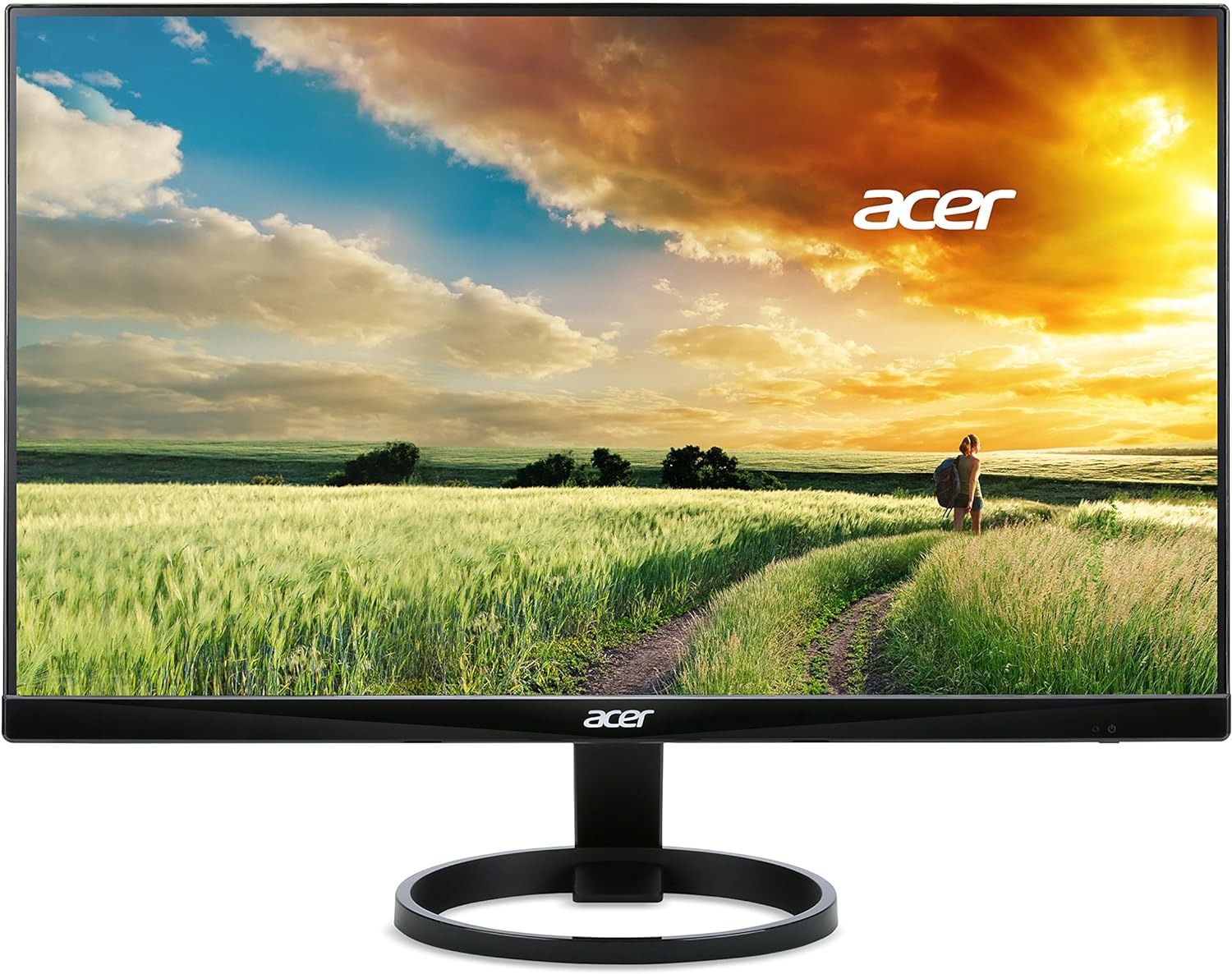
شکل 1: مخکی view of the Acer R240HY bidx monitor, showcasing its zero-frame design and circular stand base.

شکل 2: یو زاویه لرونکی view of the monitor highlights its slim profile and the elegant circular stand.
4.2 د مانیټور سره نښلول
- Ensure your computer and monitor are powered off.
- Connect one end of the appropriate video cable (HDMI, DVI, or VGA) to the corresponding port on your computer's graphics card.
- Connect the other end of the video cable to the matching input port on the back of your Acer R240HY bidx monitor.
- د بریښنا اډاپټر د مانیټر د بریښنا ان پټ سره وصل کړئ، بیا د بریښنا تار د دیوال آوټ لیټ سره وصل کړئ.

شکل 3: The back of the monitor is shown, detailing the available input ports: HDMI, DVI, and VGA, along with the power input.
4.3 ابتدايي پاور آن
- خپل کمپیوټر ته بریښنا ورکړئ.
- Press the power button on the monitor (located on the bottom right bezel) to turn it on.
- The monitor should automatically detect the active input signal. If not, use the OSD menu to manually select the input source.
ویډیو 1: Official product video demonstrating the features and connectivity options of the Acer R240HY bidx 23.8-inch monitor, including its IPS display, HDMI, DVI, and VGA ports.
5. د مانیټر چلول
۳.۱ د پردې پرده ښودنه (OSD) مینو
The OSD menu allows you to adjust various monitor settings. The control buttons are located on the bottom right bezel of the monitor.
- د بریښنا تڼۍ: مانیټر فعال یا بندوي.
- د مینو تڼۍ: Accesses the main OSD menu.
- د نیویګیشن تڼۍ: د مینو انتخابونو له لارې نیویګیټ کولو او ارزښتونو تنظیمولو لپاره کارول کیږي.
- د وتلو انتخاب تtonۍ: Quickly switches between available input sources (HDMI, DVI, VGA).
۵.۲ د ښودنې ترتیبات تنظیمول
Within the OSD menu, you can modify settings such as:
- روښانتیا/ تضاد: د رڼا او برعکس عمومي کچه تنظیم کړئ.
- د رنګ ترتیبات: Fine-tune color temperature, gamma, and saturation.
- د ننوتلو سرچینه: Manually select the video input (HDMI, DVI, VGA).
- د انځور ترتیبات: د انځور تېزوالی، د اړخ تناسب، او نور ځانګړتیاوې تنظیم کړئ.
- د OSD ترتیبات: Customize OSD language, timeout, and transparency.
6. کلیدي ځانګړتیاوې
- 23.8-inch Full HD IPS Display: Enjoy vibrant colors and consistent image quality from wide viewing angles with 1920 x 1080 resolution.
- د صفر چوکاټ ډیزاین: Maximizes screen visibility from edge to edge, ideal for multi-monitor setups.
- د چټک غبرګون وخت: A 4ms response time ensures smooth transitions and reduced ghosting for fast-paced content.
- پراخه Viewزاویه: 178° افقی او عمودی viewing angles provide clear visuals from almost any perspective.
- د ارتباط ډیری اختیارونه: Includes 1 x HDMI, 1 x DVI (with HDCP 1.4), and 1 x VGA inputs for broad compatibility.
- ټیټ نیلي رڼا: Reduces blue light emission to minimize eye strain during prolonged use.
7. ساتنه
7.1 د مانیټر پاکول
To clean your monitor:
- تل د پاکولو دمخه مانیټر د بریښنا له ساکټ څخه خلاص کړئ.
- د نرم، لینټ پاک ټوکر څخه لږ څه کار واخلئampد اوبو یا یو نرم، غیر خارښونکي سکرین کلینر سره مینځل شوی.
- کلینر په مستقیم ډول په سکرین مه سپری کوئ.
- د سختو کیمیاوي موادو، خړوبونکو پاکوونکو، یا محلولونو کارولو څخه ډډه وکړئ.
7.2 عمومي پاملرنه
- په مانیټر یا د هغې په کیبلونو کې د درنو شیانو له ایښودلو څخه ډډه وکړئ.
- Do not expose the monitor to direct sunlight or heat sources.
- د مانیټر شاوخوا مناسب هوا ورکول ډاډمن کړئ.
8. ستونزه حل کول
8.1 No Picture Visible
- Ensure the monitor is powered on and the power indicator light is active.
- Check that the video cable is securely connected to both the monitor and the computer.
- Verify that the correct input source is selected via the OSD menu.
- If the screen is too dark, adjust brightness and contrast settings in the OSD menu or reset them to default.
- که امکان ولري، مانیټر د بل کمپیوټر یا ویډیو سرچینې سره ازموینه وکړئ.
۵.۱ د انځور کیفیت مسلې
- په OSD مینو کې د روښانتیا، برعکس، او رنګ ترتیبات تنظیم کړئ.
- Ensure the display resolution on your computer matches the monitor's native resolution (1920 x 1080).
- د ویډیو کیبل یا پورټونو ته د کوم فزیکي زیان لپاره وګورئ.
8.3 Monitor Not Responding to Controls
- Unplug the monitor's power cord, wait for 30 seconds, then plug it back in and try again.
- Ensure no buttons are stuck or obstructed.
9. مشخصات
| فیچر | مشخصات |
|---|---|
| د پردې ښودلو ولاړ حالت | ۷۸۷ انچه |
| د سکرین ریزولوشن | ۱۹۲۰x۱۰۸۰ (بشپړ HD) |
| د اعظمي سکرین ریزولوشن | 1920 x 1080 پکسلز |
| برانډ | Acer |
| لړۍ | R240HY bidx |
| د توکي ماډل نمبر | R240HY bidx |
| د توکي وزن | ۲.۴۵ پونډه |
| د محصول ابعاد | 21.3 x 7.3 x 16 انچه |
| رنګ | تور |
| جوړونکی | Acer |
| د سکرین اندازه | ۷۸۷ انچه |
| قرارداد | FHD 1080p |
| د اړخ نسبت | 16:9 |
| د سکرین سطحې توضیحات | مټ |
10. تضمین او ملاتړ
Your Acer R240HY bidx monitor comes with a standard manufacturer's warranty. For specific warranty terms and conditions, please refer to the warranty card included in your product packaging or visit the official Acer support webسایټ
For technical support, troubleshooting assistance, or to inquire about service, please contact Acer Customer Service through their official channels. Have your monitor's model number and serial number ready when contacting support.


