پیژندنه
This manual provides essential information for setting up, operating, maintaining, and troubleshooting your Microsoft Surface Pro 3. The Surface Pro 3 is a versatile device designed to function as both a tablet and a laptop, powered by the Windows 10 operating system.
It features a 12-inch high-resolution screen, ample internal storage, dual HD cameras, and robust connectivity options, including a full-size USB 3.0 port. Its integrated kickstand allows for comfortable viewing in various positions, and the magnesium frame ensures a lightweight and durable design.
د خوندیتوب معلومات
- وسیله د سختې تودوخې، مستقیم لمر وړانګو، یا لوړې رطوبت سره مه مخ کوئ.
- د وسیلې د غورځولو یا سخت تاثیر څخه ډډه وکړئ.
- Use only Microsoft-approved power adapters and accessories.
- Keep the device away from liquids. In case of liquid contact, power off immediately and seek professional assistance.
- د وسیلې د جلا کولو یا ترمیم کولو هڅه مه کوئ. دا ممکن تضمین باطل کړي او زیان ورسوي.
- Ensure proper ventilation when using the device to prevent overheating.
چمتو کول
1. ان باکسینګ او ابتدايي معاینه
Carefully remove the Surface Pro 3 and all accessories from the packaging. Inspect the device for any visible damage. Retain the packaging for future transport or service needs.
2. پاور کول او ابتدايي ترتیب
- Connect the power supply to the Surface Pro 3 and a power outlet.
- د وسیلې په پورتنۍ څنډه کې موقعیت لرونکي بریښنا تڼۍ فشار ورکړئ.
- Follow the on-screen prompts to complete the Windows 10 initial setup, including language selection, network connection, and user account creation.
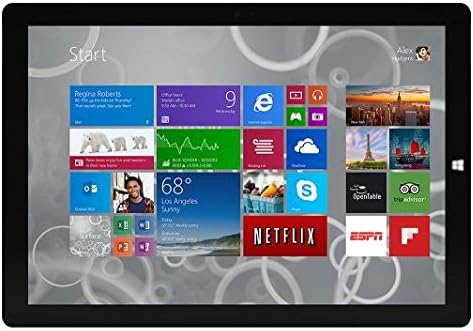
Figure 1: Windows 10 Start Screen during initial setup.
This image shows the Microsoft Surface Pro 3 screen displaying the Windows 10 Start menu, characterized by a grid of live tiles representing various applications and services. This is typically seen during the initial setup or when navigating the operating system.
3. Attaching Accessories (Sold Separately)
The Surface Pro 3 is compatible with various accessories, such as the Surface Type Cover keyboard and the Surface Pen, which are sold separately.
- Surface Type Cover: Align the magnetic connector of the Type Cover with the bottom edge of the Surface Pro 3 until it clicks into place.
- د سطحې قلم: The Surface Pen can be magnetically attached to the side of the Surface Pro 3 for storage. For initial pairing, follow the instructions provided with the pen.
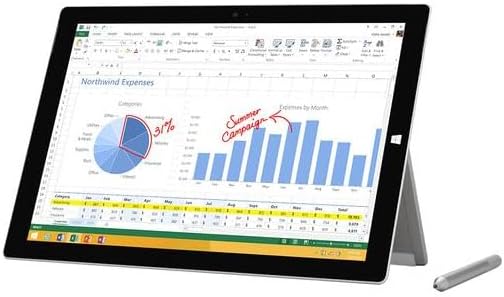
Figure 2: Surface Pro 3 with optional Surface Pen.
This image illustrates the Microsoft Surface Pro 3 in use, displaying an Excel spreadsheet on its screen. A Surface Pen is positioned next to the device, highlighting its compatibility for precise input and navigation.
4. Expanding Storage with a MicroSD Card
You can expand the internal storage of your Surface Pro 3 using a microSD card (sold separately).
- Locate the microSD card slot on the side of the Surface Pro 3, typically behind the kickstand.
- Insert the microSD card into the slot until it clicks into place.
- The device will automatically detect the card. You may need to format it if it's a new card or if prompted by the system.

Figure 3: MicroSD card slot.
This close-up image shows the microSD card slot on the side of the Microsoft Surface Pro 3, with a microSD card partially inserted, demonstrating how to expand the device's storage.
عملیاتي لارښوونې
1. Navigating Windows 10
- د پیل مینو: د غوښتنلیکونو، ترتیباتو او بریښنا اختیارونو ته د لاسرسي لپاره په ښکته ښي کونج کې د وینډوز آیکون باندې کلیک وکړئ.
- ټچ سکرین: Use gestures for navigation, zooming, and scrolling.
- Edge Browser: Utilize the pre-installed Edge browser for web browsing, which includes features for marking up web پاڼې

Figure 4: Using the Surface Pro 3 for productivity.
This image depicts the Microsoft Surface Pro 3 in an active use scenario, showcasing a note-taking application open on its screen. The display features handwritten notes, diagrams, and sketches, illustrating the device's capability for creative and productive tasks.
2. Using the Integrated Kickstand
The multi-position kickstand allows you to adjust the viewing angle for optimal comfort, whether you are typing, watching videos, or drawing.
- Gently pull the kickstand out from the back of the device.
- Adjust it to your desired angle. The kickstand offers a wide range of positions for versatility.
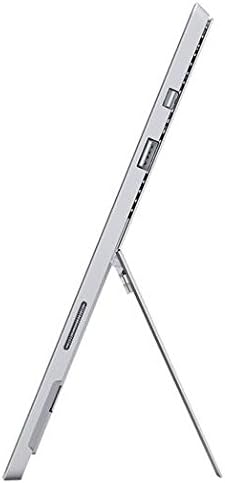
Figure 5: Adjustable kickstand.
دا انځور یو اړخ وړاندې کوي view of the Microsoft Surface Pro 3, clearly showing its integrated kickstand extended to support the device at an angle, demonstrating its versatile viewوړتیاوې.
۴. د کیمرې فعالیت
The Surface Pro 3 is equipped with 5.0MP front and rear cameras.
- Open the Camera application from the Start Menu.
- Switch between front and rear cameras as needed for photos or video calls.

Figure 6: Front camera.
This close-up image focuses on the front-facing camera and associated sensors located at the top edge of the Microsoft Surface Pro 3 screen.
4. ارتباط
The full-size USB 3.0 port allows for connecting various peripherals and transferring data.
- Insert USB devices (e.g., flash drives, external hard drives, printers) into the USB 3.0 port.
- The device also supports Wi-Fi (802.11a/b/g/n/ac) for wireless internet connectivity.
ساتنه
1. Cleaning Your Surface Pro 3
- د نرم، لینټ پاک ټوکر څخه کار واخلئampد اوبو یا سکرین کلینر سره مینځل شوی چې په ځانګړي ډول د بریښنایی توکو لپاره ډیزاین شوی.
- د سختو کیمیاوي موادو، خړوبونکو پاکوونکو، یا ایروسول سپرې کارولو څخه ډډه وکړئ.
- په نرمۍ سره سکرین او بهرنۍ سطحې پاک کړئ.
2. د سافټویر تازه معلومات
Regularly check for and install Windows updates to ensure your device has the latest security patches and performance improvements.
- ورتګ ترتیبات > تازه کول او امنیت > د وینډوز تازه کول.
- Click "Check for updates" and install any available updates.
3. د ذخیرې مدیریت
To maintain optimal performance, manage your device's storage space.
- په منظم ډول غیر ضروري حذف کړئ files او غوښتنلیکونه.
- Utilize cloud storage services or external drives for large files.
- Consider using the Disk Cleanup tool in Windows to remove temporary files.
د ستونزو حل کول
دا برخه هغه عامې ستونزې په ګوته کوي چې تاسو ممکن د خپل سرفیس پرو 3 سره مخ شئ.
وسیله فعاله نه ده
- ډاډ ترلاسه کړئ چې د بریښنا رسولو په خوندي ډول د وسیلې او کاري بریښنا سایټ دواړو سره وصل دی.
- د بریښنا یو بل ځای هڅه وکړئ.
- د جبري بندولو لپاره د بریښنا تڼۍ د ۱۰-۱۵ ثانیو لپاره فشار ورکړئ او ونیسئ، بیا یې د بیا پیلولو لپاره بیا فشار ورکړئ.
د وای فای اتصال مسلې
- وګورئ چې ایا وای فای د وینډوز ترتیباتو کې فعال شوی دی.
- خپل وای فای روټر بیا پیل کړئ.
- شبکه هېره کړئ او بیا وصل شئ، پټنوم بیا دننه کړئ.
- د وینډوز شبکې ستونزې حل کوونکی چل کړئ.
ورو فعالیت
- هغه غیر ضروري غوښتنلیکونه بند کړئ چې په شاليد کې روان دي.
- د وینډوز کوم پاتې تازه معلومات وګورئ او نصب یې کړئ.
- ډاډ ترلاسه کړئ چې تاسو کافي وړیا ذخیره ځای لرئ.
- د ویروس سکین چل کړئ.
For more detailed troubleshooting or issues not covered here, please refer to the official Microsoft Support webسایټ یا د پیرودونکي خدمت سره اړیکه ونیسئ.
مشخصات
| فیچر | تفصیل |
|---|---|
| ماډل | Microsoft Surface 1631 Pro 3 |
| عملیاتي سیسټم | وینډوز ۱۱ |
| د سکرین اندازه | ۷۸۷ انچه |
| د سکرین ریزولوشن | 2160 x 1440 |
| پروسیسر | د انټل کور i3 1.5 GHz |
| RAM | 4 جي بي |
| داخلي ذخیره | ۲۵۶ جي بي فلش زېرمه |
| د ګرافیک کاپروسیسر | د Intel HD ګرافیک |
| کیمرې | 5.0MP Front and Rear |
| بې سیم ډول | ۸۰۲.۱۱ب، ۸۰۲.۱۱الف، ۸۰۲.۱۱ګرام |
| بندرونه | Full-size USB 3.0 |
| د توکي وزن | ۲.۴۵ پونډه |
| د محصول ابعاد | 11.5 x 0.36 x 7.93 انچه |
| رنګ | سره زر |
تضمین او ملاتړ
Your Microsoft Surface Pro 3 comes with a standard manufacturer's warranty. For detailed warranty terms and conditions, please refer to the documentation included with your purchase or visit the official Microsoft support webسایټ
For technical assistance, troubleshooting guides, driver downloads, and service requests, please visit the د مایکروسافټ سرفیس ملاتړ پاڼه


