پیژندنه
د پیرودلو لپاره مننهasing the Insignia 10-inch Digital Photo Frame. This device allows you to display your favorite digital photos and videos in a high-quality format. This manual provides detailed instructions for setup, operation, maintenance, and troubleshooting to ensure you get the most out of your new digital photo frame.
د بسته محتويات
Before you begin, please check that all items are present in the package:
- Insignia 10-inch Digital Photo Frame
- د بریښنا اډاپټر
- ریموټ کنټرول
- د کارونکي لارښود (دا لاسوند)
چمتو کول
1. د نښلولو بریښنا
Connect the included power adapter to the DC IN 9V port on the back of the digital photo frame. Plug the other end of the adapter into a standard wall outlet. The frame will typically power on automatically or can be turned on using the power switch.
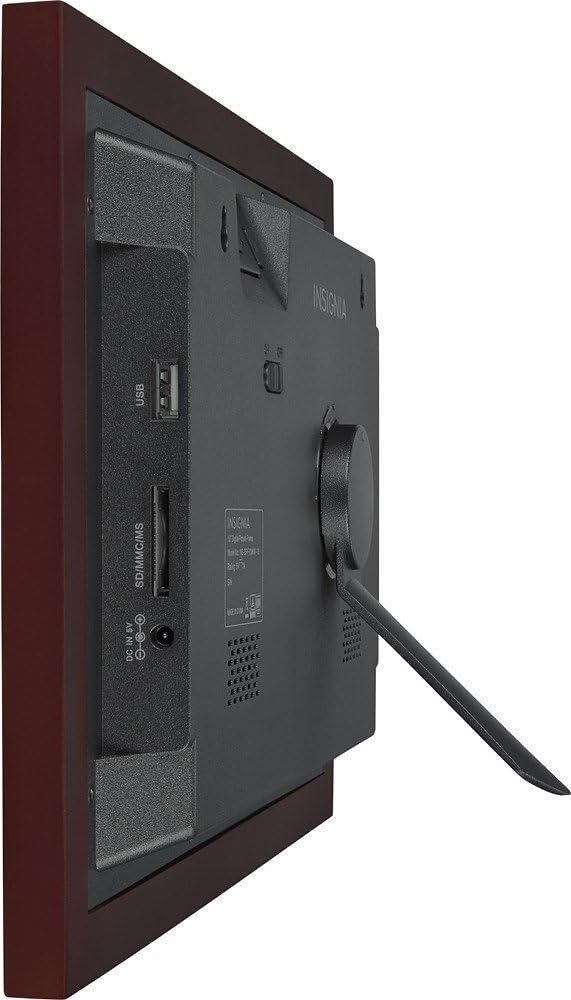
انځور: شاته view of the digital photo frame, highlighting the USB port, SD/MMC/MS card slot, and DC IN 9V power input.
۵.۲. د میموري کارتونو یا USB ډرایو داخلول
The frame supports SD, MMC, and MS memory cards, as well as USB flash drives. Insert your memory card into the appropriate slot or your USB drive into the USB port on the side/back of the frame. Ensure the card or drive is inserted correctly. The frame will automatically detect the storage device.
3. لومړني امستنې
Upon first power-on, you may be prompted to set the language, time, and date. Use the navigation buttons on the frame or the remote control to make your selections and confirm.
Operating the Digital Photo Frame
1. کنټرول اوورview
Your digital photo frame can be operated using the buttons on the back of the frame or the included remote control.
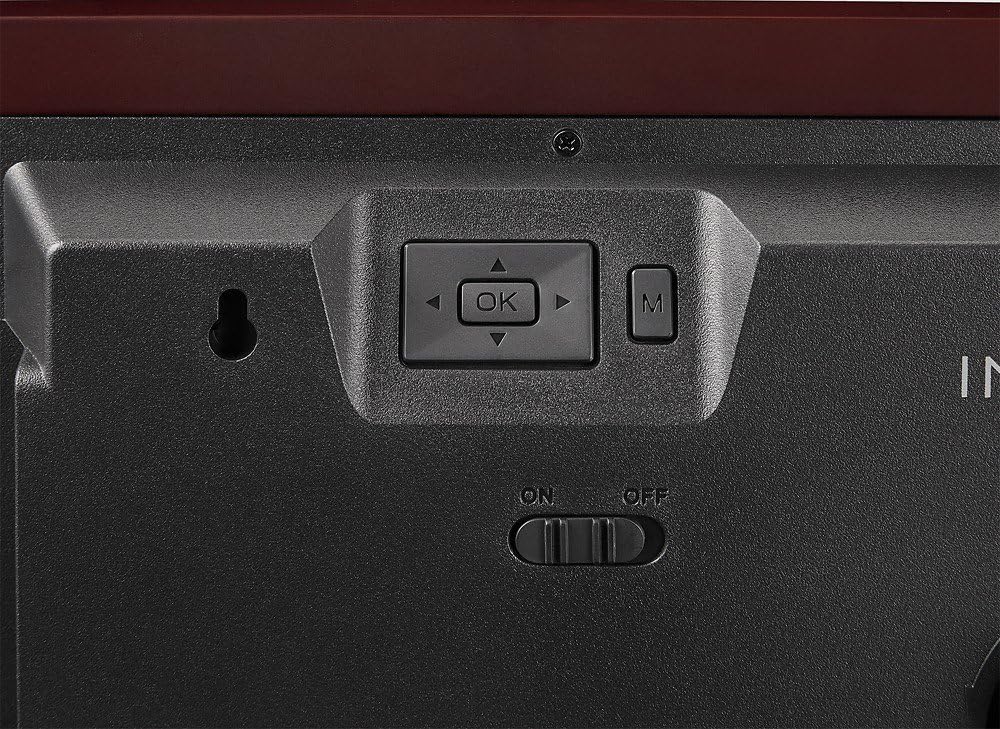
Image: Close-up of the control buttons located on the rear of the digital photo frame. These include directional arrows, an 'OK' button for selection, and an 'M' button for menu access, alongside the power switch.
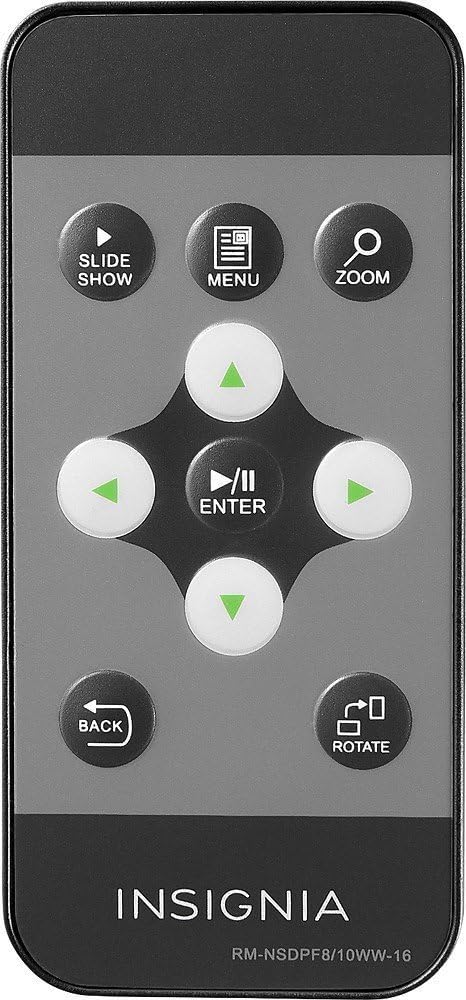
Image: The remote control for the digital photo frame, featuring dedicated buttons for slideshow, menu, zoom, directional navigation, enter, back, and image rotation functions.
۵.۳. د مینو نیویګیټ کول
فشار ورکړئ مینو په ریموټ یا تڼۍ کې M button on the frame to access the main menu. Use the directional arrows (▲ ▼ ◀ ▶) to navigate through options and press ننوتل or OK ستاسو انتخاب تاییدولو لپاره. مطبوعاتي بیرته to return to the previous screen or exit the menu.
3. Viewعکسونه او ویډیوګانې
Once a memory card or USB drive is inserted, the frame will typically start a slideshow automatically. You can manually browse files by selecting the "Photo" or "Video" option from the main menu. Use the navigation buttons to select a file او فشار ورکړئ ننوتل or OK ته view دا
4. Slideshow Settings
From the main menu, navigate to "Settings" or "Slideshow Settings" to customize your slideshow. Options may include:
- د ښودلو حالت: Adjust how photos fit the screen (e.g., original, fit to screen, crop).
- د وقایې وخت: د هر عکس د ښودلو موده تنظیم کړئ.
- د انتقال اغېز: Choose from various transition styles between photos.
- بیاځلي حالت: Loop the slideshow continuously.
5. Clock and Calendar
Your frame may include a clock and calendar function. Access these features through the main menu. You can set the time and date in the settings menu.
ساتنه
د چوکاټ پاکول
د سکرین پاکولو لپاره، په نرمۍ سره یې د نرم، لینټ نه پاک ټوکر سره پاک کړئ. د سختو نښو لپاره، یو څه لږampen the cloth with water or a non-abrasive screen cleaner. Avoid using harsh chemicals or abrasive materials, as these can damage the screen and frame finish. Ensure the frame is powered off and unplugged before cleaning.
ذخیره کول
When not in use for extended periods, store the digital photo frame in a cool, dry place, away from direct sunlight and extreme temperatures. It is recommended to keep the original packaging for storage.
د ستونزو حل کول
| ستونزه | احتمالي حل |
|---|---|
| چوکاټ نه چالانېږي. |
|
| No photos or videos display. |
|
| ریموټ کنټرول کار نه کوي. |
|
| Images appear distorted or stretched. |
|
مشخصات
| فیچر | تفصیل |
|---|---|
| د ماډل شمیره | NS-DPF10WW-16 |
| د سکرین اندازه | ۷۸۷ انچه |
| قرارداد | WXGA |
| د محصول ابعاد | 12.6 x 1.5 x 9 انچه |
| د توکي وزن | ۲.۴۵ پونډه |
| د ارتباط ټیکنالوژي | USB |
| ملاتړ شوي میموري کارتونه | SD, MMC, MS (Memory Stick) |
| جوړونکی | نښه |
تضمین او ملاتړ
د تضمین معلوماتو لپاره، مهرباني وکړئ د خپل محصول سره شامل شوي تضمین کارت ته مراجعه وکړئ یا رسمي نښان ته مراجعه وکړئ. website. If you encounter issues not covered in this troubleshooting section, please contact Insignia customer support for assistance.
آنلاین ملاتړ: www.insigniaproducts.com/support


