پیژندنه
This manual provides essential instructions for the proper setup, operation, and maintenance of your Zebra ET55AE-W22E ET55 8.3" Tablet. Please read this manual thoroughly before using the device to ensure optimal performance and longevity.
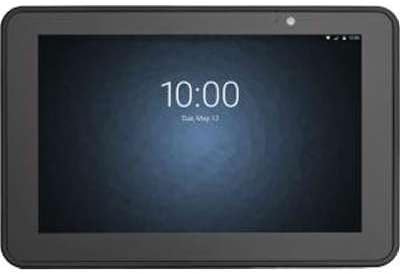
انځور: مخکینۍ برخه view of the Zebra ET55AE-W22E ET55 8.3" Tablet. The screen displays the time "10:00" and the date "Tue, May 12". The tablet has a dark gray bezel and a front-facing camera visible at the top center.
د بسته محتويات
Upon unpacking, verify that all items are present and undamaged. The standard package for the Zebra ET55AE-W22E includes:
- Zebra ET55AE-W22E ET55 8.3" Tablet unit
- (Additional accessories such as power adapter, USB cable, and documentation may be sold separately or included depending on region/bundle.)
چمتو کول
۱. ابتدايي چارج کول
Before first use, fully charge the tablet's battery. Connect the appropriate power adapter (not included with all models) to the tablet's charging port and then to a power outlet. The charging indicator will typically illuminate during this process.
2. بریښنا کول/بندول
- د فعالولو لپاره: د ټابلیټ په اړخ کې موقعیت لرونکي د بریښنا تڼۍ فشار ورکړئ او ونیسئ تر هغه چې سکرین روښانه شي.
- د بریښنا بندولو لپاره: Press and hold the Power button, then select "Shut down" from the options that appear on the screen.
3. Initial Configuration (Windows 8.1)
Upon first power-on, the tablet will guide you through the Windows 8.1 setup process. This includes:
- ستاسو ژبه او سیمه غوره کول.
- د جواز شرایط منل.
- Connecting to a Wi-Fi network (if available).
- Creating or signing in with a Microsoft account.
- Setting up basic privacy and security settings.
عملیاتي لارښوونې
Navigating Windows 8.1
The Zebra ET55AE-W22E runs on Windows 8.1, optimized for touch interaction. Key navigation elements include:
- د پیل سکرین: Swipe in from the right edge of the screen or press the Windows button to access the Start screen with live tiles.
- چارمز بار: Swipe in from the right edge of the screen to access the Charms bar (Search, Share, Start, Devices, Settings).
- App Switching: Swipe in from the left edge to switch between open applications.
- د ديسکټاپ: Tap the Desktop tile on the Start screen to access the traditional Windows desktop environment.
د شبکې سره نښلول
- وای فای: Access the Charms bar, select ترتیبات, then click the Wi-Fi icon to view available networks. Select your desired network and enter the password if prompted.
- بلوتوث: Access the Charms bar, select ترتیبات، بیا د کمپیوټر تنظیمات بدل کړئ, او ته لاړشئ PC and devices > Bluetooth. Turn Bluetooth on and pair with desired devices.
- WAN (Wireless Area Network): This model supports WAN connectivity. Insert your SIM card (if applicable and provided by your service provider) into the designated slot. Follow on-screen prompts or consult your service provider for configuration details.
د کیمرې کارول
The tablet is equipped with a camera. To use it, locate and tap the Camera application icon on the Start screen or Desktop. Follow the on-screen instructions to capture photos or record videos.
ساتنه
د وسیله پاکول
- د سکرین او بهرنۍ برخې پاکولو لپاره نرم، لینټ نه لرونکی ټوکر وکاروئ.
- د سختو نښو لپاره، لږ څه dampټوکر د اوبو یا د سکرین پاکولو محلول سره ومینځئ.
- په مستقیم ډول په وسیله کې د سختو کیمیاوي موادو، خړوبونکو پاکوونکو، یا ایروسول سپرې کارولو څخه ډډه وکړئ.
د بیټرۍ پاملرنه
- د ټابلیټ د لوړې تودوخې سره د مخ کیدو څخه ډډه وکړئ.
- د بیټرۍ د غوره ژوند لپاره، د بیټرۍ په بشپړ ډول د ډیری وخت لپاره د خارجولو څخه ډډه وکړئ.
- If the device will not be used for an extended period, charge it to approximately 50% before storage.
د سافټویر تازه معلومات
Regularly check for and install Windows 8.1 updates to ensure system stability, security, and performance. Access Settings > Change PC settings > Update and recovery > Windows Update.
د ستونزو حل کول
| ستونزه | احتمالي حل |
|---|---|
| وسیله فعاله نه ده. | Ensure the battery is charged. Connect the tablet to a power source and attempt to power on after a few minutes. |
| د وائی فای سره وصل نشو. | Verify Wi-Fi is enabled in settings. Check if the network password is correct. Restart the tablet and the Wi-Fi router. |
| سکرین غیر ځواب ورکوونکی دی. | Perform a soft reset by holding the power button until the device restarts. Ensure the screen is clean and free of debris. |
| غوښتنلیکونه ورو یا خراب دي. | Close unnecessary applications. Check for and install system updates. Consider uninstalling recently installed applications that may be causing issues. |
مشخصات
| فیچر | تفصیل |
|---|---|
| ماډل | Zebra ET55AE-W22E |
| د سکرین اندازه | ۷۸۷ انچه |
| د سکرین ریزولوشن | 1920 x 1080 پکسله |
| RAM | 4GB |
| د حافظې ذخیره | 64 GB فلش |
| عملیاتي سیسټم | وینډوز ۱۱ |
| د پروسیسر برانډ | Intel |
| بې سیم ډول | Bluetooth, WAN |
| د توکي وزن | ۲.۴۵ پونډه |
| د محصول ابعاد (LxWxH) | 1 x 1 x 1 انچه |
تضمین او ملاتړ
For information regarding warranty coverage, technical support, or service, please refer to the official Zebra website or contact their customer service department. Specific warranty terms may vary by region and purchase date.
آنلاین ملاتړ: Visit the official Zebra support portal for drivers, FAQs, and additional documentation.
د اړیکو معلومات: Refer to your product packaging or the Zebra website for current contact details for technical assistance.


