1. پیژندنه او وروستهview
This manual provides detailed instructions for the setup, operation, and maintenance of your Xprinter XP-Q200 80mm Thermal Printer. The XP-Q200 is a high-speed thermal receipt printer designed for various operating systems including Windows, Android, and iOS. It offers versatile connectivity options such as USB, Bluetooth, and Ethernet, making it suitable for a wide range of business environments.

شکل 1.1: مخکی view of the Xprinter XP-Q200 Thermal Printer.
2. د خوندیتوب معلومات
Please read the following safety precautions carefully before using the printer to ensure safe and proper operation:
- Do not touch the thermal print head immediately after printing, as it may be hot.
- Use only the power adapter supplied with the printer. Using an incorrect adapter may damage the printer or cause fire.
- Do not disassemble or modify the printer. Refer all servicing to qualified personnel.
- پرنټر د اوبو، رطوبت او مستقیم لمر وړانګو څخه لرې وساتئ.
- ډاډ ترلاسه کړئ چې پرنټر په یوه مستحکم او هموار سطحه کې ځای پر ځای شوی دی.
3. د بسته محتويات
ډاډ ترلاسه کړئ چې لاندې ټول لیست شوي توکي ستاسو د پرنټر کڅوړه کې شامل دي:
- Xprinter XP-Q200 Thermal Printer Unit
- د بریښنا اډاپټر
- USB کیبل
- Thermal Paper Roll (initial)
- د کارن لارښود
4. د محصول ب Featuresې
The Xprinter XP-Q200 offers a range of features designed for efficient and reliable thermal printing:
- د تیز رفتار چاپ کول: Achieves print speeds of up to 260mm/sec with an integrated auto cutter.
- څو انٹرفیسونه: Equipped with USB, Bluetooth, and Ethernet connectivity for flexible integration.
- پراخه مطابقت: Supports Windows, Linux, and Android operating systems.
- Logo and Barcode Support: Allows for downloading and printing of store logos (BMP file format) and various barcode types on thermal paper.
- د کاغذ سمبالول: Designed to handle thermal paper rolls up to 80x80mm.
- International Language Support: Supports a variety of international languages and scripts.
- د تېروتنې الارمونه: Features print job tips and error alarm functions for operational awareness.
- Black Mark Detection: Includes a black mark detection function for specific printing applications.
- Missing Orders Function: Incorporates a feature to help avoid "missing orders."
- Monitoring Capabilities: Supports Ethernet and Serial port monitoring functions.
- NV Logo Storage: Provides 256K Bytes of NV Logo download storage.
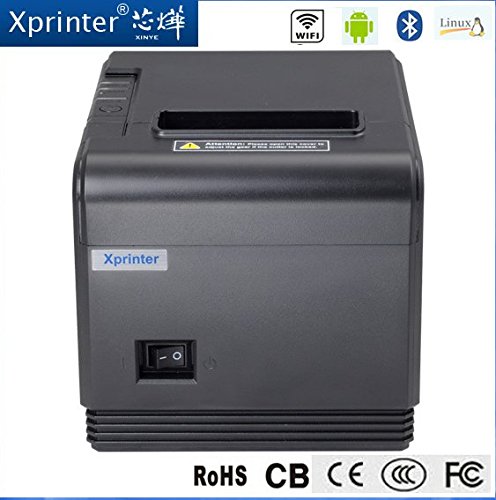
شکل 4.1: مخکی view د ارتباطي انتخابونو روښانه کول.
5. ترتیب کول
۵.۱ فزیکي ترتیب
- Unpack the printer and remove all protective packaging materials.
- Place the printer on a stable, flat surface near a power outlet and your host device.
- د بریښنا اډاپټر د پرنټر د بریښنا پورټ سره وصل کړئ او بیا یې د دیوال آوټ لیټ سره وصل کړئ.
۴.۳ د تودوخې کاغذ بارول
- Press the cover open button (usually located on the side or front) to open the printer's top cover.
- Insert the thermal paper roll into the paper compartment with the printing side facing the thermal print head. Ensure the roll unwinds from the bottom.
- د کاغذ یوه کوچنۍ اندازه د کټر څخه وباسئ.
- Close the top cover firmly until it clicks into place. The printer will automatically feed the paper to the correct position.
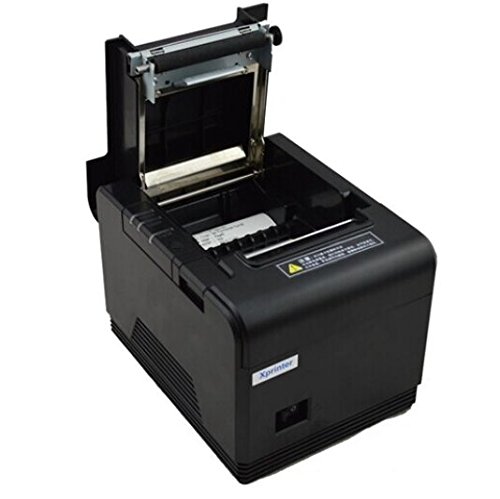
شکل ۳.۱: په چاپګر کې د تودوخې کاغذ بارول.
5.3 د وسیلې سره نښلول
The XP-Q200 supports USB, Bluetooth, and Ethernet connections.

شکل 5.2: شاته view of the printer with connectivity ports.
5.3.1 د USB اتصال
- د USB کیبل یوه پای د پرنټر USB پورټ سره او بله پای د خپل کمپیوټر USB پورټ سره وصل کړئ.
- The computer should detect the printer automatically.
5.3.2 Bluetooth Connection (for Android/iOS)
- ډاډ ترلاسه کړئ چې پرنټر فعال دی.
- On your Android or iOS device, go to Bluetooth settings and enable Bluetooth.
- لټون available devices. The printer should appear as "XP-Q200" or similar.
- Select the printer to pair. The default PIN is usually "0000" or "1234".
- Once paired, you can select the printer from your application's print settings.
5.3.3 ایترنیټ پیوستون
- د پرنټر د ایترنیټ پورټ څخه د ایترنیټ کیبل ستاسو د شبکې روټر یا سویچ سره وصل کړئ.
- The printer will obtain an IP address automatically via DHCP. For static IP configuration, refer to the advanced settings utility provided with the printer drivers.
5.4 د ډرایور نصب کول
For Windows and Linux systems, you will need to install the appropriate printer drivers. Drivers are typically available on the Xprinter official website or on a CD included with the printer. Follow the on-screen instructions during installation.
6. عملیاتي لارښوونې
۸ اساسي چاپ
Once the printer is connected and drivers are installed (if applicable), you can send print jobs from your application. Ensure the printer is powered on and has paper loaded.
- From your application (e.g., POS software, web browser), select the print option.
- Choose "Xprinter XP-Q200" from the list of available printers.
- Adjust any print settings as needed (e.g., paper size, copies).
- پرنټر ته د کار لیږلو لپاره "چاپ" کلیک وکړئ.
6.2 Logo and Barcode Printing
The XP-Q200 supports custom logo and barcode printing. Refer to the printer's utility software (usually provided with drivers) for instructions on how to upload logos (BMP format) to the printer's NV memory and configure barcode printing settings.
7. ساتنه
7.1 د پرنټر پاکول
منظم پاکول د چاپ کیفیت ساتلو کې مرسته کوي او د چاپګر عمر اوږدوي.
- د چاپ سر: د پنبې سواب په نرمۍ سره وکاروئampened with isopropyl alcohol to gently wipe the thermal print head. Allow it to dry completely before closing the cover. Clean the print head regularly, especially if print quality degrades.
- د پلیټ رولر: Clean the rubber platen roller with a soft cloth dampد isopropyl الکول سره ختم شوی.
- بهر: Wipe the exterior of the printer with a soft, dry cloth. Do not use abrasive cleaners or solvents.
۶.۳ د کاغذ جامونو پاکول
If a paper jam occurs:
- پرنټر بند کړئ.
- پورتنۍ پوښ خلاص کړئ.
- Carefully remove any jammed paper. Ensure no small pieces of paper remain inside.
- پورتنی پوښ په کلکه وتړئ.
- Turn the printer back on.
8. ستونزه حل کول
This section addresses common issues you might encounter with your XP-Q200 printer.
| ستونزه | احتمالي لامل | د حل لاره |
|---|---|---|
| پرنټر نه چالانېږي | Power cable loose; Power outlet faulty; Power adapter faulty | Check power connections; Try a different outlet; Contact support if adapter is faulty. |
| د چاپ محصول نشته | No paper; Paper loaded incorrectly; Printer offline; Driver issue | Load paper correctly; Check printer status; Reinstall drivers. |
| د چاپ کیفیت خراب دی | Print head dirty; Low quality paper; Print head worn out | Clean print head; Use recommended thermal paper; Contact support for service. |
| د کاغذ جام | Paper loaded incorrectly; Foreign object inside | د بندښتونو د پاکولو لپاره 7.2 برخې ته مراجعه وکړئ. |
| Bluetooth/Ethernet connection fails | Incorrect pairing; Network issue; IP address conflict | Re-pair device; Check network cables/settings; Verify IP address. |
9. مشخصات
| فیچر | مشخصات |
|---|---|
| د ماډل نوم | XP-Q200 |
| د چاپ ټیکنالوژي | حرارتي |
| د چاپ سرعت | 260 mm/sec |
| د چاپګر محصول | مونوکروم |
| د ارتباط ټیکنالوژي | Bluetooth, USB, Ethernet |
| د شیټ اندازه | Thermal (80mm) |
| دوه اړخیزه چاپ | هو |
| رنګ | تور |
| د کنټرولر ډول | iOS، Android |
| شاملې برخې | کاغذ |
| ځانګړی ځانګړنه | USB |
| د سکینر ډول | د پورټ وړ |


