پیژندنه
This manual provides essential information for setting up, operating, and maintaining your HP 27f 4K Monitor. Please read these instructions carefully before using your monitor to ensure proper functionality and longevity.
کلیدي ځانګړتیاوې
- Ultra High Definition 4K: Experience cinematic quality with the incredible definition of 4K.
- Height Adjustment Stand: Easily adjust your display to the most comfortable position with 100 mm range of travel.
- Panoramic View: الټرا پراخه 178 درجې زاویه viewد دوامداره توضیحاتو او متحرک رنګ سره.
- عصري ډیزاین: A sleek design that complements your workspace.
- Micro-edge Display: Virtually no bezel encircling the display for an ultra-wide viewing experience and seamless multi-monitor setups.
- د IPS پینل ټیکنالوژي: Provides consistent color and image clarity across a wide viewزاویه.
- د AMD FreeSync™: Reduces blurring and tearing for smoother visuals.
په بکس کې څه دي
ډاډ ترلاسه کړئ چې ټولې برخې په بسته بندۍ کې شتون لري:
- HP 27f 4K Monitor
- A/C power cable (1.9 m / 6.2 ft)
- Power adapter (1.0 m / 3.3 ft)
- HDMI cable (1.8 m / 5.9 ft)
- Quick setup poster
- د خدماتو تلیفون لیست کارت
- د تضمین اسناد
چمتو کول
۴.۱. د څارنې اسمبلۍ
Carefully remove the monitor and stand components from the packaging. Attach the stand base to the stand column, then secure the stand to the back of the monitor. Ensure all connections are firm.
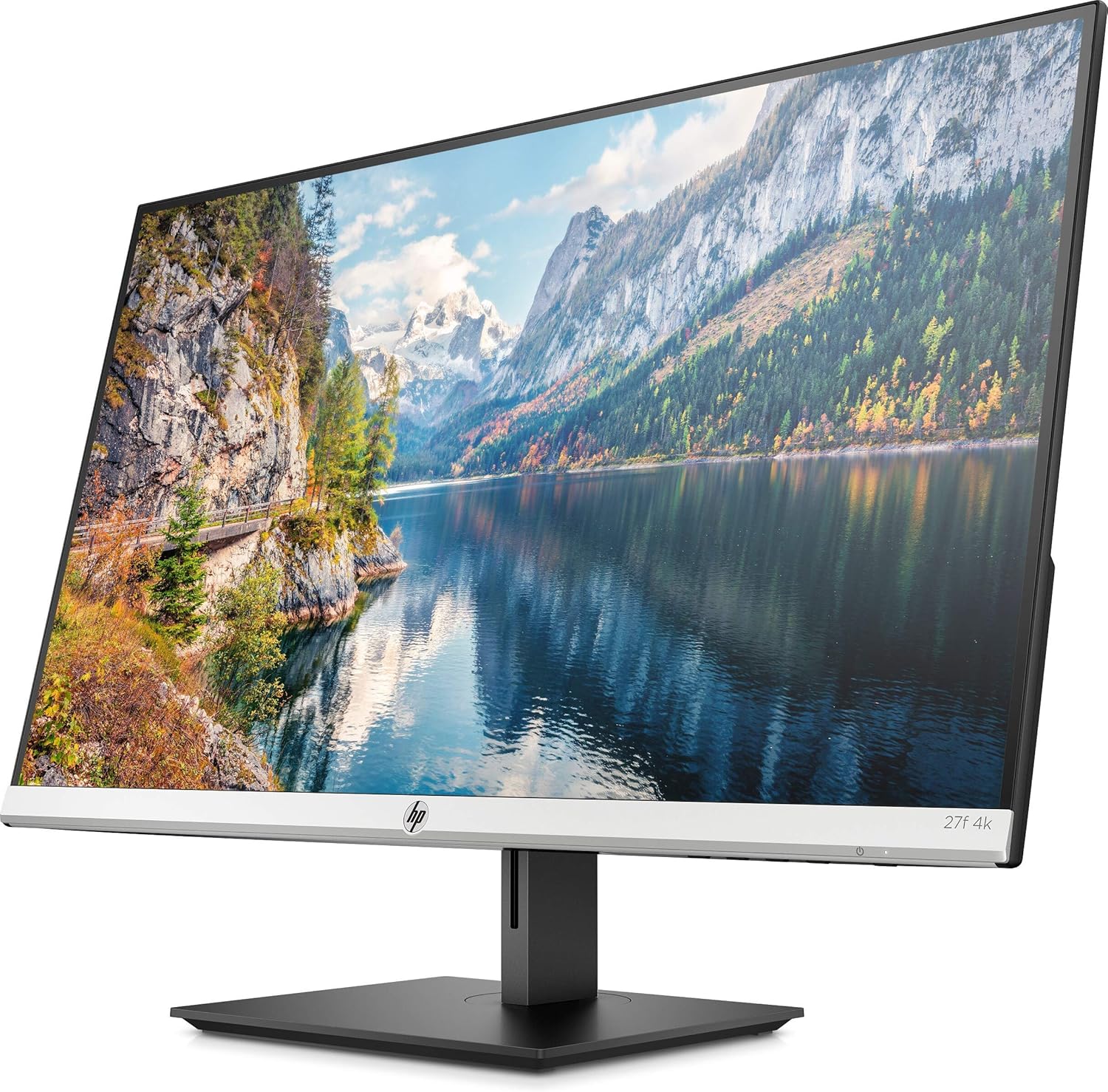
شکل 1: مخکی view of the HP 27f 4K Monitor with its stand.
2. د کیبلونو نښلول
Connect the power adapter to the monitor's power input and then to a power outlet. Use the provided HDMI cable to connect your computer to one of the HDMI ports on the monitor. Alternatively, use a DisplayPort cable if your computer supports it.

شکل 2: شاته view of the monitor displaying the HDMI and DisplayPort inputs.
3. بریښنا فعاله کړئ
Press the power button on the monitor to turn it on. The monitor should automatically detect the input signal from your computer.
د نظارت عمل کول
د ښودنې تنظیم کول
The HP 27f 4K Monitor features a height-adjustable stand and can be tilted and rotated for optimal viewing comfort. Adjust the height by gently pushing or pulling the monitor up or down. Tilt the screen forward or backward as needed. The monitor can also be rotated to a portrait orientation.

شکل ۳: د اړخ پروfile of the monitor demonstrating its adjustable stand.
په پرده ښودنه (OSD) مینو
Use the buttons located on the bottom bezel of the monitor to access the On-Screen Display (OSD) menu. This menu allows you to adjust various settings such as brightness, contrast, color temperature, input source, and other display preferences.
د څو څارونکو تنظیم
The micro-edge bezel design allows for seamless multi-monitor configurations, enhancing your productivity and immersive experience.

شکل 4: مثالample of a multi-monitor setup using HP 27f 4K Monitors.
بصری تجربه
The HP 27f 4K Monitor delivers stunning 4K resolution and utilizes IPS Panel Technology for wide viewing angles and vibrant colors. AMD FreeSync™ technology helps reduce screen tearing and stuttering for a smoother visual experience, especially during fast-paced content.
Video 1: An official HP video showcasing the stunning 4K clarity of the HP 27f 4K Display.
ساتنه
د نظارت پاکول
د سکرین پاکولو لپاره، په نرمۍ سره یې د نرم، لینټ نه پاک مایکرو فایبر ټوکر سره پاک کړئ. د سختو داغونو لپاره، یو څه نرم کړئampen the cloth with water or a screen-cleaning solution specifically designed for monitors. Avoid using harsh chemicals, abrasive cleaners, or spraying liquid directly onto the screen.
To clean the monitor's exterior, use a soft, damp cloth. Ensure the monitor is powered off and unplugged before cleaning.
د ستونزو حل کول
هیڅ ځواک نشته
- ډاډ ترلاسه کړئ چې د بریښنا کیبل په خوندي ډول د نظارت او کاري بریښنا سایټ دواړو سره وصل دی.
- وګورئ چې ایا د بریښنا اډاپټر په سمه توګه وصل دی.
- د بل وسیلې په لګولو سره د بریښنا آوټ لیټ فعال دی تصدیق کړئ.
سیګنال نشته/خالي سکرین نشته
- Confirm that the video cable (HDMI or DisplayPort) is securely connected to both the monitor and your computer.
- ډاډ ترلاسه کړئ چې ستاسو کمپیوټر چالان دی او د خوب حالت کې نه دی.
- Use the OSD menu to manually select the correct input source (e.g., HDMI 1, HDMI 2, DisplayPort).
- Try connecting the monitor to a different video port on your computer or using a different video cable to rule out cable or port issues.
Display Issues (Flickering, Blurry Image)
- د ویډیو کیبل د زیان یا خلاصو اړیکو لپاره وګورئ.
- ډاډ ترلاسه کړئ چې ستاسو د کمپیوټر ګرافیک ډرایورونه تازه دي.
- Adjust the display resolution and refresh rate settings on your computer to match the monitor's capabilities.
- If using AMD FreeSync™, ensure it is enabled in both the monitor's OSD and your graphics card settings.
مشخصات
Detailed technical specifications for the HP 27f 4K Monitor:

Figure 5: Diagram illustrating the dimensions of the HP 27f 4K Monitor.
| فیچر | مشخصات |
|---|---|
| د ولاړ سکرین نندارې اندازه | ۷۸۷ انچه |
| د سکرین ریزولوشن | ۳۸۴۰x۲۱۶۰ (۴K UHD ۲۱۶۰p) |
| د اعظمي سکرین ریزولوشن | 3840 پکسلز |
| برانډ | HP |
| لړۍ | HP 27f 4K Display |
| د توکي ماډل شمیره | 27f 4K |
| د توکي وزن | ۲.۴۵ پونډه |
| د محصول ابعاد | 24.16 x 7.62 x 19.74 انچه |
| رنګ | Natural silver and Black |
| والیtage | 240 وولټ (AC) |
| د اړخ نسبت | 16:9 |
| د سکرین سطحې توضیحات | د چمک ضد |
تضمین او ملاتړ
Your HP 27f 4K Monitor comes with a standard manufacturer's warranty. Please refer to the warranty documentation included in your product packaging for specific terms and conditions.
د تخنیکي ملاتړ، د ډرایور ډاونلوډونو، یا د محصول اضافي معلوماتو لپاره، مهرباني وکړئ د HP رسمي ملاتړ ته مراجعه وکړئ. website or contact HP customer service using the contact information provided in your documentation.