1. پیژندنه
This manual provides comprehensive instructions for the operation, maintenance, and troubleshooting of your Yanzeo R1820 Portable Wearable Ring 2D Barcode Scanner. Please read this manual carefully before using the device to ensure proper functionality and to maximize its lifespan.
The Yanzeo R1820 is a compact, wearable 2D barcode scanner designed for efficiency and comfort. Its ring-style design allows for hands-free operation, making it ideal for various inventory management, retail, and logistics applications.
2. کلیدي ځانګړتیاوې
- د اغوستلو وړ حلقې ډیزاین: Ergonomic and portable, allowing for comfortable, hands-free operation on either finger.
- د بیسیم اتصال: Supports Bluetooth and 2.4G wireless transmission with a range of up to 30 feet (10m).
- پراخه مطابقت: Compatible with Windows XP/7/8/10, Android 4.0+, and iOS devices. Includes a USB receiver for 2.4G connection.
- Built-in Flash Memory: Stores over 5000 barcode data entries when disconnected from a host device, allowing for batch upload.
- اوږدمهاله بیټرۍ: Integrated 380mA Lithium Polymer battery provides up to 30 hours of continuous scanning, recharging in approximately 1.5 hours.
- د 2D سکین کولو وړتیا: Capable of scanning various 1D and 2D barcodes, including QR, PDF417, and DataMatrix.
3. د بسته محتويات
مهرباني وکړئ د لاندې توکو لپاره په بسته کې وګورئ:
- Yanzeo R1820 Wearable Ring Barcode Scanner
- د USB چارج کیبل
- 2.4G USB Receiver (for wireless connection to PCs)
- د کارونکي لارښود (دا لاسوند)
- د چټک پیل لارښود (ممکن په جلا توګه شامل شي)
4. محصول ختم شوview
Familiarize yourself with the components of your Yanzeo R1820 scanner.
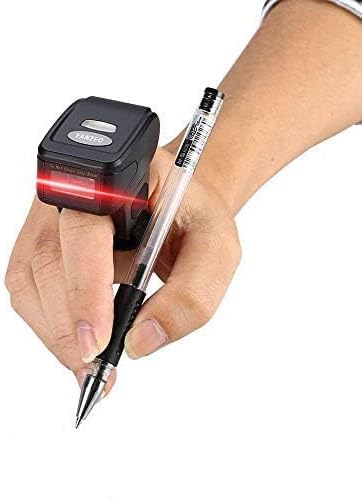
Figure 1: Yanzeo R1820 scanner in use, demonstrating its wearable design and scanning capability.

شکل 2: مخکی view of the scanner, highlighting the scanning window and safety warning.

شکل 3: مفصل views of the scanner, including its dimensions (4.5cm x 3.2mm x 5.5cm), the micro-USB charging port, and the power switch.
The scanner features a scanning window, a trigger button (usually on the side or top, not explicitly shown but implied by operation), a power switch, and a micro-USB charging port.
5. تنظیم او پیوستون
۴.۲ د سکینر چارج کول
Before initial use, fully charge the scanner. Connect the provided USB charging cable to the scanner's micro-USB port and the other end to a USB power source (e.g., computer USB port, USB wall adapter). The indicator light will show charging status (typically red for charging, off or green for fully charged).
A full charge takes approximately 1.5 hours and provides up to 30 hours of continuous scanning.
5.2 بریښنا کول / بندول
To power on the scanner, slide the power switch to the "ON" position. To power off, slide it to the "OFF" position.
5.3 د پیوستون طریقې
The Yanzeo R1820 supports two primary connection modes: Bluetooth and 2.4G Wireless (via USB receiver).
5.3.1 Bluetooth Connection (for iOS/Android/Windows/Mac)
- ډاډ ترلاسه کړئ چې سکینر فعال دی.
- Scan the "Bluetooth Pairing" configuration barcode (refer to a separate quick start guide or the scanner's internal settings for this specific barcode, if not provided, assume a default pairing mode). The scanner will enter pairing mode, indicated by a blinking blue LED.
- On your host device (smartphone, tablet, computer), go to Bluetooth settings and search for available devices.
- Select "Yanzeo R1820" or a similar device name from the list.
- Once paired, the scanner's LED will turn solid blue, indicating a successful connection.
After successful pairing, the scanner will automatically reconnect to the last paired device when powered on and within range.
5.3.2 2.4G Wireless Connection (for Windows/Mac PCs)
- Plug the 2.4G USB receiver into an available USB port on your computer. The computer should automatically install the necessary drivers.
- ډاډ ترلاسه کړئ چې سکینر فعال دی.
- Scan the "2.4G Pairing" configuration barcode (if required, consult the quick start guide). The scanner should automatically connect to the USB receiver.
- A successful connection is usually indicated by a solid green LED on the scanner.
This mode provides a direct wireless connection without Bluetooth pairing, acting as a virtual keyboard input.
6. عملیاتي لارښوونې
۵.۳ د بارکوډونو سکین کول
- Ensure the scanner is connected to your host device (via Bluetooth or 2.4G receiver).
- Open an application on your host device where you want the scanned data to appear (e.g., Notepad, Word document, spreadsheet, inventory software).
- Point the scanner's beam at the barcode you wish to scan. Ensure the entire barcode is within the red scanning line.
- Press the trigger button. A successful scan will be indicated by a beep and the data appearing in your application.
- If the scan is unsuccessful, reposition the scanner and try again. Ensure adequate lighting and a clear barcode.

Figure 4: The scanner's capability to read different barcode types, including 1D and 2D formats.
6.2 Data Transmission Modes
The R1820 supports two data transmission modes:
- د فوري اپلوډ حالت: Data is transmitted immediately to the host device after each successful scan. This is the default mode.
- Storage Mode (Offline Mode): When disconnected from a host device, the scanner can store scanned barcodes in its internal flash memory. To activate this mode, scan the "Storage Mode" configuration barcode (if available in the quick start guide). To upload stored data, reconnect the scanner to your host device and scan the "Upload Data" configuration barcode. The scanner can store over 5000 barcode entries.
To switch between modes, you typically scan specific configuration barcodes provided in the quick start guide or a separate programming manual. If these are not provided, the scanner will likely operate in instant upload mode by default when connected.
7. ساتنه
7.1 پاکول
Regularly clean the scanning window with a soft, lint-free cloth. For stubborn dirt, slightly dampen the cloth with water or a mild, non-abrasive cleaning solution. Do not use harsh chemicals or abrasive materials, as these can damage the scanning lens.
7.2 د بیټرۍ پاملرنه
- د بیټرۍ په مکرر ډول د بشپړ چارج کولو څخه ډډه وکړئ.
- If storing the scanner for an extended period, charge it to about 50% and store it in a cool, dry place. Recharge every few months to prevent deep discharge.
- د چارج کولو لپاره یوازې چمتو شوي USB کیبل وکاروئ.
7.3 ذخیره کول
Store the scanner in a safe, dry environment away from extreme temperatures, direct sunlight, and corrosive materials. Protect it from drops and impacts.
8. ستونزه حل کول
| ستونزه | احتمالي لامل | د حل لاره |
|---|---|---|
| سکینر نه چالانېږي. | ټیټ بیټرۍ. | سکینر لږ تر لږه د ۲.۵ ساعتونو لپاره چارج کړئ. |
| د بلوتوث له لارې نشي وصل کېدای. | Scanner not in pairing mode; Bluetooth off on host device; already paired to another device. | Ensure scanner is in pairing mode (blinking blue LED). Turn on Bluetooth on host device. Forget previous pairings on host device and try again. |
| Scanned data does not appear on host device. | Not connected; incorrect application open; scanner in storage mode. | Verify connection status. Open a text input application. If in storage mode, upload data. |
| Cannot scan barcodes. | Barcode damaged or poor quality; scanner lens dirty; incorrect scanning angle/distance. | Try scanning a different barcode. Clean the scanning window. Adjust angle and distance to the barcode. |
| Scanner beeps but no data transmitted. | Scanner is in storage mode. | Scan the "Upload Data" configuration barcode to transmit stored data. |
9. مشخصات
| فیچر | تفصیل |
|---|---|
| ماډل | R1820 |
| ارتباط | Bluetooth, 2.4G Wireless (with USB receiver) |
| د سکین ډول | 2D Imager (reads 1D and 2D barcodes) |
| بیټرۍ | 380mA Lithium Polymer (included) |
| د بیټرۍ ژوند | Up to 30 hours continuous scanning |
| د چارج کولو وخت | نږدې 1.5 ساعته |
| د بیسیم رینج | تر 30 فوټو پورې (10 متره) |
| داخلي حافظه | Stores over 5000 barcode entries |
| مطابقت | Windows XP/7/8/10, Android 4.0+, iOS |
| ابعاد | ۷.۱۳ x ۳.۷ x ۲.۰۵ انچه (پیکج) |
| د توکي وزن | 7 اونس |
| جوړونکی | یانزیو |
10. تضمین او ملاتړ
Yanzeo products are designed for reliability and performance. For specific warranty information, please refer to the warranty card included with your product or visit the official Yanzeo website. For technical support, troubleshooting assistance, or further inquiries, please contact Yanzeo customer service through their official channels.
تاسو کولی شئ په دې اړه نور معلومات او ملاتړ سرچینې ومومئ Yanzeo Brand Store.


