1. پیژندنه
This manual provides instructions for the ELECOM M-TM10BBBK/EC Bluetooth Silent Wireless Mouse. This compact and lightweight mouse is designed for portability and quiet operation, featuring a BlueLED sensor for versatile surface compatibility and a presentation mode for enhanced functionality. Please read this manual thoroughly before use to ensure proper operation and to maximize your experience with the product.

Image 1.1: The ELECOM M-TM10BBBK/EC Bluetooth Silent Wireless Mouse in black.
2. کلیدي ځانګړتیاوې
- الټرا سلم او پورټ ایبل ډیزاین: With a thickness of only 28mm, this mouse is designed for easy portability, fitting comfortably into bags and pockets.
- Silent Click Switches: Equipped with silent switches for both left and right buttons, eliminating distracting click noises, ideal for quiet environments.
- BlueLED Sensor: Features a high-performance BlueLED sensor that ensures accurate tracking on various surfaces, including those with minor irregularities or dust.
- 1600 Count Resolution: Provides a resolution of 1600 counts for smooth and precise cursor movement.
- 4-Button Design with Back Button: Includes a convenient 'Back' button, enhancing navigation during web browsing and other tasks.
- Presentation Mode Functionality: Switch between normal mouse mode and a dedicated presentation mode for controlling slides (advance/return) and other presentation-specific actions.
- د اصلاح وړ تڼۍ: Utilize the free 'ELECOM Mouse Assistant' software to assign custom functions to buttons and customize presentation mode actions, including disabling scroll or cursor movement.
- د بلوتوټ 4.2 ارتباط: Complies with Bluetooth 4.2 standard, offering a reliable wireless connection up to approximately 10m on non-magnetic surfaces and 3m on magnetic surfaces.
- HOGP Compatibility: Connects directly to Bluetooth HOGP-compatible computers without the need for a separate receiver, ideal for devices with limited USB ports.
- Power Switch & Battery Indicator: Features a power switch on the bottom to prevent battery drain when not in use and a battery level indicator lamp to signal when replacement is needed.
- سمیټریک ډیزاین: An ambidextrous design that is comfortable for both right-handed and left-handed users.
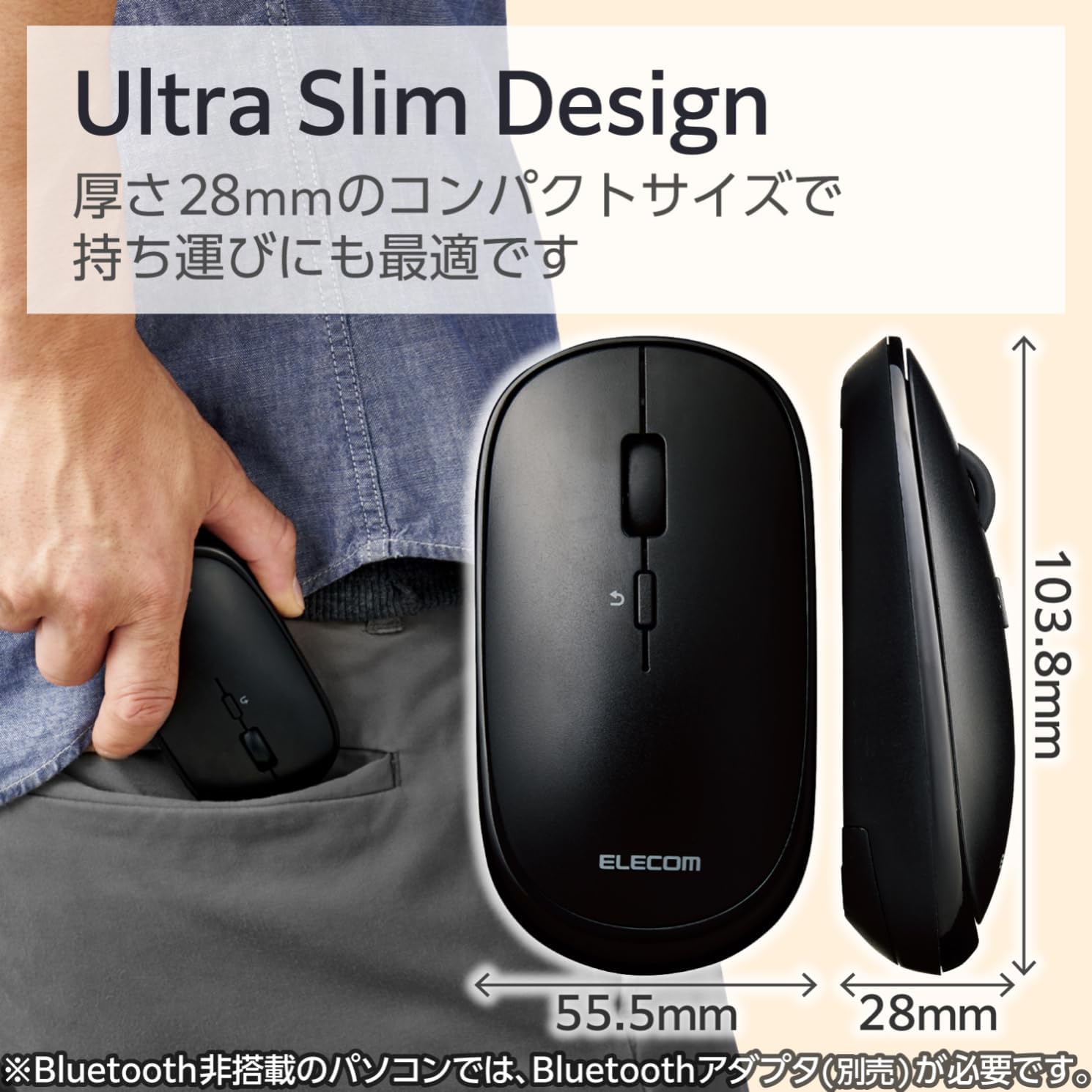
Image 2.1: The mouse features an ultra-slim design (28mm thick) for easy portability, shown here fitting into a pocket.
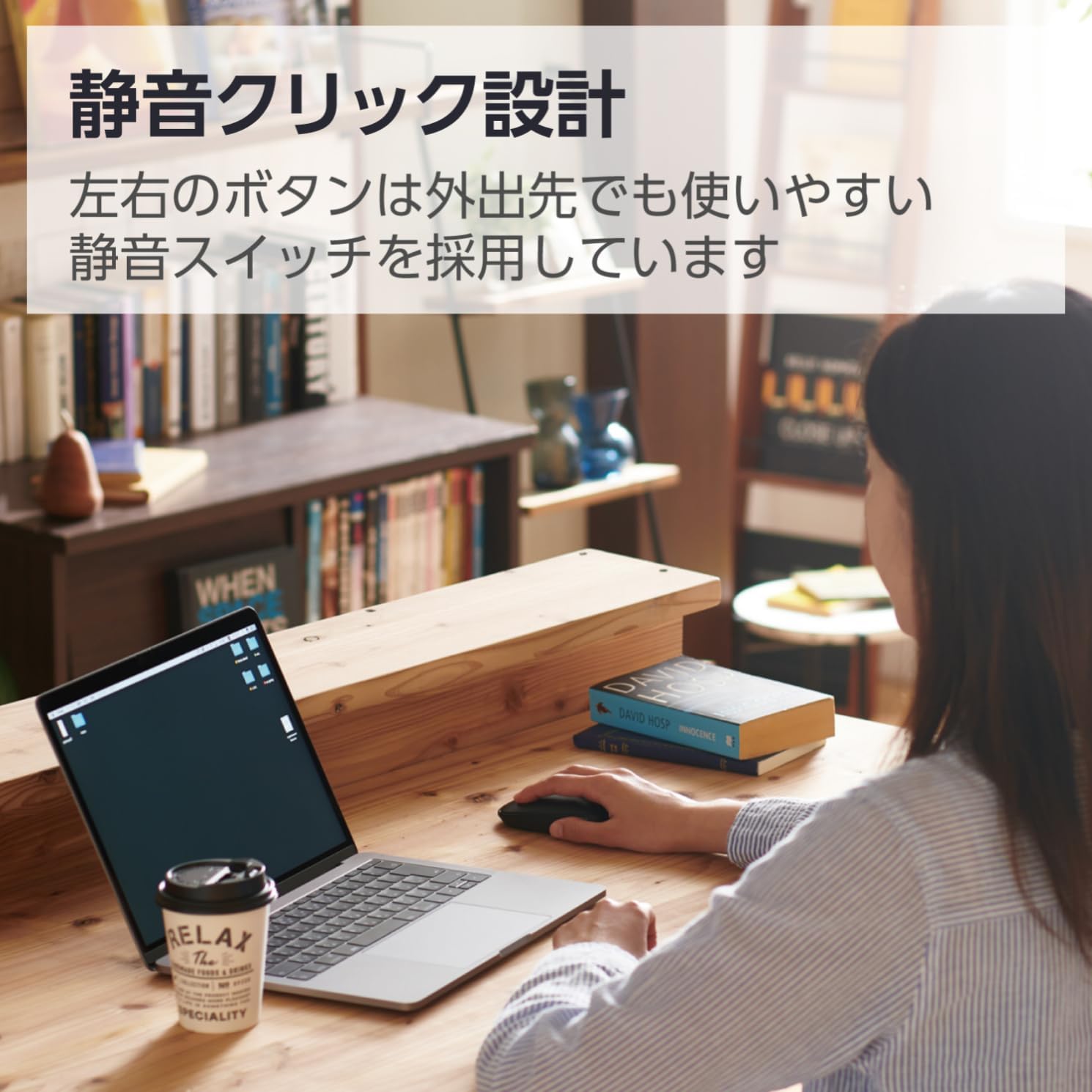
Image 2.2: The silent click design allows for quiet operation, suitable for various environments.
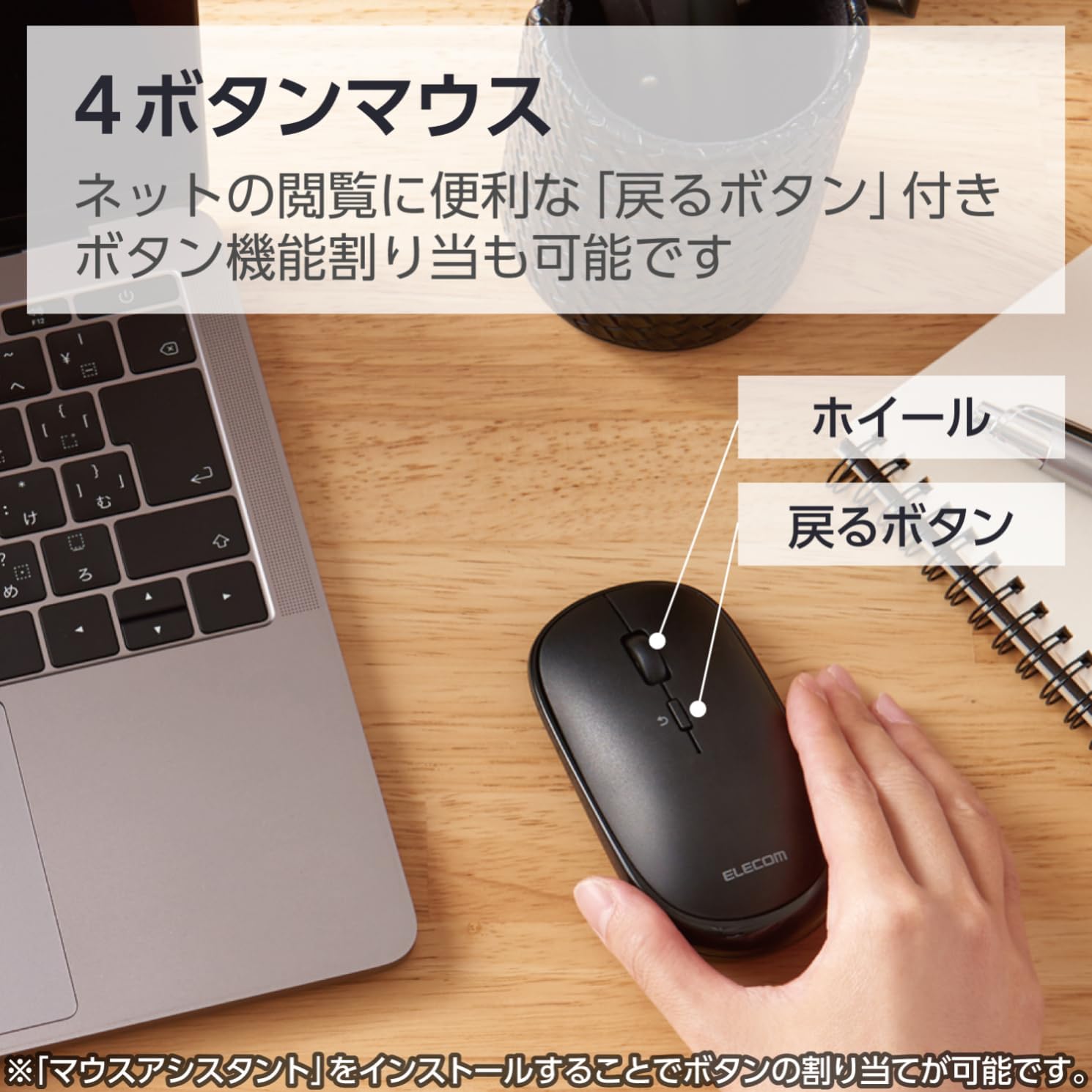
Image 2.3: Diagram illustrating the 4-button layout, including the scroll wheel and the 'Back' button.

Image 2.4: This mouse connects via Bluetooth, eliminating the need for a USB receiver.
۴. د تنظیم لارښوونې
3.1. د بیټرۍ نصب کول
- Locate the battery cover on the bottom of the mouse.
- پوښ خلاص کړئ.
- Insert one AA battery (included) into the battery compartment, ensuring correct polarity (+/-).
- د بیټرۍ پوښ په خوندي ډول وتړئ.
3.2. د بلوتوث جوړه کول
This mouse connects via Bluetooth HOGP. Ensure your device supports Bluetooth HOGP. If not, a compatible Bluetooth adapter (e.g., ELECOM LBT-UAN05C2/N, sold separately) may be required.
- Turn on the mouse using the power switch located on the bottom. The battery indicator lamp will light up briefly.
- Press and hold the pairing button (usually located near the power switch or battery compartment) for a few seconds until the LED indicator on the mouse starts blinking, indicating it is in pairing mode.
- په خپل کمپیوټر، ټابلیټ، یا سمارټ فون کې، د بلوتوټ ترتیباتو ته لاړ شئ.
- بلوتوث فعال کړئ او د نویو وسایلو لټون وکړئ.
- Select "ELECOM M-TM10BB" or a similar name from the list of available devices.
- Follow any on-screen prompts to complete the pairing process. The LED indicator on the mouse will stop blinking and remain solid (or turn off) once successfully paired.

Image 3.1: Visual guide for Bluetooth connection steps, showing the mouse and a device.
4. عملیاتي لارښوونې
۱. د موږک اساسي دندې
- کیڼ کلیک: لومړني انتخاب او فعالول.
- ښي کلیک: د شرایطو مینو ته لاسرسی لري.
- سکرول ویل: Scrolls content vertically. Can also be pressed for middle-click functionality (customizable).
- د شا تڼۍ: بیرته دننه ځي web براوزرونه یا file سپړونکي
4.2. د پریزنټشن حالت
The ELECOM M-TM10BBBK/EC mouse features a presentation mode, which can be activated and customized using the free 'ELECOM Mouse Assistant' software.
- Download and install the 'ELECOM Mouse Assistant' software from the official ELECOM webسایټ
- Launch the software and navigate to the settings for your mouse.
- Enable Presentation Mode. You can customize button functions for this mode, such as assigning slide advance/return to specific buttons or disabling scroll/cursor movement during presentations.
- Once configured, you can switch between normal mouse mode and presentation mode as needed.

Image 4.1: The mouse being used in a presentation setting, demonstrating its presentation mode capabilities.
۳.۳. د څو عملیاتي سیسټمونو مطابقت
This mouse is compatible with a wide range of operating systems, including Windows, macOS, Android, iOS, iPadOS, and FireOS. This allows for seamless use across various devices such as laptops, tablets, and smartphones.

Image 4.2: The ELECOM mouse (shown in blue) connected to both a MacBook and an iPad, highlighting its multi-device compatibility.
5. ساتنه
5.1. پاکول
- To clean the mouse, gently wipe the surface with a soft, dry cloth.
- د سختې خاورې لپاره، لږ څهampټوکر د اوبو یا یو نرم، غیر خارښونکي پاکوونکي سره ومینځئ. ډاډ ترلاسه کړئ چې هیڅ مایع موږک ته ننوځي.
- Do not use harsh chemicals, solvents, or abrasive materials, as these can damage the mouse's surface.
5.2. د بیټرۍ بدلول
کله چې د بیټرۍ شاخص lamp signals low battery, or if the mouse performance degrades, replace the battery:
- Turn off the mouse using the power switch.
- د موږک په ښکته برخه کې د بیټرۍ پوښ خلاص کړئ.
- زوړ AA بیټرۍ لرې کړئ.
- یو نوی AA بیټرۍ دننه کړئ، سم قطبي حالت وګورئ.
- د بیټرۍ پوښ وتړئ.
- زړې بیټرۍ د ځایی مقرراتو سره سم له منځه یوسئ.
6. ستونزه حل کول
| ستونزه | احتمالي لامل | د حل لاره |
|---|---|---|
| Mouse does not respond. | Power is off, low battery, or not paired. | Ensure the power switch is ON. Replace the battery if low. Re-pair the mouse with your device. |
| د کرسر حرکت بې نظمه یا ناسم دی. | Dirty sensor, unsuitable surface, or interference. | Clean the BlueLED sensor. Use on a clean, uniform surface. Move closer to the device or reduce other wireless interference. |
| Cannot pair the mouse. | Mouse not in pairing mode, Bluetooth off on device, or device not HOGP compatible. | Ensure the mouse LED is blinking (pairing mode). Turn on Bluetooth on your device. Check if your device supports Bluetooth HOGP; if not, use a compatible Bluetooth adapter. |
| Buttons do not function as expected in Presentation Mode. | 'ELECOM Mouse Assistant' software not installed or configured. | Install and configure the 'ELECOM Mouse Assistant' software. Ensure Presentation Mode is enabled and button assignments are correct. |
| د بلوتوټ پیوستون بې ثباته دی. | Distance too far, obstacles, or interference. | Reduce the distance between the mouse and the device. Remove obstacles. Minimize other wireless device usage nearby. |
7. مشخصات
| فیچر | تفصیل |
|---|---|
| د ماډل شمیره | M-TM10BBBK/EC |
| برانډ | ELECOM |
| رنګ | تور |
| ارتباط | Bluetooth 4.2 (HOGP) |
| د حرکت کشف ټیکنالوژي | Optical (BlueLED) |
| قرارداد | 1600 شمېرې |
| تڼۍ | 4 (Left, Right, Scroll Wheel, Back) |
| ځانګړي ځانګړتیاوې | Silent Click, Portable, Presentation Mode |
| د بیسیم رینج | Approx. 10m (non-magnetic surfaces), Approx. 3m (magnetic surfaces) |
| مطابقت لرونکی OS | Windows 11, 10, 8.1; Android 7-10; macOS Catalina (10.15); iOS/iPadOS 13.5 (Latest OS versions/service packs may be required) |
| د بریښنا سرچینه | د 1 ایکس AA بیټرۍ (شامل) |
| د دوامداره کارونې وخت | تر 19 میاشتو پورې (د کارولو سره توپیر لري) |
| د محصول ابعاد | 10.38 x 5.55 x 2.8 سانتي متره |
| د توکي وزن | 66 ګرامه |
8. تضمین او ملاتړ
8.1. د تضمین معلومات
ELECOM products are manufactured with high-quality standards. For specific warranty terms and conditions, please refer to the warranty card included with your product or visit the official ELECOM webسایټ. د تضمین ادعاوو لپاره د پیرود ثبوت وساتئ.
8.2. د پیرودونکي ملاتړ
If you encounter any issues not covered in the troubleshooting section or require further assistance, please contact ELECOM customer support. Contact details can typically be found on the official ELECOM webپه سایټ یا د محصول په بسته بندۍ کې.
- رسمي ELECOM Webسایټ: https://www.elecom.co.jp/global/
- ELECOM Mouse Assistant Software: Available for free download from the official ELECOM webسایټ


