پیژندنه
The OWC Thunderbolt Dock is designed to expand the connectivity of your computer, providing a comprehensive solution for connecting multiple peripherals through a single Thunderbolt cable. This dock adds three Thunderbolt 4 ports, four USB ports, Gigabit Ethernet, audio, and an SD card reader, enhancing your workflow and device management.
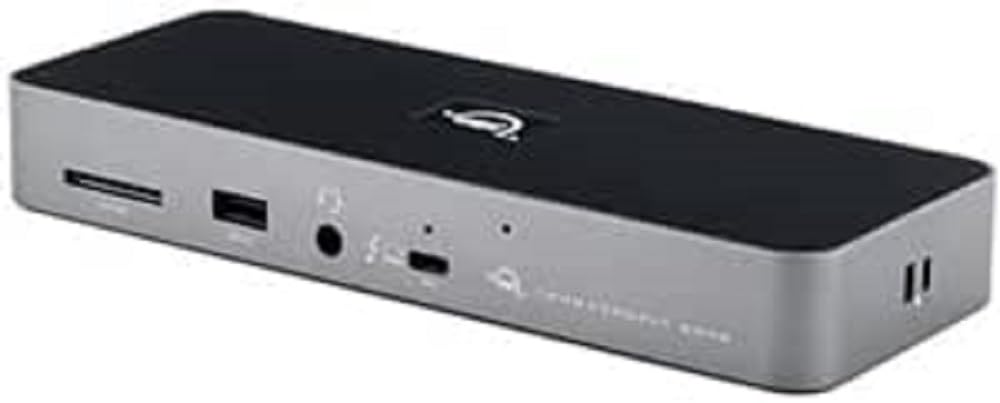
Figure 1: OWC Thunderbolt Dock, showing its compact design and front-facing ports.
په بکس کې څه دي
ډاډ ترلاسه کړئ چې ټول توکي په کڅوړه کې شتون لري:
- OWC Thunderbolt Dock
- تندربولټ کیبل
- د بریښنا رسولو او کیبل
- د چټک پیل لارښود
کلیدي ځانګړتیاوې
The OWC Thunderbolt Dock offers the following capabilities:
- Adds three full-speed and functional Thunderbolt 4 ports to your computer.
- Enables creation of multiple independent "tree branches" for device connectivity.
- Provides up to 96W of power delivery for laptop charging.
- Includes four USB ports for connecting and charging USB devices.
- Supports connection of various storage devices, up to two 4K displays, or one 5K/6K/8K display.
- Ensures device compatibility as if directly connected to your computer.
- Features Gigabit Ethernet for reliable network streaming and sharing.
- Integrated SD card reader for data transfer speeds up to 312MB/s.
- Audio combo jack for headphones and microphones.
- Adjustable LED for customizable illumination.
چمتو کول
Follow these steps to set up your OWC Thunderbolt Dock:
- بریښنا وصل کړئ: Connect the included power supply to the DC In port on the rear of the OWC Thunderbolt Dock and then plug the power cable into a wall outlet.

Figure 2: Rear ports of the OWC Thunderbolt Dock, including the DC In port on the left.
- کمپیوټر سره وصل کړئ: Use the provided Thunderbolt cable to connect one of the Thunderbolt 4 ports on the dock (labeled with a computer icon) to a Thunderbolt 3 or Thunderbolt 4 port on your computer.
- پرفیریلز وصل کړئ: Connect your external devices such as monitors, external drives, USB devices, Ethernet cable, and audio devices to the corresponding ports on the OWC Thunderbolt Dock.

Figure 3: Front ports of the OWC Thunderbolt Dock, including the SD card slot, USB 2.0 port, and audio combo jack.
- پاور آن: The dock will power on automatically once connected to power and your computer. The LED indicator will illuminate.
Operating the Dock
Once set up, the OWC Thunderbolt Dock operates as an extension of your computer's ports. Devices connected to the dock will function as if they were directly connected to your computer.
- Display Connectivity: Connect up to two 4K displays at 60Hz, or a single 5K, 6K, or 8K display at 60Hz (or 4K at 120Hz) to the Thunderbolt 4 downstream ports using appropriate cables and adapters.
- د USB وسایل: Utilize the USB-A ports for connecting keyboards, mice, external hard drives, and other USB peripherals. The USB 2.0 port is suitable for low-bandwidth devices like keyboards or mice.
- د شبکې پیوستون: Plug an Ethernet cable into the Gigabit Ethernet port for a stable wired network connection.
- آډیو: Use the 3.5mm audio combo jack for headphones, speakers, or microphones.
- د SD کارت لوستونکی: Insert an SD card into the front-facing slot to access photos, videos, and other data.
- د بریښنا رسول: The dock provides up to 96W of power to charge your connected laptop via the Thunderbolt cable.
ساتنه
To ensure optimal performance and longevity of your OWC Thunderbolt Dock:
- Keep the dock in a well-ventilated area to prevent overheating.
- Clean the exterior with a soft, dry, lint-free cloth. Avoid using liquid cleaners or aerosols.
- ډاډ ترلاسه کړئ چې ټول کیبلونه په خوندي ډول وصل دي.
- Avoid placing heavy objects on top of the dock.
د ستونزو حل کول
If you encounter issues with your OWC Thunderbolt Dock, try the following solutions:
- No Power/Dock Not Responding:
- Verify that the power supply is securely connected to the dock and a working power outlet.
- Ensure the Thunderbolt cable is firmly connected to both the dock and your computer.
- د بریښنا یو بل ځای هڅه وکړئ.
- Connected Devices Not Recognized:
- Disconnect and reconnect the problematic device from the dock.
- Try connecting the device to a different port on the dock, if available.
- Ensure your computer's operating system and Thunderbolt drivers are up to date.
- خپل کمپیوټر بیا پیل کړئ.
- Display Issues (No Signal, Flickering):
- Check the display cable connection between the monitor and the dock.
- Ensure the display is set to the correct input source.
- Try a different display cable or adapter.
- Reduce the display resolution or refresh rate to see if the issue persists.
- د شبکې د اتصال ستونزې:
- Verify the Ethernet cable is securely connected to the dock and your router/modem.
- د خپل کمپیوټر د شبکې ترتیبات وګورئ.
- خپل روټر/موډیم بیا پیل کړئ.
مشخصات
| فیچر | تفصیل |
|---|---|
| د محصول ابعاد | 8.66 x 3.15 x 1.18 انچه |
| وزن | 14.11 اونس |
| د توکي ماډل شمیره | OWCTB4DOCK |
| جوړونکی | OWC |
| د نښلونکي ډول | Ethernet, RJ45, USB Type A, USB Type C |
| د کیبل ډول | تندر |
| مطابقت لرونکې وسیلې | Computer, Docking Station, External Display |
| ځانګړی ځانګړنه | لوړ سرعت |
| د بریښنا رسول | Up to 96W to host computer |
| د ښودلو ملاتړ | Up to two 4K displays @ 60Hz, or one 5K/6K/8K display @ 60Hz (or 4K @ 120Hz) |
| SD Card Reader Speed | تر 312MB/s پورې |
تضمین او ملاتړ
OWC products are designed for reliability and performance. For information regarding warranty coverage, technical support, or service, please refer to the official OWC website or contact OWC customer support directly. Keep your proof of purchase for warranty claims.
د خورا تازه ملاتړ سرچینو لپاره، لیدنه وکړئ: www.owcdigital.com/support


