1. پیژندنه
The FINGERS Lil’Clicks is a versatile mini keyboard designed for seamless connectivity across multiple devices and operating systems. It offers dual connectivity options: Bluetooth and 2.4 GHz Wireless, allowing you to switch between your laptop, tablet, or smartphone effortlessly. This manual provides detailed instructions for setup, operation, maintenance, and troubleshooting to ensure optimal use of your keyboard.

Image 1.1: The FINGERS Lil’Clicks Bluetooth Wireless Mini Keyboard, showcasinد هغې کمپیکټ ډیزاین.
2. د بسته محتويات
مهرباني وکړئ د لاندې توکو لپاره بکس وګورئ:
- 1 x FINGERS Lil’Clicks Bluetooth Wireless Mini Keyboard
- 1 x Wireless USB Receiver (for 2.4 GHz connection)
- 1 ایکس مایکرو USB چارج کیبل
- 1 x د چټک کارونې لارښود
- 1 x د برانډ یادښت

Image 2.1: Contents included in the FINGERS Lil’Clicks keyboard package.
3. تنظیم او ارتباط
The Lil’Clicks keyboard offers two primary connection methods: Bluetooth and 2.4 GHz Wireless.
3.1. د کیبورډ چارج کول
Before initial use, ensure the keyboard is fully charged. Connect the provided Micro USB charging cable to the keyboard's charging port and the other end to a USB power source (e.g., computer USB port, USB wall adapter). The charging indicator light will show the charging status.
۲.۱. ۲.۴ GHz بېسیم اتصال
- Locate the USB Wireless Receiver in the keyboard package.
- د USB ریسیور په خپل کمپیوټر یا وسیله کې موجود USB پورټ کې ولګوئ.
- د بریښنا سویچ په کارولو سره کیبورډ چالان کړئ، معمولا په اړخ یا شا کې موقعیت لري.
- The keyboard should automatically connect to your device. No additional drivers are typically required.
3.3. Bluetooth Connection (Up to 3 Devices)
The Lil’Clicks keyboard can connect to up to three Bluetooth devices simultaneously.
- د بریښنا سویچ په کارولو سره کیبورډ چالان کړئ.
- فشار ورکړئ او ونیسئ Fn key and one of the Bluetooth keys (BT1, BT2، یا BT3) for 3-5 seconds until the corresponding Bluetooth indicator light starts blinking. This indicates the keyboard is in pairing mode.
- On your device (laptop, tablet, smartphone), go to Bluetooth settings and enable Bluetooth.
- لټون available devices. You should see "FINGERS Lil’Clicks" or a similar name appear in the list.
- Select the keyboard to pair. If prompted, enter the displayed code on the keyboard and press ننوتل.
- یوځل چې جوړه شي، د شاخص څراغ به ځلیدل ودروي او د بندیدو دمخه به د څو ثانیو لپاره ټینګ پاتې شي.
- To connect another device, repeat steps 2-5 using a different Bluetooth key (BT2 or BT3).
۱. د وصل شویو وسیلو ترمنځ بدلول
To switch between paired Bluetooth devices or the 2.4 GHz wireless connection:
- For Bluetooth devices: Briefly press the Fn key along with the desired Bluetooth key (BT1, BT2، یا BT3).
- For 2.4 GHz Wireless: Briefly press the Fn key along with the 2.4G key (if available, otherwise ensure the USB receiver is plugged in and no Bluetooth connection is active).

Image 3.1: The Lil’Clicks keyboard demonstrating multi-device connectivity with a laptop, monitor, phone, and tablet.
۴. د کیبورډ چلول
۱. اساسي ټایپ کول
The keyboard features a standard QWERTY layout. Simply type as you would on any other keyboard.
۴.۳. د رسنیو کنټرولونه
The Lil’Clicks keyboard includes 12 soft-touch media control keys. These functions are typically accessed by pressing the Fn key simultaneously with the corresponding function key (F1-F12 or dedicated media keys).
- Fn+F1-F12: Access various media functions such as play/pause, volume control, track skipping, and more. Refer to the quick usage guide for specific key mappings.

انځور ۳.۱: نږدې انځور view of the keyboard layout, highlighting the media control keys and function row.
4.3. Using the Built-in Cradle
The keyboard features a built-in cradle designed to hold most phones and tablets up to 10 mm thick and 265 mm wide. This allows you to position your device at an optimal viewing angle for comfortable typing.
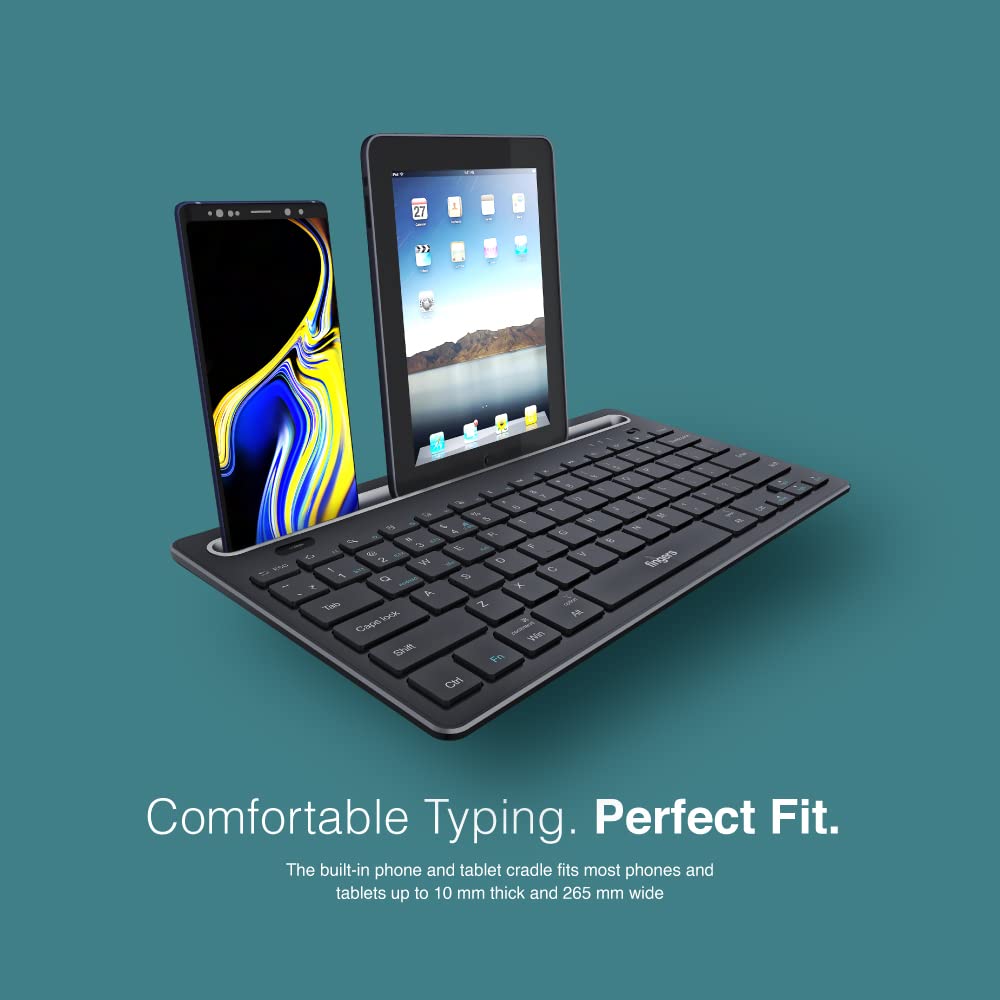
Image 4.2: The keyboard's integrated cradle holding a smartphone and a tablet for ergonomic viewing.
۳. د عملیاتي سیسټم مطابقت
The Lil’Clicks keyboard is compatible with a wide range of operating systems:
- وینډوز
- macOS
- Android
- لینکس
- کروم OS
The keyboard automatically adapts to the connected operating system for optimal functionality. Some function key behaviors may vary slightly depending on the OS.
5. ساتنه
5.1. پاکول
د خپل کیبورډ پاکولو لپاره، په نرمۍ سره سطحه د نرم، d سره پاک کړئamp, lint-free cloth. Avoid using harsh chemicals, abrasive cleaners, or excessive moisture, as these can damage the keyboard. The membrane-coated sheet beneath the keys helps protect against dust and minor spills.
5.2. د بیټرۍ پاملرنه
The keyboard features a long-lasting battery, providing up to 45 days of usage on a single charge. To prolong battery life:
- د لومړي ځل کارولو دمخه کیبورډ په بشپړ ډول چارج کړئ.
- د بیټرۍ په مکرر ډول له بشپړې وچولو څخه ډډه وکړئ.
- If storing the keyboard for an extended period, charge it to about 50% and store in a cool, dry place.
5.3. ذخیره کول
When not in use, store the keyboard in a clean, dry environment away from extreme temperatures and direct sunlight. Its compact and lightweight design makes it easy to carry and store.

Image 5.1: The Lil’Clicks keyboard's portability, shown being carried and used in a cafe setting.
6. ستونزه حل کول
If you encounter issues with your FINGERS Lil’Clicks keyboard, please refer to the following troubleshooting steps:
6.1. Keyboard Not Connecting/Pairing
- ځواک چیک کړئ: ډاډ ترلاسه کړئ چې کیبورډ چالان دی او کافي بیټرۍ چارج لري.
- د جوړې حالت ته بیا ننوځئ: For Bluetooth, press and hold ایف این + بي ټي ۱/بي ټي ۲/بي ټي ۳ until the indicator blinks. For 2.4 GHz, ensure the USB receiver is securely plugged in.
- د وسیلې بلوتوث: Make sure Bluetooth is enabled on your device and it's discoverable.
- Forget Device (Bluetooth): If previously paired, try removing/forgetting the keyboard from your device's Bluetooth list and then re-pairing.
- د USB ترلاسه کوونکی: Try plugging the 2.4 GHz USB receiver into a different USB port on your device.
- لاسوهنه: کیبورډ خپل وسیله ته نږدې او د نورو بېسیم وسیلو څخه لرې کړئ چې ممکن د مداخلې لامل شي.
6.2. Keys Not Responding or Typing Incorrectly
- د بیټرۍ کچه: A low battery can affect key responsiveness. Charge the keyboard fully.
- د پیوستون ثبات: Ensure a stable connection. If using Bluetooth, try switching to a different Bluetooth channel (BT1, BT2, BT3) or re-pairing. If using 2.4 GHz, ensure the receiver is firmly connected.
- لاسوهنه: Wireless interference can sometimes cause missed keystrokes. Try moving to a different location or reducing other wireless activity.
- پاکې کیلي: Check for any debris or foreign objects under the keys that might be obstructing their movement.
- Operating System Mode: Ensure the keyboard is in the correct operating system mode if there are specific key combinations for OS switching (e.g., Fn + Android/Win/Mac keys).
6.3. بیټرۍ نه چارج کیږي
- کیبل چیک کړئ: Ensure the Micro USB charging cable is securely connected to both the keyboard and the power source.
- د بریښنا سرچینه: د USB بریښنا مختلف سرچینه هڅه وکړئ (د مثال په توګه، ستاسو په کمپیوټر کې بل USB پورټ، یو بل دیوال اډاپټر).
- د کیبل بشپړتیا: Inspect the charging cable for any signs of damage. Try using a different Micro USB cable if available.
7. مشخصات
| برانډ | ګوتې |
| ماډل | Lil’Clicks |
| ارتباط | Bluetooth, 2.4 GHz Wireless |
| مطابقت | Windows, macOS, Android, Linux, Chrome OS |
| رنګ | تور |
| ابعاد (LxWxH) | 29 x 16 x 2 سانتي متره |
| د توکي وزن | 400 ګرامه |
| د بیټرۍ ژوند | تر ۴۰ ورځو پورې (په یو چارج سره) |
| Keystroke ژوند | 5 ملیون کیسټروکونه |
| Cradle Dimensions | Fits devices up to 10 mm thick and 265 mm wide |
| د بریښنا سرچینه | د بیټرۍ چلول |
8. تضمین او ملاتړ
8.1. د تضمین معلومات
The FINGERS Lil’Clicks Bluetooth Wireless Mini Keyboard comes with a 1 کلن تضمین د پیرود نیټې څخه. دا تضمین د عادي استعمال لاندې د تولید نیمګړتیاوې پوښي. مهرباني وکړئ د تضمین ادعاوو لپاره د پیرود ثبوت په توګه د پیرود رسید وساتئ.
تضمین هغه زیانونه نه پوښي چې پایله یې لري:
- Accidental damage, misuse, abuse, or negligence.
- غیر مجاز ترمیم یا تعدیل.
- نورمال اغوستل.
8.2. Manufacturer and Importer Details
جوړونکی: Dynamic Conglomerate Pvt. Ltd., 329/330, GIDC Phase II, Near Sardar Chowk, Vapi, Dist. Valsad, Gujarat - 396195.
واردونکي: Dynamic Conglomerate Pvt. Ltd. 4th Floor, Simba Tower, Vishveshwar Nagar, Goregaon (E), Mumbai - 400063, Maharashtra
8.3. د پیرودونکي ملاتړ
For technical assistance, warranty claims, or any other inquiries, please contact FINGERS customer support through their official website or the contact information provided in your Quick Usage Guide.


