1. پیژندنه
This manual provides comprehensive instructions for the setup, operation, and maintenance of your Xprinter XP-Q801K Thermal Receipt Printer. This printer is designed for efficient and reliable receipt printing in various business environments, featuring high-speed direct thermal printing and a USB interface for easy connectivity.

شکل 1: مخکی view of the Xprinter XP-Q801K Thermal Receipt Printer, showing the paper output slot and control buttons.
2. ترتیب کول
2.1 پیک کول
Carefully remove the printer and all accessories from the packaging. Verify that all components are present:
- Xprinter XP-Q801K Thermal Receipt Printer
- د بریښنا اډاپټر
- USB کیبل
- Paper Roll (starter)
- د کارونکي لارښود (دا لاسوند)
2.2 د پرنټر سره نښلول
Before connecting, ensure the printer is powered off. Locate the ports on the rear of the printer.
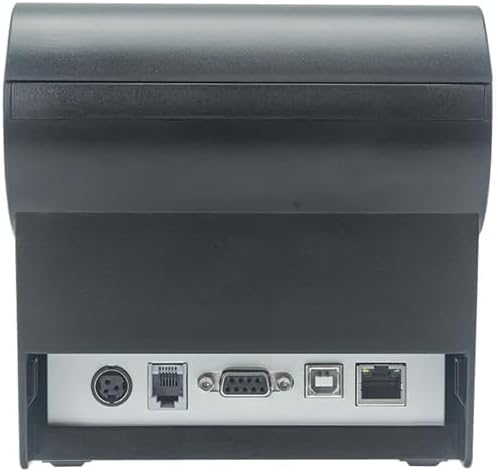
شکل 2: شاته view of the printer, highlighting the power, USB, and other interface ports.
- بریښنا وصل کړئ: Insert the power adapter cable into the printer's power input port (DC 24V/2.5A) and plug the adapter into a suitable electrical outlet (AC 100-240V, 50-60Hz).
- USB سره وصل کړئ: Connect one end of the provided USB cable to the USB port on the printer and the other end to an available USB port on your computer.
- Cash Drawer (Optional): If using a cash drawer, connect its cable to the cash drawer port (DC 24V/1A) on the printer.
2.3 Loading the Paper Roll
The printer uses 80mm wide thermal paper rolls.
- Open the paper cover by pushing the cover open button (usually located on the side or front).
- Insert the thermal paper roll with the printing surface facing the print head. Ensure the roll is seated correctly in the paper compartment.
- د کاغذ یوه کوچنۍ اندازه د کټر څخه وباسئ.
- د کاغذ پوښ په کلکه وتړئ تر هغه چې په خپل ځای کې راشي.
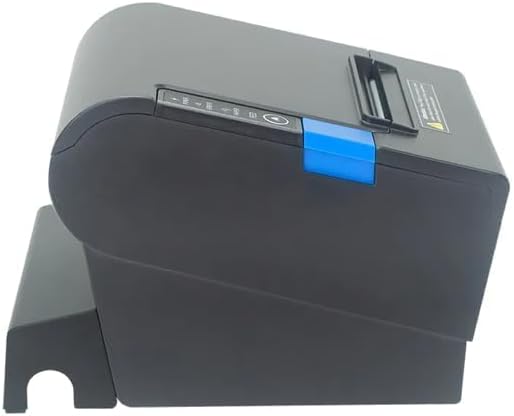
شکل 3: اړخ view of the printer, illustrating the paper cover mechanism.
2.4 د ډرایور نصب کول
The printer requires a driver to communicate with your computer. Drivers are typically available for Windows, Linux, Android, and Mac operating systems.
- For Windows users, the printer often supports plug-and-play installation or requires a specific Windows driver.
- For Linux, Android, and Mac, SDKs (Software Development Kits) are usually provided for integration.
د جوړونکي ته مراجعه وکړئ website or the included driver CD/USB drive for the latest drivers and installation instructions specific to your operating system.
۳. د پرنټر چلول
3.1 بریښنا کول / بندول
Locate the power switch on the side or rear of the printer. Flip the switch to the 'ON' position to power on the printer. The 'POWER' indicator light will illuminate. Flip to 'OFF' to power down.
3.2 Indicator Lights and Buttons
The front panel typically features several indicator lights and buttons:
- ځواک: دا په ګوته کوي چې پرنټر فعال دی.
- تېروتنه: Illuminates or flashes to indicate an error condition (e.g., paper out, print head overheating, cutter error).
- پاه: Indicates that the paper roll is low or out.
- د فیډ تڼۍ: Press to manually feed paper. Hold to perform a self-test print (if supported by model).
۸ اساسي چاپ
Once the printer is connected and drivers are installed, you can print receipts from your POS software or application. Ensure the printer is selected as the default or active printer in your system settings.
The printer supports various print speeds up to 300 mm/s and automatic paper cutting after each print job.
4. ساتنه
منظم ساتنه غوره فعالیت تضمینوي او ستاسو د چاپګر ژوند اوږدوي.
۵.۱ د چاپ سر پاکول
The print head should be cleaned regularly, especially if print quality degrades.
- Turn off the printer and disconnect the power cable.
- د کاغذ پوښ خلاص کړئ.
- د پنبې سواب په نرمۍ سره وکاروئampened with isopropyl alcohol (ethanol) to gently wipe the thermal elements of the print head.
- د چاپ سر ته اجازه ورکړئ چې په بشپړه توګه وچ شي مخکې لدې چې پوښ وتړئ او بریښنا بیا وصل کړئ.
4.2 Cleaning the Cutter
Paper dust can accumulate around the cutter blade, affecting its performance.
- Turn off the printer and disconnect the power cable.
- Carefully remove any visible paper dust or debris from around the cutter blade using a soft brush or compressed air.
- Do not use liquids on the cutter.
4.3 عمومي پاکول
د پرنټر بهرنۍ برخه د نرم، d سره پاک کړئamp ټوکر د سختو کیمیاوي موادو یا خړوبولو پاکونکو کارولو څخه ډډه وکړئ.
5. ستونزه حل کول
دا برخه هغه عامې ستونزې په ګوته کوي چې تاسو یې د خپل پرنټر سره مخ کیدی شئ.
| ستونزه | احتمالي لامل | د حل لاره |
|---|---|---|
| پرنټر نه چالانېږي. | Power cable not connected; Power outlet faulty; Power switch off. | Ensure power cable is securely connected. Test power outlet. Turn power switch to 'ON'. |
| No printing. | Paper out; Paper loaded incorrectly; Driver not installed or incorrect; USB cable loose; Printer not selected. | Load new paper roll. Re-load paper correctly. Install/reinstall correct driver. Check USB connection. Select printer in software. |
| ERROR light is on/flashing. | Paper out; Paper jam; Print head overheating; Cutter error. | Load paper. Clear paper jam. Allow printer to cool down. Check cutter for obstructions. |
| د چاپ کیفیت خراب دی. | Dirty print head; Low quality paper; Old paper roll. | Clean the print head (see Section 4.1). Use high-quality thermal paper. Replace old paper rolls. |
که چیرې د دې حل لارو هڅه کولو وروسته هم ستونزه دوام ومومي، مهرباني وکړئ د پیرودونکو ملاتړ سره اړیکه ونیسئ.
6. مشخصات
| فیچر | تفصیل |
|---|---|
| د چاپ کولو طریقه | مستقیم حرارتي |
| د کاغذ عرض | 80 ملي متره |
| د چاپ سرعت | 230 mm/s، 260 mm/s، 300 mm/s |
| انٹرفیس | USB |
| د کرښې واټن | 3.75 mm (adjustable by commands) |
| Character Size (ANK) | Font A: 1.5 × 3.0 mm (12 × 24 dots) Font B: 1.1 × 2.1 mm (9 × 17 dots) |
| Character Size (Chinese/Traditional Chinese) | 3.0 × 3.0 mm (24 × 24 dots) |
| د بارکوډ ډولونه | UPC-A / UPC-E / JAN13 (EAN13) / JAN8 (EAN8) / CODE39 / ITF / CODABAR / CODE93 / CODE128 |
| 2D بارکوډ | QR Code / PDF417 |
| NV Flash Memory | 256 KB |
| د ننوتلو ځواک | AC 100-240V ، 50-60Hz |
| د تولید بریښنا | DC 24V/2.5A |
| د نغدو پیسو د را ایستلو محصول | DC 24V/1A |
| وزن | 1.0 کیلو ګرامه |
| ابعاد (D × W × H) | 194.5 × 145 × 146.4 mm |
| د عملیاتي حرارت درجه | 0~45°C |
| عملیاتي رطوبت | 10~80% RH |
| د کټر ژوند | 1.5 ملیون کټونه |
| د سر ژوند چاپ کړئ | ۵ کیلومتره |
| د OS مطابقت | Windows, Linux, Android, Mac |


