1. محصول ختم شوview
The CCKHDD Mini USB Fingerprint Reader is a compact biometric device designed for secure and password-free login and file encryption on Windows 10 and 11 operating systems. It utilizes 360° touch biometric technology for quick and reliable authentication.

Image 1.1: The CCKHDD Mini USB Fingerprint Reader, a compact device for secure authentication.
This device is engineered for efficiency, offering a 0.2-second fast login experience and adapting to slight fingerprint changes over time to improve recognition rates.
2. کلیدي ځانګړتیاوې
- 0.2 Seconds Fast Login: Utilizes capacitive fingerprint identification for rapid verification. Features 360° one-touch operation that continuously improves recognition accuracy with use.
- Multi-Fingerprint & Multi-Account Support: Advanced "Match On Host" technology allows registration of up to 10 fingerprints, supporting multiple user accounts for enhanced data security.
- SMART ID Encryption Function: Provides unique security features for encrypting and saving website passwords and automatically encrypting files within designated folders. Offers quick access and decryption via fingerprint.
- Microsoft Certified Compatibility: Based on the Windows WBF biometric framework, ensuring high compatibility with genuine Windows 10/11 and above systems. (Note: Not compatible with macOS.)

Image 2.1: Visual representation of the 0.2-second fast login capability and biometric accuracy rates (FAR & FRR).

Image 2.2: Illustration of the SMART ID Encryption Function, showing compatibility with various online services for password management.

Image 2.3: Summary of key features including Windows Hello compatibility, quick response, secure encryption, and biometric functionality.
3. ترتیب او نصب کول
This device is primarily designed for genuine Windows 10/11 operating systems. For non-genuine Windows versions, a local administrator account must be created, and driver installation may be required.
3.1 د ډرایور نصب کول
- For Genuine Windows 10/11: No driver installation is typically required. Simply insert the fingerprint reader into an available USB port on your computer. The system should automatically recognize the device.
- For Non-Genuine Windows 10/11: You may need to manually install drivers. Additionally, it is necessary to create a new local administrator account before proceeding. Detailed instructions on creating a local administrator account can be found through online search engines or video tutorials.
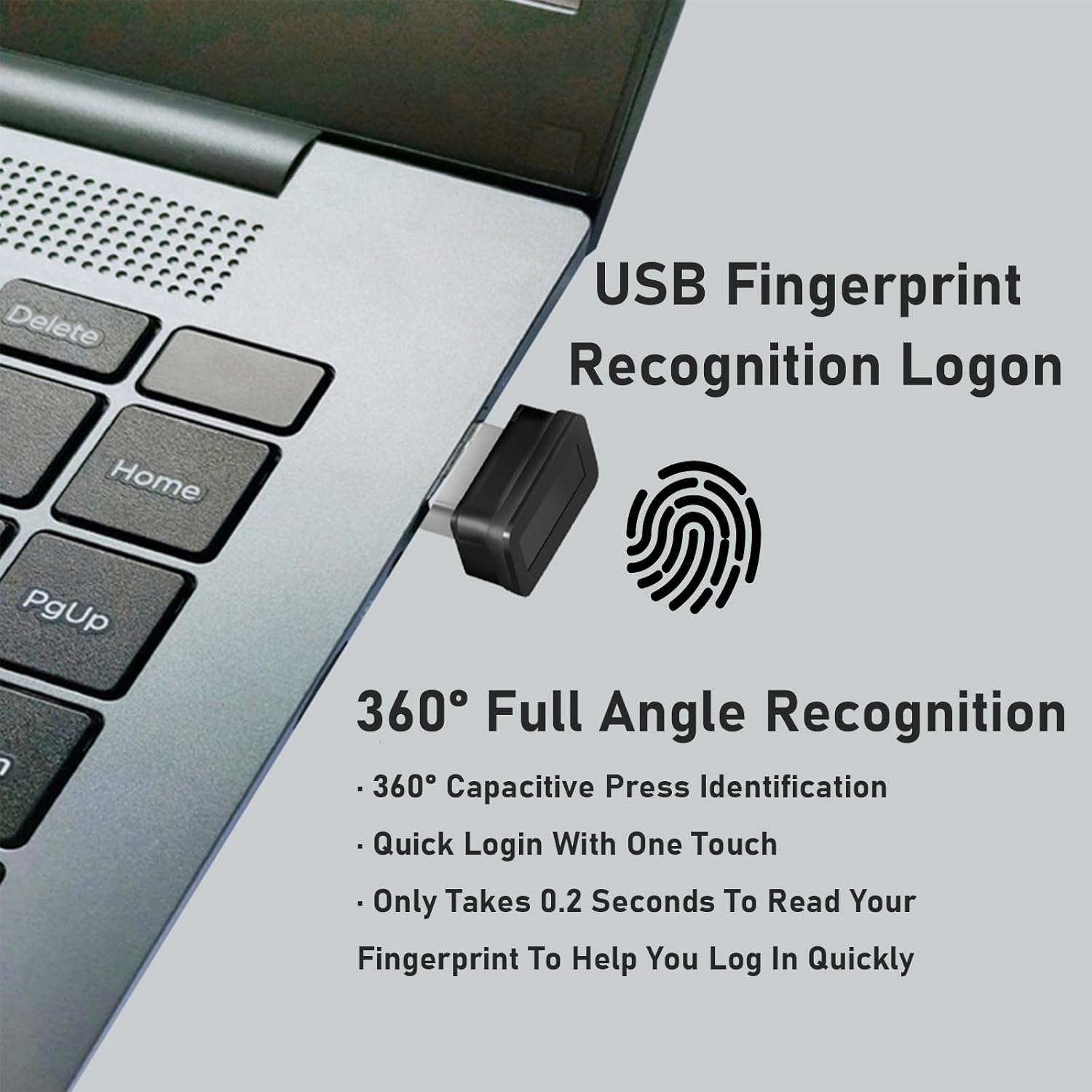
Image 3.1: The Mini USB Fingerprint Reader connected to a laptop, illustrating its compact size and integration.
3.2 Fingerprint Enrollment and Settings
Follow these steps to set up your fingerprint for Windows Hello login:
- کلیک وکړئ پیل button on your desktop.
- وټاکئ ترتیبات.
- In the Windows Settings window, click on حسابونه.
- ته لاړشئ د ننوتلو اختیارونه.
- ځای Windows Hello Fingerprint او کلیک وکړئ چمتو کول.
- You will be prompted to set or confirm your PIN password. Complete this step.
- Follow the on-screen instructions to swipe or place your finger on the fingerprint sensor. Continue swiping until the Windows Hello setup process is complete.
- After setup, it is recommended to restart your computer.
- Upon next login, you can select your fingerprint as a login option, eliminating the need to enter your password.
4. عملیاتي لارښوونې
4.1 Daily Login
Once your fingerprint is enrolled, simply place your registered finger on the fingerprint reader when prompted during the login screen. The device will quickly authenticate your identity, allowing for a seamless and secure login experience.
4.2 Managing Fingerprints
You can add or remove fingerprints, or manage other sign-in options, by returning to the ترتیبات > حسابونه > د ننوتلو اختیارونه menu in Windows.
4.3 Using SMART ID Encryption
The SMART ID feature allows you to encrypt and save passwords for various websites and automatically encrypt files in specified folders. To utilize this:
- Refer to the software interface or accompanying documentation (if any) for the SMART ID feature to configure website password saving and folder encryption.
- Once configured, you can quickly open and decrypt protected files or access saved website passwords by simply using your registered fingerprint.
5. مشخصات
| صفت | تفصیل |
|---|---|
| برانډ | CCKHDD |
| ماډل | New_Biometric_B |
| جوړونکی | CCKHDD |
| مطابقت | Genuine Windows 10/11 and above (Not compatible with macOS) |
| Login Speed | 0.2 ثانیې |
| د غلط منلو کچه (FAR) | <0.01٪ |
| False Recognition Rate (FRR) | <0.1٪ |
| د توکي وزن | 32 ګرامه |
| د کڅوړې ابعاد | 10.31 x 8.2 x 4.19 سانتي متره |

Image 5.1: Diagram showing the compact dimensions of the fingerprint reader and a conceptual illustration of secure encryption.
6. ساتنه
To ensure optimal performance and longevity of your fingerprint reader, consider the following maintenance tips:
- پاکول: Gently wipe the sensor surface with a soft, lint-free cloth. Avoid using abrasive materials or harsh chemical cleaners, which can damage the sensor.
- سمبالول: وسیله په احتیاط سره اداره کړئ. د غورځولو یا د لوړې تودوخې یا رطوبت سره د مخ کیدو څخه ډډه وکړئ.
- USB پورټ: Ensure the USB port you use is clean and free of debris to maintain a stable connection.
7. ستونزه حل کول
If you encounter issues with your fingerprint reader, consider the following common troubleshooting steps:
- وسیله نه پیژندل شوې:
- Try plugging the device into a different USB port.
- خپل کمپیوټر بیا پیل کړئ.
- Ensure your Windows operating system is genuine and up-to-date.
- For non-genuine Windows, verify that a local administrator account has been created and necessary drivers are installed.
- د ګوتو نښې نه پیژندل کیږي:
- ډاډ ترلاسه کړئ چې ستاسو ګوته پاکه او وچه ده.
- Try enrolling your fingerprint again (refer to Section 3.2).
- Ensure you are using the correct finger that was enrolled.
- د سینسر سطحه پاکه کړئ لکه څنګه چې په 6 برخه کې تشریح شوي.
- Windows Hello Setup Issues:
- Verify that your Windows Hello PIN is correctly set up.
- Check Windows Update for any pending updates that might affect biometric devices.
For persistent issues, refer to the customer support information below.
۹. د پیرودونکو ملاتړ او تضمین
The manufacturer provides excellent customer service. If you have any questions or concerns regarding your USB fingerprint reader, please do not hesitate to contact their professional support team. They are available to assist you and ensure your satisfaction with the product.
Contact information for support is typically provided with the product packaging or on the manufacturer's official webسایټ
Please note that paper installation and usage instructions are included in the product box for your convenience.