پیژندنه
This manual provides detailed instructions for the setup, operation, and maintenance of your DOOGEE T10E Portable Tablet Keyboard. Please read this manual carefully before using the product to ensure proper functionality and longevity.
The DOOGEE T10E is a versatile Bluetooth keyboard designed to enhance your tablet experience, offering a comfortable typing solution and a protective case. It features a multi-touch trackpad and supports various shortcut modes for increased productivity.
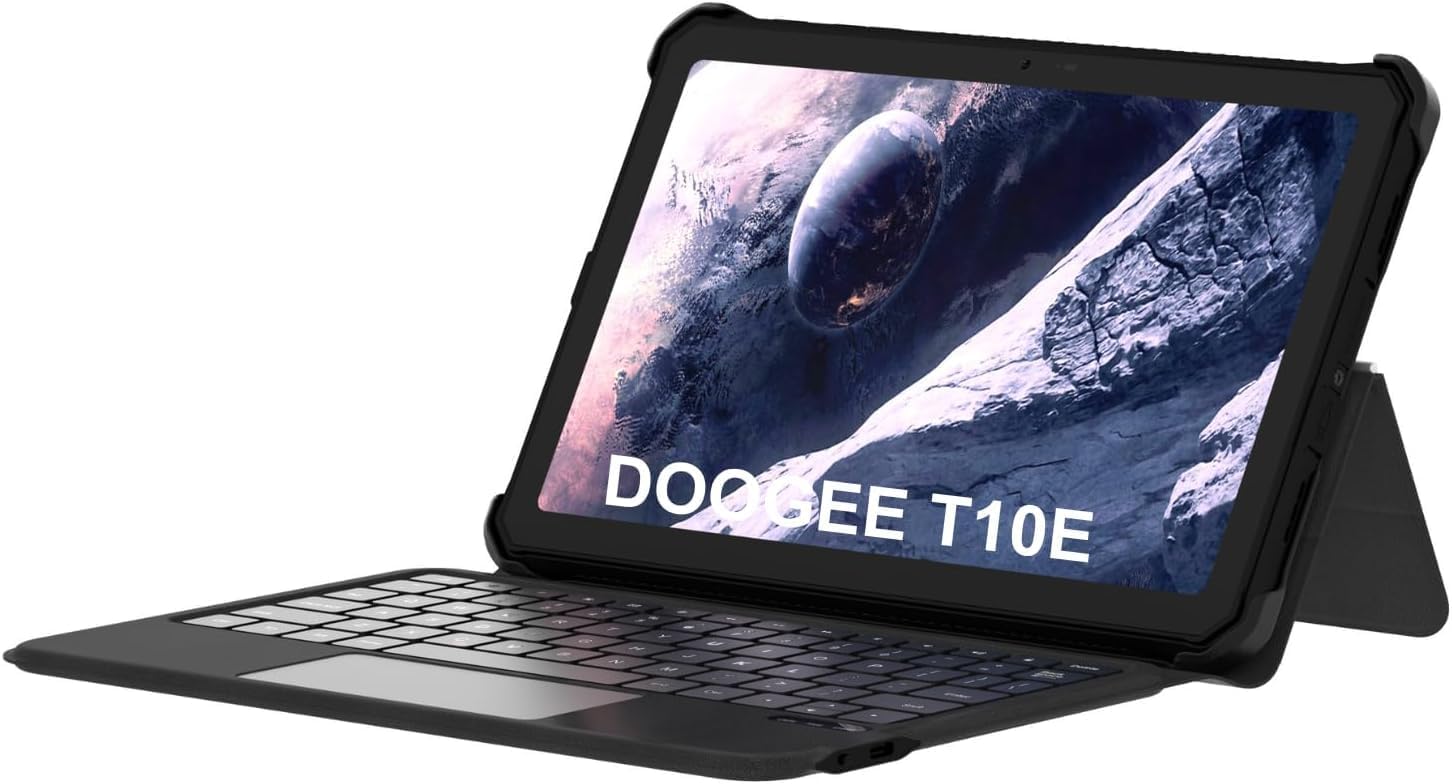
Image: The DOOGEE T10E Portable Tablet Keyboard with a tablet inserted, showcasing its laptop-like form factor.
د بسته محتويات
ډاډ ترلاسه کړئ چې ټول توکي په کڅوړه کې شتون لري:
- DOOGEE T10E Portable Tablet Keyboard
- د USB کیبل (د چارج کولو لپاره)
- د کارونکي لارښود (دا لاسوند)
د تنظیم کولو لارښوونې
1. د کیبورډ چارج کول
Before initial use, fully charge the keyboard. Connect the provided USB cable to the keyboard's charging port and the other end to a USB power adapter (not included) or a computer's USB port.
The charging indicator light will typically show red while charging and turn off or change color when fully charged. A full charge ensures extended usage time.
2. Attaching Your Tablet to the Case
The keyboard comes integrated with a protective case. Carefully align your tablet with the case's frame and gently press it into place, ensuring all edges are securely fitted. The case is designed to protect your tablet from scratches and bumps.

Image: The DOOGEE T10E keyboard case, showing the tablet slot and the detachable keyboard.
3. د بلوتوث جوړه کول
To connect the keyboard to your tablet via Bluetooth:
- Ensure the keyboard is powered on and fully charged. Look for a power switch, usually on the side or back of the keyboard.
- Activate Bluetooth on your tablet. Navigate to your tablet's ترتیبات > بلوتوث.
- په کیبورډ کې، فشار ورکړئ نښلول or جوړه کول button (often indicated by a Bluetooth icon or a specific function key combination, e.g., Fn + C). The Bluetooth indicator light on the keyboard will start blinking, indicating it's in pairing mode.
- On your tablet, search for available Bluetooth devices. You should see "DOOGEE T10E Keyboard" or a similar name appear in the list.
- Select the keyboard from the list to initiate pairing. Your tablet may display a pairing code; type this code on the keyboard and press ننوتل.
- Once paired, the Bluetooth indicator light on the keyboard will stop blinking and remain solid, or turn off. Your tablet will confirm the connection.

Image: The DOOGEE T10E keyboard case highlighting Bluetooth LE Pairing, Multi-touch Trackpad, and Multi Shortcut Modes.
عملیاتي لارښوونې
۱. د کیبورډ اساسي دندې
The DOOGEE T10E features a standard QWERTY layout with 64 keys, providing a comfortable typing experience. All standard alphanumeric keys, symbols, and function keys (F1-F12) are available.
- د فعالیت کیلي (Fn): ډیری کیلي ثانوي دندې لري چې د لاندې نیولو سره لاسرسی کیدی شي Fn key and pressing the desired function key (e.g., volume control, media playback, screen brightness). Refer to the keycap legends for specific functions.
- کیپس لاک: فشار ورکړئ کیپس لاک key to toggle uppercase letters. An indicator light may illuminate when Caps Lock is active.
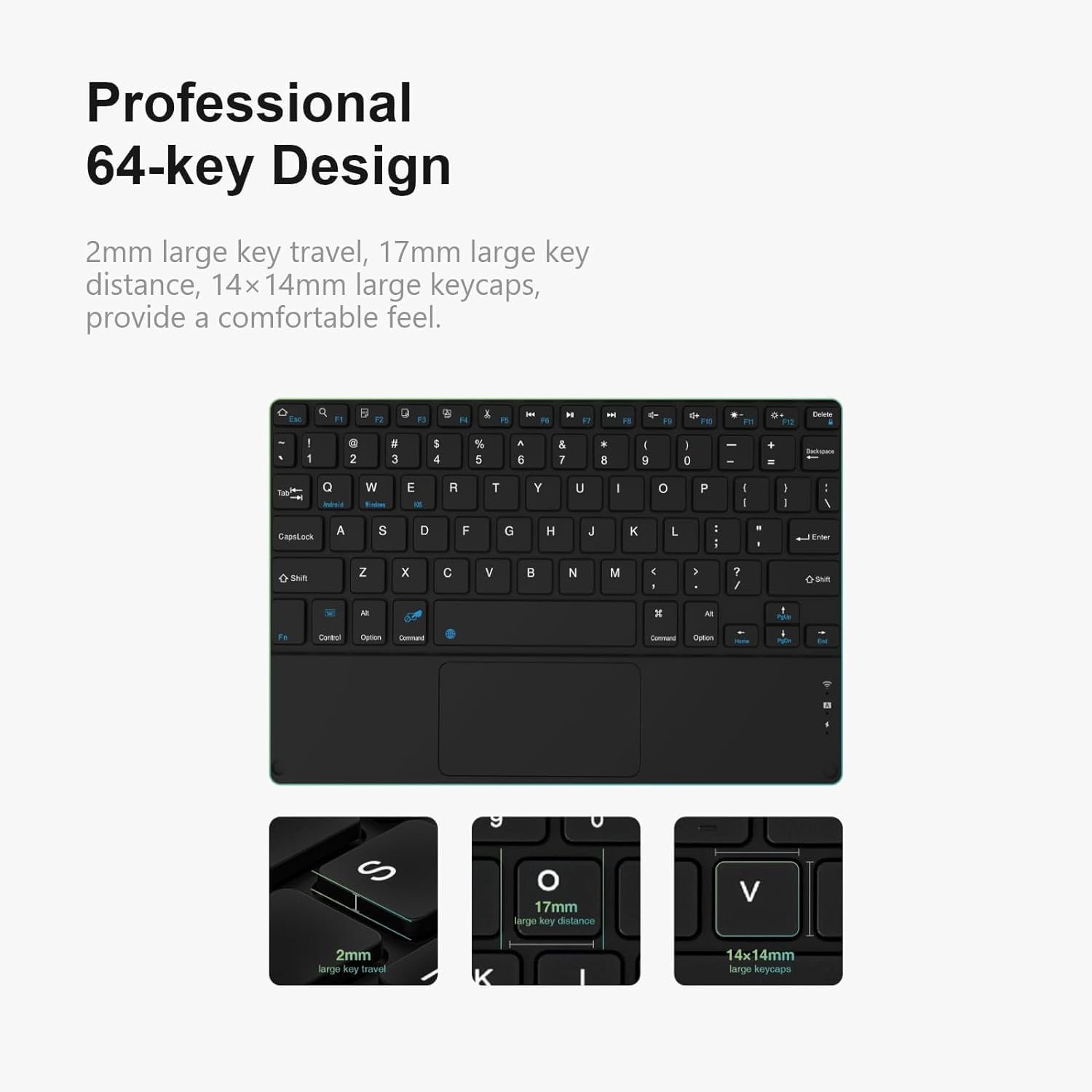
انځور: تفصیلي view of the DOOGEE T10E keyboard's 64-key layout, showing key travel, key distance, and keycap size.
۴.۲. د ټچ پیډ کارول
The integrated multi-touch trackpad (approximately 3772mm²) allows for intuitive navigation and control of your tablet. It supports various gestures:
- د یوې ګوتې ټچ: د کیڼ کلیک په توګه کار کوي.
- د دوو ګوتو ټپ: Functions as a right-click (context menu).
- د یوې ګوتې کشول: کرسر حرکت کوي.
- په دوو ګوتو سره سکرول: Scrolls up or down on web پاڼې او اسناد.
- د زوم لپاره پینچ: د زوم کولو لپاره د دوو ګوتو څخه کار واخلئ ترڅو دننه یا بهر یې کړئ.
- د سوائپ اشارې: Depending on your tablet's operating system, additional multi-finger swipe gestures may be supported for app switching or other functions.

Image: The DOOGEE T10E keyboard's large touchpad, illustrating various touch gestures for full screen control.
3. Multi Shortcut Modes
The keyboard supports various shortcut modes to enhance productivity. These shortcuts often involve combinations of the Fn key with other keys, or specific key combinations for common operating system functions. Consult your tablet's operating system documentation for a full list of supported keyboard shortcuts.
ساتنه
Proper maintenance ensures the longevity and performance of your DOOGEE T10E keyboard.
- پاکول: د نرم، لینټ پاک ټوکر څخه لږ څه کار واخلئampened with water or a mild cleaning solution to wipe the keyboard and case surfaces. Avoid harsh chemicals, abrasive cleaners, or excessive moisture.
- د دوړو لرې کول: د کیلي ګانو ترمنځ د دوړو او کثافاتو د لرې کولو لپاره د فشار شوي هوا څخه کار واخلئ.
- ذخیره کول: When not in use, store the keyboard in a cool, dry place away from direct sunlight and extreme temperatures. Ensure the tablet is securely in the case to protect both devices.
- چارج کول: Recharge the keyboard regularly, even if not used frequently, to maintain battery health.
د ستونزو حل کول
If you encounter issues with your DOOGEE T10E keyboard, refer to the following common problems and solutions:
- کیبورډ د بلوتوث له لارې نه نښلي:
- ډاډ ترلاسه کړئ چې کیبورډ فعال دی او په بشپړ ډول چارج شوی دی.
- ډاډ ترلاسه کړئ چې ستاسو په ټابلیټ کې بلوتوټ فعال دی.
- کیبورډ او ټابلیټ په نږدې واټن کې (د لسو مترو په فاصله کې) ځای په ځای کړئ.
- Try unpairing the keyboard from your tablet's Bluetooth settings and then re-pairing it.
- خپل ټابلیټ او کیبورډ دواړه بیا پیل کړئ.
- کیلي ځواب نه ورکوي:
- Check if the keyboard is connected via Bluetooth.
- ډاډ ترلاسه کړئ چې کیبورډ په کافي اندازه چارج شوی دی.
- کیبورډ او ټابلیټ بیا پیل کړئ.
- Touchpad is not working:
- Verify the keyboard is connected.
- Ensure the touchpad is not accidentally disabled (some keyboards have a function key to toggle the touchpad).
- Clean the touchpad surface to remove any obstructions.
- د بیټرۍ لنډ ژوند:
- ډاډ ترلاسه کړئ چې کیبورډ د کارولو دمخه په بشپړ ډول چارج شوی دی.
- Reduce backlight usage if applicable (this model does not specify backlight, but it's a general tip).
- کله چې کار نه کوئ نو کیبورډ بند کړئ.
مشخصات
| فیچر | تفصیل |
|---|---|
| برانډ | DOOGEE |
| ماډل | T10E |
| مطابقت لرونکې وسیلې | Laptop, Smart TV, Smartphone, Tablet |
| د کیبورډ توضیحات | ولاړ |
| سټایل | عصري |
| مواد | اکریلونیتریل بوټایډین سټرینه |
| شاملې برخې | USB کیبل |
| د بریښنا سرچینه | د USB ویډیو |
| د سویچ ډول | جھلی |
| د کیبورډ ترتیب | QWERTY |
| د توکي وزن | ۶ پونډه (۳ کیلو ګرامه) |
| د کڅوړې ابعاد | 11.3 x 7.44 x 1.18 انچه (28.7 x 18.9 x 3 سانتي متره) |
تضمین او ملاتړ
For warranty information and technical support, please refer to the warranty card included with your product or contact DOOGEE customer service directly. You can typically find contact details on the official DOOGEE webسایټ یا ستاسو د پرچون پلورونکي له لارې.
د تضمین ادعاوو لپاره د پیرود ثبوت په توګه د پیرود رسید وساتئ.


