1. محصول ختم شوview
The 8Bitdo 18 Key Retro Mechanical Numpad is a versatile input device designed for both PC numpad functionality and standard calculator operations. It features a retro aesthetic, hot-swappable mechanical switches, and multiple connectivity options.

انځور: مخکینۍ برخه view of the 8Bitdo 18 Key Retro Mechanical Numpad, C64 Edition, showcasing its retro design and LED display.
2. د بسته محتويات
مخکې له دې چې تنظیم پیل کړئ، مهرباني وکړئ ډاډ ترلاسه کړئ چې ټول توکي په بسته کې شتون لري:
- 8Bitdo 18 Key Retro Mechanical Numpad
- 2.4G بې سیم اډاپټر
- USB-C کیبل
- د لارښوونې لارښود

Image: The 8Bitdo Numpad alongside its packaging and included accessories, such as the 2.4G adapter and USB-C cable.
3. تنظیم او ارتباط
۴.۱ د نمپاد چارج کول
The numpad is equipped with a rechargeable Lithium Polymer battery. A full charge takes approximately 4 hours and provides up to 160 hours of use.
- Connect the supplied USB-C cable to the numpad's USB-C port.
- د کیبل بل پای د USB بریښنا سرچینې سره وصل کړئ (د مثال په توګه، د کمپیوټر USB پورټ، د USB دیوال اډاپټر).
- د LED شاخص به د چارج کولو حالت وښيي او کله چې په بشپړ ډول چارج شي نو بند شي.

انځور: اړخ view of the numpad, highlighting the USB-C charging port and the magnetic compartment for the 2.4G adapter.
۳.۱ د ارتباط اختیارونه
The numpad supports three connection methods: Bluetooth, 2.4G Wireless, and Wired USB-C.
3.2.1 د بلوتوث اتصال
- Set the mode switch on the numpad to 'BT'.
- On your Windows or Android device, go to Bluetooth settings and enable Bluetooth.
- Press and hold the Bluetooth pairing button on the numpad (usually indicated by a Bluetooth icon) until the LED starts blinking rapidly.
- Select '8Bitdo Retro Numpad' from the list of available devices on your computer or phone.
- The LED will become solid when connected.
۳.۲.۱ ۲.۴ جي بېسیم اتصال
- Locate the 2.4G wireless adapter stored in the magnetic compartment on the numpad's side.
- Set the mode switch on the numpad to '2.4G'.
- Plug the 2.4G wireless adapter into an available USB port on your PC.
- The numpad should automatically connect. The LED indicator will become solid.

Image: A hand demonstrating the insertion of the 2.4G wireless adapter into its magnetic storage compartment on the numpad.
۴.۲.۳ د USB-C تار سره وصل
- Set the mode switch on the numpad to 'OFF' or 'BT'/'2.4G' (wired connection will override wireless).
- Connect the USB-C cable from the numpad to a USB port on your PC.
- The numpad will be recognized as a standard USB input device.
3.3 مطابقت
The 8Bitdo Retro Mechanical Numpad is compatible with:
- Windows 10 (1803) and above
- Android 9.0 او پورته
۵. د نمپاد چلول
4.1 Switching Between Numpad and Calculator Modes
The device functions as both a PC numpad and a standalone calculator. Use the dedicated mode switch or button (often labeled 'CAL' or a similar icon) to toggle between these modes.

Image: A user operating the 8Bitdo Numpad in Standard Calculator Mode, demonstrating its use as a standalone calculator.
4.2 Windows Calculator App Shortcut
A dedicated shortcut button is available to instantly launch the Windows Calculator application on your PC. Refer to the numpad's control panel for the specific button.
4.3 Independent Control Panel
The numpad features an independent control panel with a turn dial and buttons for effortless operations. These controls manage connectivity modes, power, and potentially other functions.
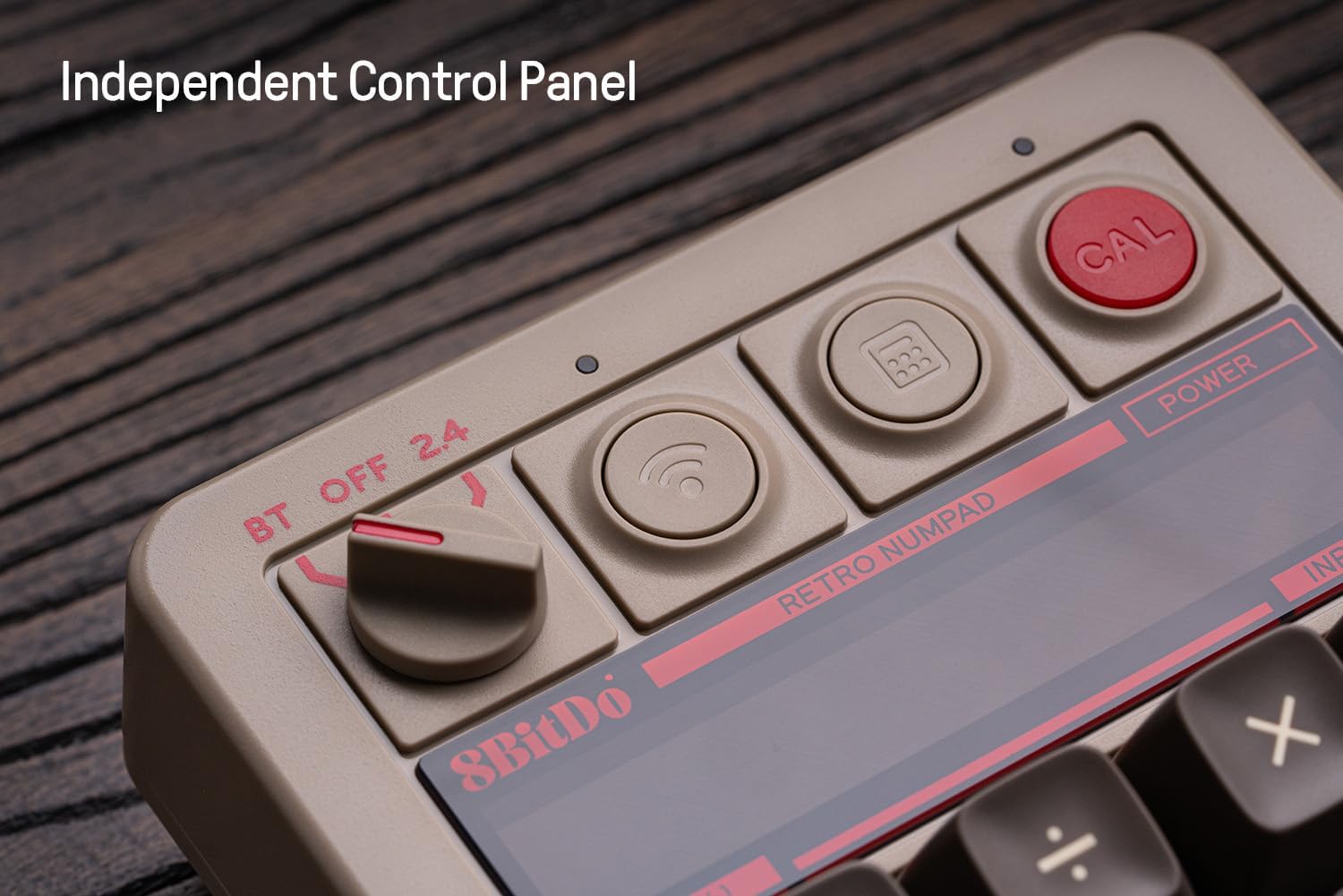
انځور: نږدې انځور view of the numpad's independent control panel, showing the mode switch, wireless/Bluetooth buttons, and the calculator shortcut button.
4.4 Retro LED Display
The numpad incorporates a nine-digit seven-segment LED display, providing clear and visible numerical output for calculator mode and status indicators.
4.5 Hot-swappable PCB and Switches
The numpad features a hot-swappable PCB, allowing users to easily change the mechanical switches without soldering. It comes equipped with Kailh Box White switches V2.

انځور: تفصیلي view of the hot-swappable PCB, showing a keycap and switch removed to illustrate the ease of switch replacement.
۵.۳ د N-key رول اوور
The numpad supports N-key rollover, ensuring that every key press is registered accurately, even when multiple keys are pressed simultaneously.
4.7 Keycaps
The C64 Edition features double-shot ABS keycaps with an SA profile, providing durability and a distinct tactile feel.
5. ساتنه
5.1 پاکول
To maintain the numpad's appearance and functionality:
- د بهرنۍ برخې د پاکولو لپاره نرم، وچ ټوکر وکاروئ.
- د سختې خاورې لپاره، لږ څهampټوکر د اوبو یا نرم پاکولو محلول سره ومینځئ. د سختو کیمیاوي موادو څخه ډډه وکړئ.
- د کیلي کیپسونو ترمنځ د دوړو او کثافاتو لرې کولو لپاره د فشار شوي هوا څخه کار واخلئ.
۶.۲ د کیلي کیپ او سویچ بدلول
Due to the hot-swappable design, keycaps and switches can be replaced. Use a keycap puller and switch puller (not included) for safe removal and installation. Ensure the new switches are compatible with the PCB.
5.3 د بیټرۍ پاملرنه
د بیټرۍ ژوند اوږدولو لپاره:
- د بیټرۍ په مکرر ډول د بشپړ چارج کولو څخه ډډه وکړئ.
- Store the numpad in a cool, dry place when not in use for extended periods.
- Charge the battery at least once every three months if unused.
6. ستونزه حل کول
۵.۳ د اتصال مسلې
- No Connection (Bluetooth/2.4G): Ensure the numpad is charged and the mode switch is set correctly. Re-pair Bluetooth or re-insert the 2.4G adapter. Try a different USB port for the 2.4G adapter.
- موقتي اړیکه: Reduce distance between numpad and device. Avoid sources of interference (e.g., other wireless devices).
- Wired Connection Not Recognized: Try a different USB-C cable or USB port on your PC. Ensure the cable is fully inserted.
6.2 د ښودلو مسلې
- Display Blank: Ensure the numpad is powered on and charged. If in PC numpad mode, the display may show less information. Switch to calculator mode to verify.
- Incorrect Characters: Restart the numpad. If persistent, check for firmware updates.
۵.۳ د ننوتلو کلیدي ستونزې
- هغه کیلي چې ځواب نه ورکوي: Check for debris under keycaps. If hot-swappable, ensure switches are fully seated.
- Double Input/Missed Input: This could indicate a faulty switch. Utilize the hot-swappable feature to replace the affected switch.
۱۱.۲.۱ بیټرۍ چارج نه کیږي
- ډاډ ترلاسه کړئ چې د USB-C کیبل فعال دی او په سمه توګه وصل دی.
- د USB بریښنا بله سرچینه هڅه وکړئ.
- که ستونزه دوام ومومي، د پیرودونکي ملاتړ سره اړیکه ونیسئ.
7. مشخصات
| فیچر | تفصیل |
|---|---|
| د ماډل نوم | C64 Edition |
| د کلیدونو شمیر | 18 |
| سویچونه | Kailh Box White switches V2 (Hot-swappable) |
| کیکیپس | Double-shot ABS (C64 edition) |
| ارتباط | Bluetooth, 2.4G Wireless, Wired USB-C |
| مطابقت | Windows (10 and above), Android (9.0 and above) |
| د بیټرۍ ډول | لیتیم پولیمر |
| د بیټرۍ ژوند | Up to 160 use hours |
| د چارج کولو وخت | نږدې 4 ساعته |
| ښودل | Nine-digit seven-segment LED |
| ابعاد | 7.91 x 7.05 x 2.36 انچه |
| د توکي وزن | ۲.۴۵ پونډه |
8. د تضمین معلومات
8Bitdo products typically come with a limited manufacturer's warranty. For specific details regarding the warranty period and terms for your 8Bitdo 18 Key Retro Mechanical Numpad, please refer to the warranty card included in your product packaging or visit the official 8Bitdo webسایټ
9. ملاتړ
For further assistance, firmware updates, or to download the 8Bitdo Ultimate Software V2 (for firmware updates only), please visit the official 8Bitdo support webسایټ:
You may also contact 8Bitdo customer service through their website for technical support or inquiries.