پیژندنه
Thank you for choosing the Ourlife WiFi Extender. This device is designed to expand your existing Wi-Fi network coverage, eliminate dead spots, and provide a stable, high-speed internet connection throughout your home or office. With a data transfer rate of up to 300Mbps on the 2.4GHz band, it is ideal for streaming, online gaming, and general internet use. This manual provides detailed instructions for setup, operation, and troubleshooting.
د خوندیتوب معلومات
- وسیله د اوبو یا رطوبت سره مه ښکاره کوئ.
- هڅه مه کوئ چې وسیله پخپله جلا کړئ یا ترمیم کړئ.
- Use only the power adapter provided or recommended by the manufacturer.
- وسیله د تودوخې سرچینو او مستقیم لمر څخه لرې وساتئ.
- د ډیر تودوخې مخنیوي لپاره د وسیلې شاوخوا مناسب هوا ورکول ډاډمن کړئ.
د بسته محتويات
مهرباني وکړئ د کڅوړې محتويات په دقت سره وګورئ. که کوم توکي ورک یا خراب وي، نو خپل پرچون پلورونکي سره اړیکه ونیسئ.
- Ourlife WiFi Extender (repeater body)
- د کارن لارښود
محصول پای ته ورسیدview
د اوurlife WiFi Extender features a compact design with four high-gain external antennas for enhanced signal penetration and coverage. It includes an Ethernet port for wired connections.
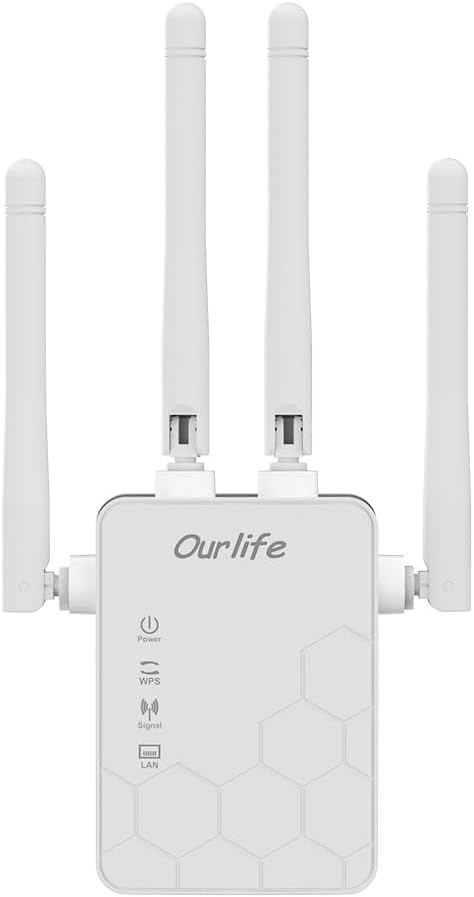
انځور: مخکینۍ برخه view of the Ourlife WiFi Extender, showing the Ourlife logo, power indicator, WPS button, signal strength indicator, and LAN port indicator. Four external antennas are visible.
مهمې برخې:
- د بریښنا شاخص: کله چې وسیله فعاله شي رڼا کوي.
- د WPS تڼۍ: Used for quick, one-button setup with compatible routers.
- د سیګنال شاخص: Shows the strength of the Wi-Fi signal received from the main router.
- LAN پورټ: An Ethernet port for connecting wired devices or for setting up the extender in Access Point (AP) mode.
- بهرنۍ انتنونه: Four adjustable antennas to optimize signal reception and transmission.

انځور: اړخ view of the Ourlife WiFi Extender with dimensions. The device measures approximately 17.2cm/6.8in in height, 5.4cm/2.1in in width, and 3.3cm/1.3in in depth.
چمتو کول
د اوurlife WiFi Extender offers two primary setup methods: WPS (Wi-Fi Protected Setup) for quick connection, and manual setup via a web براوزر
Method 1: WPS Setup (Recommended for quick setup)
- پاور آن: Plug the Ourlife WiFi Extender into an electrical outlet near your main Wi-Fi router. Wait for the Power indicator to light up.
- په ایکسینډر کې WPS فشار ورکړئ: Press the WPS button on the Ourlife WiFi Extender. The WPS indicator light will start blinking.
- په روټر کې WPS فشار ورکړئ: Within 2 minutes, press the WPS button on your main Wi-Fi router.
- د اتصال لپاره انتظار وکړئ: The WPS indicator on the extender will stop blinking and remain solid when the connection is established. The Signal indicator will also light up, indicating a successful connection.
- د توزیع کونکي ځای په ځای کول: Once connected, unplug the extender and move it to a location halfway between your router and the Wi-Fi dead zone. Ensure the Signal indicator shows a strong signal (usually green or multiple bars) for optimal performance.

Image: Visual representation of the four simple setup steps: 1. Unbox, 2. Plug it in, 3. Press the button (WPS), 4. And Pair (with router).
Method 2: Manual Setup via Web براوزر
- پاور آن: Plug the Ourlife WiFi Extender into an electrical outlet near your computer or mobile device.
- د ایکسټینډر وای فای سره وصل شئ: On your computer or mobile device, connect to the Wi-Fi network named "Ourlife_Extender" (or similar, check the label on the device). No password is required for the initial connection.
- خلاص Web براوزر: خلاص a web browser (e.g., Chrome, Firefox, Safari) and enter the default IP address or domain name (e.g., 192.168.10.1 or reapeter.net) into the address bar. Refer to the device label or included mini-manual for the exact address.
- ننوتل: د کارونکي نوم او پټنوم اصلي بڼه دننه کړئ (معمولا admin/admin).
- حالت غوره کړئ: Choose "Repeater Mode" or "AP Mode" based on your needs.
- د تکرار حالت: Extends your existing Wi-Fi network wirelessly.
- د AP حالت (د لاسرسي نقطه): Converts a wired internet connection into a wireless Wi-Fi hotspot. Connect an Ethernet cable from your router to the extender's LAN port.
- شبکه ترتیب کړئ:
- For Repeater Mode: Select your main Wi-Fi network from the list, enter its password, and choose whether to keep the same SSID or create a new one for the extended network.
- For AP Mode: Set a new SSID (network name) and password for the Wi-Fi hotspot.
- ترتیبات تطبیق کړئ: تنظیمات خوندي کړئ او د توسیع کونکي بیا پیل ته انتظار وکړئ.
- د توزیع کونکي ځای په ځای کول: Once configured, unplug and relocate the extender to an optimal position.
عملیات
After successful setup, the Ourlife WiFi Extender will operate automatically. The Signal indicator will provide visual feedback on the connection quality.
د نښلولو وسایل:
- بې سیم وسایل: Connect your smartphones, tablets, laptops, and other Wi-Fi enabled devices to the extended Wi-Fi network (the SSID you configured during setup).
- Wired Devices (via LAN Port): If you are using the extender in Repeater mode, you can connect a wired device (e.g., desktop PC, smart TV, game console) to the extender's LAN port using an Ethernet cable to provide it with network access.
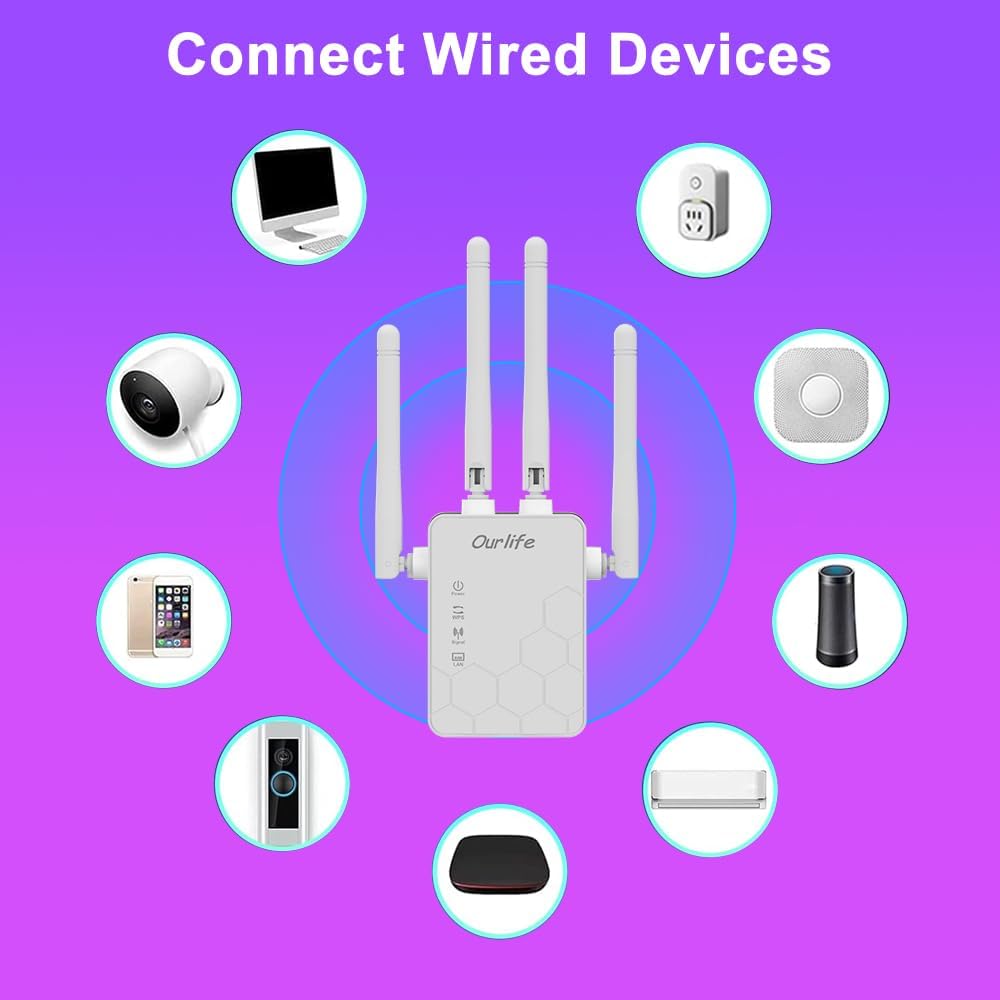
Image: Diagram showing various wired and wireless devices (e.g., desktop computer, smart plug, smart speaker, air conditioner, smart doorbell, security camera, smartphone) that can connect to the Ourlife WiFi Extender.

Image: The Ourlife WiFi Extender plugged into a wall outlet, with an Ethernet cable connected to its LAN port, illustrating its capability to provide a wired connection.
ساتنه
Regular maintenance helps ensure the longevity and optimal performance of your Ourlife WiFi Extender.
- پاکول: د وسیلې د پاکولو لپاره نرم، وچ ټوکر وکاروئ. مایع پاکوونکي یا ایروسول مه کاروئ.
- د فرم ویئر تازه معلومات: په دوره یي ډول د تولید کونکي معاینه وکړئ website for firmware updates. Updating firmware can improve performance, add features, and fix bugs.
- بیا پیل کول: که تاسو د شبکې ستونزې تجربه کوئ، نو د 10 ثانیو لپاره د بریښنا له آوټ لیټ څخه د خلاصولو او بیا یې بیرته پلګ کولو سره د توسیع کونکي بیا پیلولو هڅه وکړئ.
- غوره ځای پرځای کول: Ensure the extender is placed in an open area, away from large metal objects, concrete walls, and other electronic devices that may cause interference.
د ستونزو حل کول
If you encounter issues with your Ourlife WiFi Extender, refer to the following common problems and solutions:
| ستونزه | احتمالي حل |
|---|---|
| ایکسټینډر نه فعالیږي. | ډاډ ترلاسه کړئ چې ایکسټینډر په خوندي ډول د کار کولو بریښنایی آوټ لیټ سره وصل شوی دی. یو بل آوټ لیټ هڅه وکړئ. |
| Cannot connect to the extender's Wi-Fi for setup. | Ensure you are connecting to the correct default SSID (e.g., "Ourlife_Extender"). Try restarting the extender and your device. |
| د WPS تنظیم ناکام شو. | Ensure your router supports WPS. Press the WPS button on both devices within the 2-minute window. Try manual setup if WPS continues to fail. |
| No internet access after connecting to the extended network. | Check if your main router has internet access. Relocate the extender closer to your main router to ensure a strong signal (check Signal indicator). Reconfigure the extender. |
| Slow speeds on the extended network. | Relocate the extender to an optimal position where the Signal indicator shows a strong connection to the main router. Avoid placing it near interference sources. Ensure your main router is providing good speeds. |
| د ننوتلو پټنوم هېر شوی دی د web مدیریت پاڼه. | Perform a factory reset on the extender (usually by pressing and holding a reset button for 5-10 seconds). This will revert all settings to default, including the login credentials. |
مشخصات
| فیچر | تفصیل |
|---|---|
| برانډ | Ourlife |
| ماډل | Ourlife WiFi Extender 300Mbps |
| ASIN | B0D7HB4DBC |
| د معلوماتو د لیږد کچه | 300 Megabits Per Second (2.4GHz) |
| انتن | ۴ لوړ لاسته راوړونکي بهرني انتنونه |
| ایترنیټ پورټ | 1 x LAN پورټ |
| رنګ | سپین |
| ارتباط | Wireless-N (802.11n/g/b) |
| امنیتي پروتوکولونه | Supports Wireless Security (WPA/WPA2) |
| ابعاد (تقریبا) | ۱۲ سانتي متره (ه) x ۱۵ سانتي متره (وچ) x ۲۳ سانتي متره (د) |
تضمین او ملاتړ
For warranty information and technical support, please refer to the documentation included with your purchase or visit the official Ourlife website. You can also contact Ourlife customer service directly for assistance with product setup, troubleshooting, or warranty claims.
Ourlife Store Link: Visit the Ourlife Store on Amazon


