1. پیژندنه
This manual provides comprehensive instructions for the setup, operation, maintenance, and troubleshooting of your vretti D467B Bluetooth Thermal Shipping Label Printer. This high-performance thermal printer is designed for efficient label printing for various applications, including shipping, address, and barcode labels, supporting both USB and Bluetooth connectivity.

Figure 1: vretti D467B Printer and accessories. A sample label with barcode 4206047823456789012345678901 ښودل کیږي.
2. ترتیب کول
۲.۱ د بسته بندۍ او محتوا خلاصول
په احتیاط سره د بسته بندۍ څخه ټولې برخې لرې کړئ. ډاډ ترلاسه کړئ چې لاندې توکي شتون لري:
- vretti D467B Thermal Label Printer
- د بریښنا اډاپټر
- USB کیبل
- USB Flash Drive (containing drivers and software)
- Label Spindle and Holders
- د چټک پیل لارښود
2.2 د پرنټر سره نښلول
- Connect the power adapter to the printer's power port and then to an electrical outlet.
- For USB connection: Connect the USB cable from the printer to your computer.
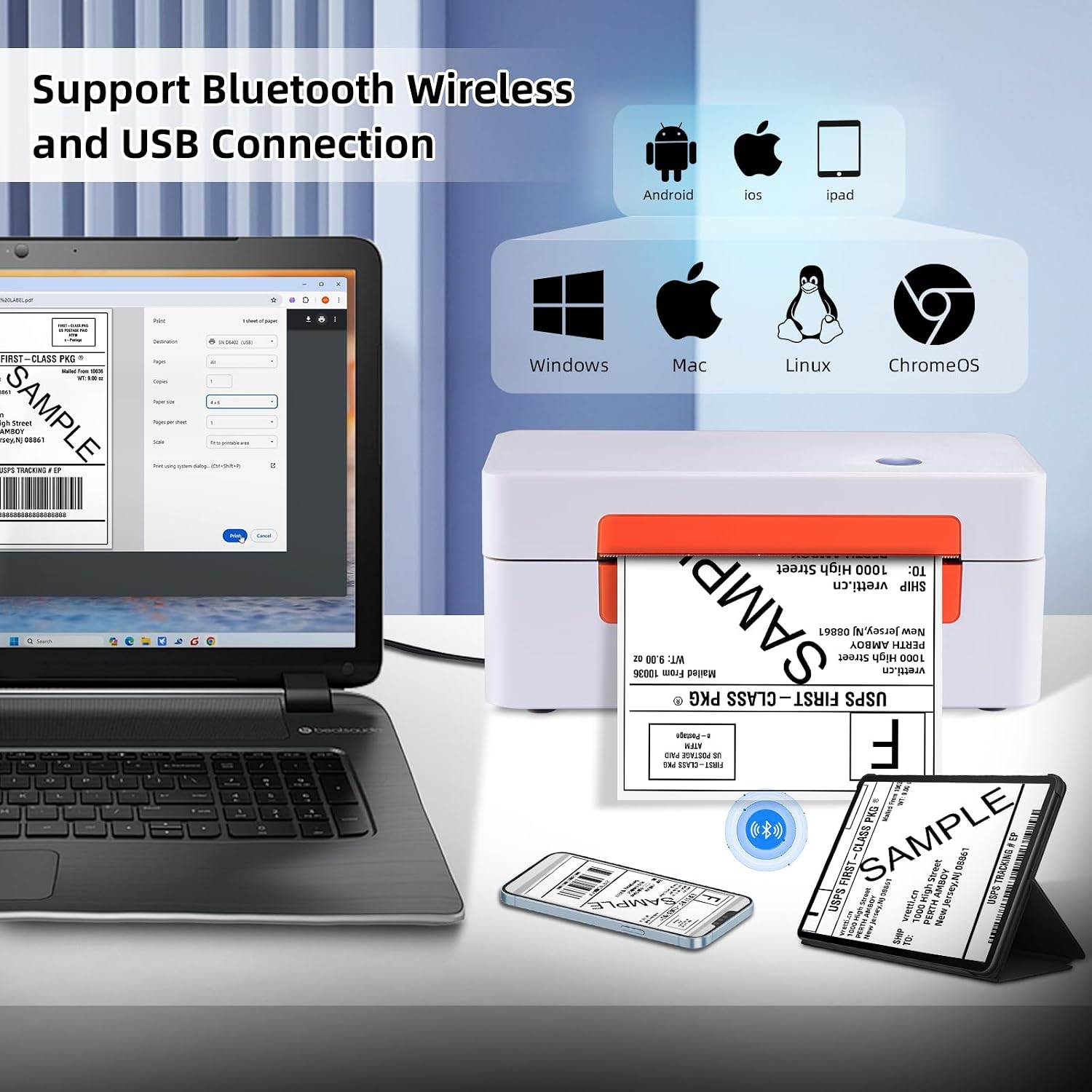
Figure 2: Printer connectivity options (USB and Bluetooth).
۳.۲ د لیبلونو بارول
- د پرنټر پوښ خلاص کړئ.
- Place the label roll onto the label spindle and secure it with the holders.
- Feed the labels through the guide until the leading edge is slightly past the print head.
- د پرنټر پوښ وتړئ.
- Press the feed button once to allow the printer to automatically detect and calibrate the label size.

Figure 3: Label loading and supported label sizes. A nutrition facts label with barcode 0403685400125 ښودل کیږي.
2.4 Driver Installation and Software
The printer supports Windows, macOS, Chrome OS, and Linux systems via USB, and Android/iOS via Bluetooth using the "Ezlabel" app.
- د USB اتصال لپاره: Insert the provided USB flash drive into your computer. Follow the instructions to install the appropriate drivers for your operating system. For Chrome OS users, an extension may need to be installed from the USB flash drive.
- د بلوتوث اتصال لپاره: Download the "Ezlabel" app from your device's app store (available for Android and iOS).
3. عملیات
۴.۱ د چاپ اساسي مرحلې
- Ensure the printer is powered on and labels are loaded correctly.
- For USB Printing:
- Open the document or label file ستاسو په کمپیوټر کې.
- Select the vretti D467B printer from your print options.
- Adjust print settings (e.g., label size, orientation) as needed.
- Initiate printing.
- For Bluetooth Printing (via Ezlabel App):
- Open the "Ezlabel" app on your Android or iOS device.
- Pair your device with the printer via Bluetooth.
- Import or create your label design within the app.
- Customize and preview لیبل
- د چاپ دنده چاپګر ته واستوئ.

Figure 4: High-speed and high-resolution printing capabilities.
۲.۱ د پلیټ فارم مطابقت
The vretti D467B printer is compatible with various e-commerce and shipping platforms, including but not limited to:
- ایمیزون
- eBay
- Shopify
- Etsy
- USPS
- UPS
- FedEx
- DHL
- والمارت
- Stamps.com
- د شپی سټیشن
- د کښتۍ کارونه
- شپو
- EasyPost
- انډیسیا
- Wish
- AliExpress
- XPS Ship

Figure 5: Compatible e-commerce and shipping platforms.
3.3 Supported Label Types
The printer supports a wide range of thermal label types, including:
- Shipping Labels (e.g., 4x6 inches)
- Address Labels
- Barcode Labels
- د محصول لیبلونه
- د DIY لیبلونه
- Business Logos

شکل 6: مثالamples of supported label applications.
4. ساتنه
۵.۱ د چاپ سر پاکول
To ensure optimal print quality, regularly clean the print head. Use an alcohol swab or a specialized print head cleaning pen. Power off the printer and allow the print head to cool before cleaning. Gently wipe the print head surface to remove any dust or adhesive residue.
4.2 عمومي پاملرنه
- پرنټر په پاک او دوړو څخه پاک چاپیریال کې وساتئ.
- Avoid exposing the printer to direct sunlight or extreme temperatures.
- د چاپ سر ته د زیان رسولو مخنیوي لپاره یوازې د لوړ کیفیت حرارتي لیبلونو څخه کار واخلئ.
- د پرنټر په بهرنۍ برخه کې د کثافاتو پاکوونکي یا محلولونه مه کاروئ.
5. ستونزه حل کول
This section addresses common issues you might encounter with your vretti D467B printer.
۷.۱ چاپګر ځواب نه ورکوي
- Ensure the power cable is securely connected and the printer is turned on.
- ډاډ ترلاسه کړئ چې USB کیبل په سمه توګه د پرنټر او کمپیوټر دواړو سره وصل دی.
- For Bluetooth, ensure the printer is paired with your device and the "Ezlabel" app is open.
- پرنټر او خپل کمپیوټر/ګرځنده وسیله بیا پیل کړئ.
۵.۲ د چاپ خراب کیفیت
- Check if the thermal labels are loaded correctly and are facing the right direction.
- د چاپ سر پاک کړئ لکه څنګه چې د ساتنې برخې کې تشریح شوي.
- Ensure you are using high-quality thermal labels.
- Adjust print density settings in your printer preferences or the "Ezlabel" app.
5.3 Labels Not Feeding Correctly
- Ensure labels are properly aligned within the guides.
- Perform a label calibration by pressing the feed button.
- د لیبل په لاره کې د کوم خنډ لپاره وګورئ.
۵.۳ د اتصال مسلې
- USB: Reinstall the printer drivers from the provided USB flash drive. Try a different USB port or cable.
- بلوتوث: Ensure Bluetooth is enabled on your device. Forget the printer from your device's Bluetooth settings and re-pair it through the "Ezlabel" app. Ensure the printer is within range.
6. مشخصات
| فیچر | تفصیل |
|---|---|
| ماډل | D467B |
| د چاپ ټیکنالوژي | حرارتي |
| ارتباط | بلوتوث، USB |
| د چاپ حل | 203 DPI |
| د اعظمي چاپ سرعت | 152 mm/s (72 labels/minute for 4x6) |
| د لیبل پراخوالی ملاتړ شوی | 1 inch to 4.5 inches (25.4mm to 115mm) |
| د ملاتړ شوي میډیا اندازه | 4x6 inches (standard shipping labels) and other custom sizes |
| د چاپګر محصول | مونوکروم |
| د محصول ابعاد | 7.6 x 3.9 x 3.9 انچه |
| د توکي وزن | ۲.۴۵ پونډه |
| د کنټرول طریقه | App, USB |
| UPC | 692878863544 |
7. ملاتړ او تضمین
7.1 تخنیکي ملاتړ
For any technical assistance or inquiries, vretti offers comprehensive support through various channels:
- لرې تخنیکي ملاتړ: Available for complex issues.
- د بریښنالیک ملاتړ: Contact via email for detailed queries.
- فوري پیغامونه: Support available via WhatsApp.
- Online Q&A: Check the product's Q&A section for common questions and answers.
Please refer to the contact information provided with your product packaging or on the official vretti webد ملاتړ د خورا تازه جزیاتو لپاره سایټ.
7.2 د محصول تضمین
Information regarding the product warranty is typically provided with your purchase documentation or can be obtained from the retailer where the printer was purchased. Please retain your proof of purchase for warranty claims.


