1. پیژندنه
تور ته ښه راغلاستview Tab30 Kids Tablet user manual. This guide provides essential information for setting up, operating, maintaining, and troubleshooting your new tablet. Please read this manual thoroughly to ensure optimal performance and a safe user experience for your child.
2. د بسته محتويات
د کڅوړې د پرانیستلو پر مهال، ډاډ ترلاسه کړئ چې لاندې لیست شوي ټول توکي شتون لري او په ښه حالت کې دي:
- تورview Tab30 Kids Tablet
- د موقف سره محافظتي قضیه
- د USB چارج کیبل
- د بریښنا اډاپټر
- د کارونکي لارښود (دا لاسوند)
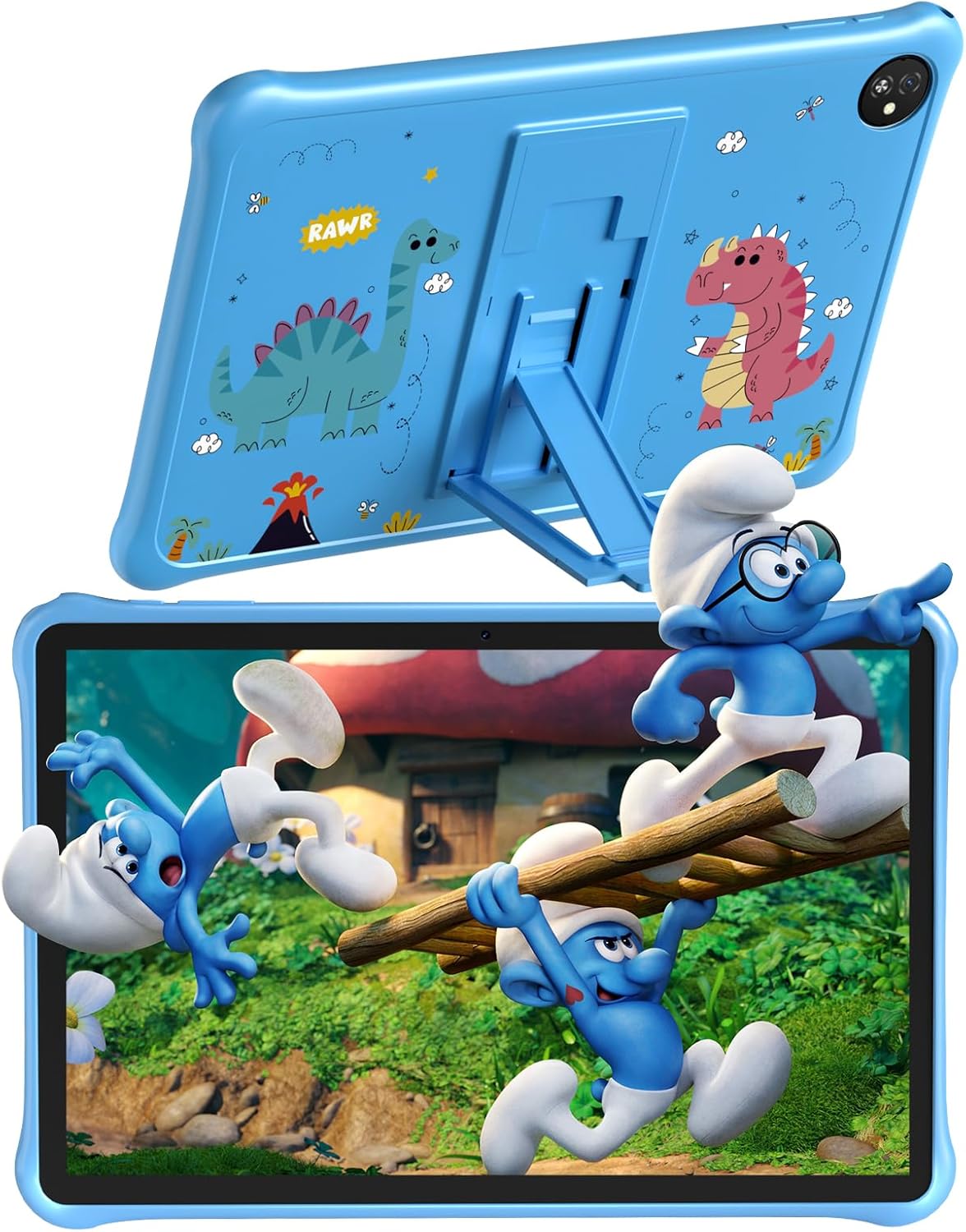
انځور: تورview Tab30 Kids Tablet with its protective case and stand.

Image: Details of the protective case, showing the integrated stand and durable EVA material.
3. وسیله ختمه شوهview
Familiarize yourself with the physical components and key features of your Blackview Tab30 Kids Tablet.
- مخکینۍ کیمره: د ویډیو زنګونو او سیلفیو لپاره.
- د ښودلو سکرین: 10-inch IPS display for clear visuals.
- د بریښنا تڼۍ: To turn the tablet on/off or put it to sleep/wake it up.
- د حجم تڼۍ: د غږ حجم تنظیمولو لپاره.
- د USB-C پورټ: د چارج کولو او ډیټا لیږد لپاره.
- د سر غوږ جیک: د تار لرونکي هیډفونونو د نښلولو لپاره.
- شاته کیمره: د عکسونو او ویډیوګانو اخیستلو لپاره.
- سپیکر: د آډیو تولید لپاره.
- د مایکرو ایس ډی کارت سلاټ: د پراخېدو وړ ذخیره کولو لپاره.

انځور: اوورview of the tablet's main features.
4. ترتیب کول
۴.۱ د ټابلیټ چارج کول
Before initial use, fully charge the tablet using the provided USB cable and power adapter. The battery indicator on the screen will show charging status.
4.2 بریښنا کول / بندول
فشار ورکړئ او ونیسئ د بریښنا تڼۍ located on the side of the tablet to turn it on or off. A short press will put the tablet to sleep or wake it up from sleep mode.
۳.۴ د ابتدايي تنظیم وزرډ
Upon first power-on, the tablet will guide you through an initial setup wizard. Follow the on-screen instructions to:
- د خپلې خوښې ژبه وټاکئ.
- د Wi-Fi شبکې سره وصل شئ.
- Set up or log in with your Google account.
- Configure basic device settings.
۵.۲ د مایکرو ایس ډی کارت داخلول
To expand the tablet's storage, locate the MicroSD card slot on the side of the device. Gently insert a compatible MicroSD card (up to 1TB, sold separately) until it clicks into place. Ensure the tablet is powered off before inserting or removing the card.
5. عملیاتي لارښوونې
5.1 بنسټیز نیویګیشن
تورview Tab30 Kids Tablet uses a touch-based interface:
- ټایپ: د یو توکي غوره کولو یا غوښتنلیک خلاصولو لپاره.
- سوائپ: To scroll through screens, menus, or content.
- چنه د انځورونو د زوم ان یا آوټ کولو لپاره او web پاڼې
- ښکته سویپ: From the top of the screen to access notifications and quick settings.
5.2 د وای فای سره نښلول
د بې سیم شبکې سره د نښلولو لپاره:
- ورتګ ترتیبات.
- ټپ شبکه او انټرنیټ.
- وټاکئ وای فای او چالان کړئ.
- له لیست څخه خپل مطلوب وای فای شبکه غوره کړئ.
- که چیرې غوښتنه وشي نو د شبکې پټنوم دننه کړئ، بیا کلیک وکړئ نښلول.
5.3 Google Kids Space and Parental Controls
تورview Tab30 Kids Tablet is designed with children in mind, featuring Google Kids Space and the iKids application. These provide a curated, safe, and educational environment.

Image: The iKids software interface with learning and entertainment options.
Setting Up Parental Controls:
Access the iKids application or Google Kids Space settings to configure parental control features. These tools allow you to:
- د پټنوم ساتنه: Prevent children from exiting the Kids Protection Area without parental permission.
- د اپلیکیشن مدیریت: Filter and select which applications your child can access.
- Website Management: Choose safe and healthy websites for browsing.
- د وخت مدیریت: Set daily usage limits and break times to encourage balanced use.
- Tablet Usage Management: View statistical reports of app usage behavior.
- Create Multiple Kid Accounts: Customize different proper content and settings for each child.

Image: Parental Control and Kids Space features.
۳.۳ د کیمرې کارول
ټایپ کړئ کیمره icon on the home screen to open the camera application. You can switch between the front and rear cameras and select photo or video mode.
۶.۴ د سترګو پاملرنې حالت
فعالول د سترګو پاملرنې حالت from the quick settings panel (swipe down from the top of the screen) or within the display settings. This mode reduces blue light emission, which can help protect your child's eyes during extended screen time.
۶.۲ د وایډ وین L1 ملاتړ
The tablet supports Widevine L1, which enables high-definition (HD) streaming content from supported platforms like Netflix, Disney+, and Amazon Prime Video, ensuring a quality viewتجربه

Image: Display features including HD+ resolution, WiFi6, and Widevine L1.
6. ساتنه
6.1 پاکول
د سکرین او ټابلیټ بدن پاکولو لپاره یو نرم، لینټ نه لرونکی ټوکر وکاروئ. د سختو داغونو لپاره، یو څه نرم کړئampen the cloth with water. Avoid abrasive cleaners, solvents, or aerosol sprays, as these can damage the tablet's surfaces.
6.2 د سافټویر تازه معلومات
Periodically check for system updates to ensure your tablet has the latest features, performance improvements, and security patches. Go to ترتیبات> سیسټم> د سیسټم تازه کول د شته تازه معلوماتو د کتلو او نصبولو لپاره.
6.3 د بیټرۍ پاملرنه
To prolong the lifespan of your tablet's battery:
- د ټابلیټ د سختې تودوخې (ډیر ګرم یا ډیر سړه) سره د مخ کیدو څخه ډډه وکړئ.
- بیټرۍ ته اجازه مه ورکوئ چې په مکرر ډول په بشپړه توګه چارج شي. مخکې له دې چې د 20٪ څخه ښکته شي چارج یې کړئ.
- یوازې چمتو شوی چارجر او USB کیبل وکاروئ.
7. ستونزه حل کول
دا برخه هغه عامې ستونزې په ګوته کوي چې تاسو یې د خپل تور رنګ سره مخ کیدی شئview Tab30 Kids Tablet.
۷.۱ ټابلیټ نه چالانېږي
- Ensure the tablet is charged. Connect it to the charger for at least 30 minutes before attempting to power it on again.
- د جبري بیا پیل کولو لپاره د 10-15 ثانیو لپاره د بریښنا تڼۍ فشار ورکړئ او ونیسئ.
۷.۳ د وای فای اتصال ستونزې
- وګورئ چې ایا وای فای فعال شوی دی ترتیبات > شبکه او انټرنیټ > وای فای.
- خپل وای فای روټر او ټابلیټ بیا پیل کړئ.
- ډاډ ترلاسه کړئ چې تاسو سم د وای فای پټنوم داخل کوئ.
- که شتون ولري، نو د بل وای فای شبکې سره وصل کیدو هڅه وکړئ.
۶.۳ د اپلیکیشنونو خرابېدل یا کنګل کېدل
- ستونزه لرونکی اپلیکیشن بند او بیا پرانیزئ.
- If the issue persists, clear the app's cache: Go to ترتیبات > ایپس > [د اپلیکیشن نوم] > ذخیره او زیرمه > زیرمه پاکه کړئ.
- Consider uninstalling and reinstalling the app.
۵.۳ ورو فعالیت
- هغه نا کارول شوي غوښتنلیکونه بند کړئ چې په شاليد کې روان دي.
- کیچ پاک کړئ او لنډمهاله fileپه منظمه توګه.
- Consider uninstalling unnecessary applications to free up storage space.
۹.۳ د والدینو د کنټرول مسلې
- Verify parental control settings within the iKids application or Google Kids Space.
- Ensure the correct password is used for parental access.
- Check if any time limits or app restrictions are inadvertently causing the issue.
8. مشخصات
| ماډل | تورview Tab 30 ماشومان |
| عملیاتي سیسټم | Android 13 |
| پروسیسر | Allwinner A133P Quad-Core, 1.8 GHz |
| ښودل | 10-inch IPS, 1280 x 800 pixels |
| RAM | 6GB (2GB physical + 4GB virtual expansion) |
| داخلي ذخیره | 64GB |
| د پراخیدو وړ ذخیره | د مایکرو ایس ډی کارت له لارې تر ۱ ټی بی پورې (شامل نه دی) |
| بیټرۍ | ۸۰۰۰ mAh، تر ۱۳ ساعتونو پورې کارول |
| کیمرې | شا: ۵ میګاپکسله، مخکی: ۲ میګاپکسله |
| ارتباط | Wi-Fi 6 (802.11ax) |
| بندرونه | USB-C, 3.5mm Headphone Jack |
| ابعاد | 9.85 mm thickness, 520 g weight |
| ځانګړي ځانګړتیاوې | Google Kids Space, iKids, Eye Care Mode, Widevine L1, Protective TPU Case included |
9. د خوندیتوب معلومات
Please observe the following safety guidelines to ensure safe operation and prevent damage to your tablet or injury to yourself or others:
- ټابلیټ د لوړې تودوخې، مستقیم لمر وړانګو، یا رطوبت سره مه مخ کوئ.
- Use only the provided charger and accessories. Using unauthorized accessories may void your warranty and pose safety risks.
- Keep the tablet and its small parts away from infants and small children to prevent choking hazards.
- د اوریدلو د زیان مخه نیولو لپاره د اوږدې مودې لپاره په لوړ حجم کې د آډیو اوریدلو څخه ډډه وکړئ.
- Do not attempt to disassemble, repair, or modify the tablet yourself. Contact authorized service personnel for any repairs.
- د ټابلیټ او د هغې بیټرۍ د ځایی مقرراتو سره سم په مسؤلیت سره تصفیه کړئ.
10. تضمین او ملاتړ
For detailed warranty information, technical support, or service inquiries, please refer to the warranty card included in your product package. You may also visit the official Blackview website for the latest support resources and contact information. Please retain your proof of purchase for any warranty claims.


