1. پیژندنه
The Canon PIXMA TS3750i is a compact, affordable, and user-friendly multifunction inkjet printer designed for home and small office use. It offers versatile functionalities including printing, copying, and scanning. This printer supports wireless connectivity, enabling convenient operation from various devices, and features borderless photo printing. It is also compatible with the PIXMA Print Plan for automated ink delivery.
2. د خوندیتوب معلومات
Please read all safety instructions before using the printer to ensure safe and proper operation. Keep this manual for future reference.
- Do not place the printer in unstable locations.
- پرنټر د اوبو یا رطوبت څخه لرې وساتئ.
- یوازې هغه بریښنایی تار وکاروئ چې د پرنټر سره ورکړل شوی وي.
- Do not attempt to disassemble or modify the printer.
- Unplug the printer from the power outlet before cleaning or if it will not be used for an extended period.
3. د بسته محتويات
ډاډ ترلاسه کړئ چې لاندې ټول توکي ستاسو په بسته کې شامل دي:
- Canon PIXMA TS3750i Printer
- Inkjet Cartridges (initial set)
- د بریښنا کیبل
- Setup CD-ROM (for Windows only)
- لاسي کتابونه او نور اسناد
4. ترتیب کول
4.1 پاکول او ځای پرځای کول
- پرنټر د هغې له بسته بندۍ څخه لرې کړئ او ټول محافظتي ټیپونه او د بسته بندۍ توکي لرې کړئ.
- پرنټر په یوه مستحکم، فلیټ سطحه کېږدئ چې شاوخوا یې د هوا د جریان او عملیاتو لپاره کافي ځای ولري.
4.2 د بریښنا نښلول
- Connect the supplied power cable to the printer's power input.
- د بریښنا کیبل بله پای د دیوال په یوه سوري کې ولګوئ.
- د پرنټر د فعالولو لپاره د بریښنا تڼۍ فشار ورکړئ.
۴.۳ د رنګ کارتوس نصبول
- Open the printer's top cover to access the cartridge holder.
- Remove the protective tape from the ink cartridges.
- Insert the color and black ink cartridges into their respective slots until they click into place.
- پورتنۍ پوښ وتړئ.
4.4 د کاغذ بار کول
- Open the paper support and pull out the paper output tray.
- Load paper (e.g., A4, photo paper) into the rear paper tray, ensuring it is aligned with the paper guides.
- Adjust the paper guides to fit the width of the paper.
۱.۴ سافټویر او بېسیم تنظیم
For initial setup and to enable wireless printing, follow these steps:
- د کمپیوټر لپاره: Insert the Setup CD-ROM (Windows only) and follow the on-screen instructions to install drivers and software.
- For PC/Mac/Mobile: د کینن څخه لیدنه وکړئ website for your region and download the latest drivers and the Canon PRINT Inkjet/SELPHY app.
- Follow the instructions within the software or app to connect the printer to your Wi-Fi network. The printer supports one-touch wireless connectivity for easier setup.
- For mobile devices, ensure your device is connected to the same Wi-Fi network as the printer.
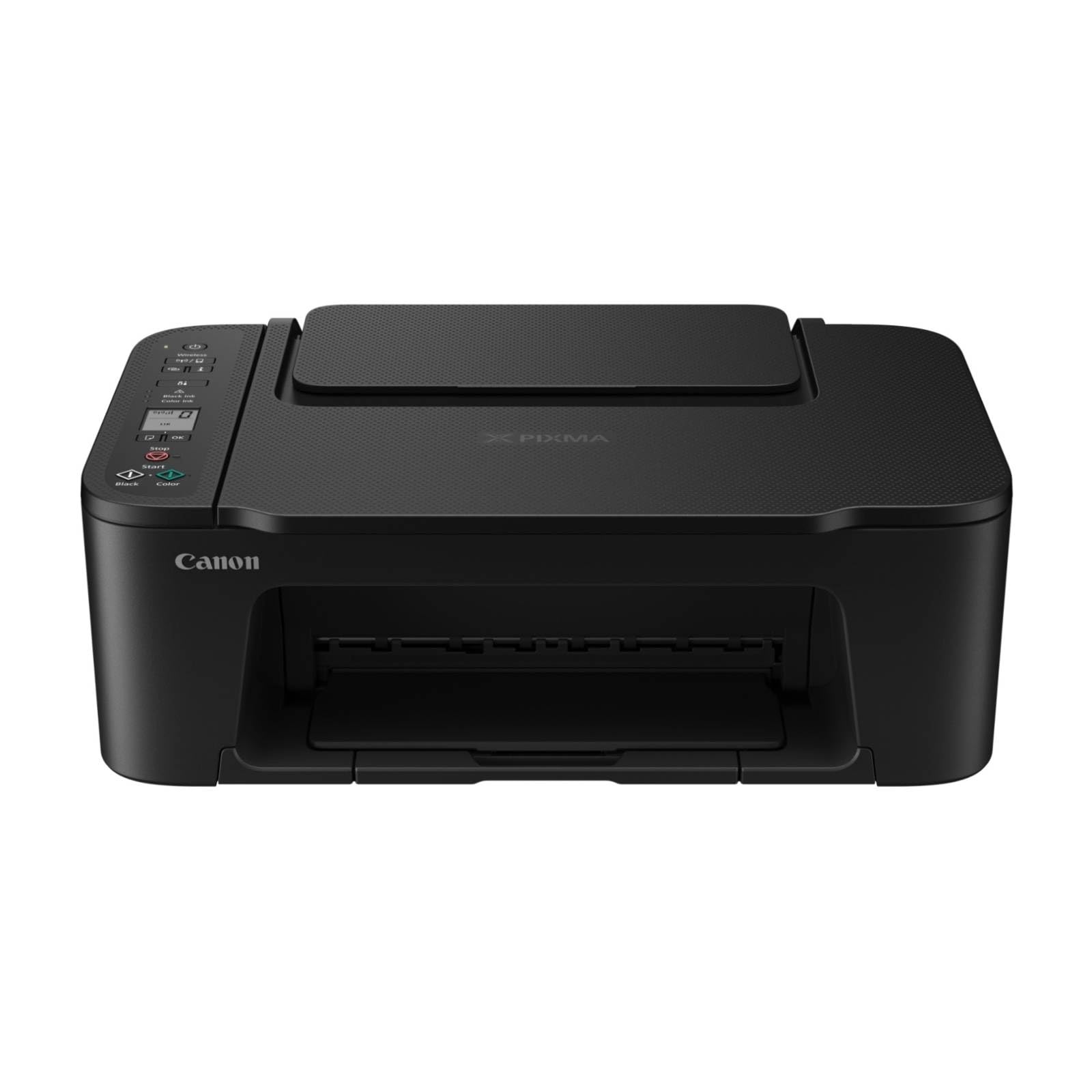
شکل 1: مخکی view of the Canon PIXMA TS3750i printer, showing its compact design and control panel.
5. عملیاتي لارښوونې
۲.۱ د اسنادو او عکسونو چاپول
- ډاډ ترلاسه کړئ چې پرنټر فعال دی او ستاسو وسیله سره وصل دی (د وای فای یا USB له لارې).
- Load the appropriate paper type and size into the rear paper tray.
- Open the document or photo you wish to print on your computer or mobile device.
- د خپل غوښتنلیک څخه د چاپ انتخاب غوره کړئ.
- In the print dialog, select the Canon PIXMA TS3750i as your printer. Adjust settings such as paper size, media type, print quality, and borderless printing (for photos up to 12.7 x 18 cm).
- "چاپ" کلیک وکړئ.
۵.۳ د اسنادو کاپي کول
- د سکینر پوښ پریږدئ.
- Place the document face-down on the scanner glass, aligning it with the alignment mark.
- د سکینر سر په نرمۍ سره وتړئ.
- On the printer's control panel, press the Black button for a monochrome copy or the Color button for a color copy.
- To make multiple copies (up to 20), press the desired copy button repeatedly for the number of copies needed.
۲.۲ د اسنادو او عکسونو سکین کول
- Ensure the printer is connected to your computer or mobile device.
- Place the document or photo face-down on the scanner glass.
- On your computer, open the scanning software (e.g., Canon IJ Scan Utility) or on your mobile device, open the Canon PRINT Inkjet/SELPHY app.
- Select the scan option and adjust settings such as document type, resolution, and destination folder.
- Initiate the scan. The scanned image will be saved to your specified location.
5.4 Mobile Printing and Scanning
The Canon PIXMA TS3750i supports printing and scanning directly from smartphones and tablets using the Canon PRINT Inkjet/SELPHY app or Apple AirPrint. Ensure your mobile device and printer are connected to the same Wi-Fi network.
- Canon PRINT Inkjet/SELPHY App: Download and install the app from your device's app store. Use the app to select photos or documents for printing, or to initiate scans directly to your mobile device.
- د ایپل ایرپرنټ: For iOS devices, you can print directly from AirPrint-enabled applications without installing additional drivers. Select the print option from the app and choose your PIXMA TS3750i printer.
- Wi-Fi PictBridge: Connect directly to compatible cameras for photo printing.
6. ساتنه
6.1 د پرنټر پاکول
- بهر: د پرنټر بهرنۍ برخه د نرم، d سره پاک کړئamp، له لینټ څخه پاک ټوکر. د کثافاتو پاکوونکي یا محلول مه کاروئ.
- د سکینر شیشه: د سکینر شیشه په نرمۍ سره د نرم، لینټ نه پاک ټوکر سره پاک کړئ چې د شیشې پاکوونکي لږ مقدار سره لندبل شوی وي. ډاډ ترلاسه کړئ چې هیڅ پاتې شوني پاتې نشي.
- د چاپ سر: If print quality declines (e.g., streaks, faded colors), perform a print head cleaning from the printer's utility software on your computer or through the Canon PRINT Inkjet/SELPHY app.
۶.۱ د رنګ کارتوسونو بدلول
- When an ink cartridge is low or empty, a message will appear on the printer's display or in the software.
- Open the printer's top cover. The cartridge holder will move to the replacement position.
- خالي کارتوس باندې فشار ورکړئ ترڅو یې خوشې کړئ، بیا یې وباسئ.
- Unpack the new Canon genuine ink cartridge and remove the protective tape.
- Insert the new cartridge into the correct slot until it clicks firmly into place.
- Close the top cover. The printer will perform an initialization process.
۶.۳ د کاغذ جامونو پاکول
- If a paper jam occurs, an error message will appear.
- پرنټر بند کړئ او د بریښنا تار خلاص کړئ.
- Carefully open the printer covers (top cover, rear cover if applicable) to locate the jammed paper.
- Gently pull the jammed paper out in the direction of the paper path. Avoid tearing the paper.
- Ensure all torn pieces of paper are removed.
- ټول پوښونه وتړئ، د بریښنا تار ولګوئ، او پرنټر چالان کړئ.
7. ستونزه حل کول
Refer to the following common issues and their solutions. For more detailed troubleshooting, consult the Canon support webسایټ
- Printer is not turning on: ډاډ ترلاسه کړئ چې د بریښنا کیبل په خوندي ډول د پرنټر او کار کونکي بریښنایی سایټ دواړو سره وصل دی.
- Cannot print:
- Check if the printer is powered on and connected to your device (Wi-Fi or USB).
- Verify that ink cartridges are installed correctly and have sufficient ink.
- Ensure paper is loaded correctly in the paper tray.
- Restart your computer/mobile device and the printer.
- Check printer drivers and software for updates.
- د چاپ کیفیت کمزوری:
- Perform a print head cleaning and nozzle check from the printer utility.
- Ensure you are using genuine Canon ink cartridges.
- Check print settings for appropriate paper type and print quality.
- د بېسیم اتصال ستونزې:
- Ensure the printer and your device are on the same Wi-Fi network.
- Restart your wireless router, printer, and device.
- Re-run the wireless setup process.
- Check for any firewall settings blocking communication.
- د کاغذ جام: Follow the instructions in Section 6.3 to clear any jammed paper.
8. مشخصات
| د ماډل نوم | د PIXMA TS3750i |
| د چاپ ټیکنالوژي | Inkjet |
| افعال | چاپ، کاپي، سکین |
| د ارتباط ټیکنالوژي | USB، Wi-Fi |
| د چاپ اعظمي سرعت (مونوکروم) | 7.7 ppm |
| د چاپ اعظمي سرعت (رنګ) | 4 ppm |
| د چاپګر محصول | رنګ |
| ډوپلیکس چاپ کول | هو |
| د میډیا اعظمي اندازه | A4 |
| د شیټ اندازه ملاتړ | A4, A5, B5, Custom (Width 89 mm - 215.9 mm, Length 127 mm - 676 mm) |
| د اعظمي ننوتلو ظرفیت | 60 پاڼې |
| د سکینر ډول | فلیټ بستر |
| په هر منډه کې اعظمي کاپيانې | 20 |
| مطابقت لرونکې وسیلې | لپټاپونه، کمپیوټرونه، سمارټ فونونه، ټابلیټونه |
| ځانګړي ځانګړتیاوې | Borderless printing, Lightweight, Auto Power On, Display screen |
| د محصول ابعاد (د x څلویښتم x څلویښتم) | 32.7 x 43.5 x 14.5 سانتي متره |
| د محصول وزن | 4.19 کیلو ګرامه |
| د بریښنا مصرف | 9 واټ |
9. تضمین او ملاتړ
This Canon PIXMA TS3750i printer comes with a standard manufacturer's warranty. Please refer to the warranty card included in your package for specific terms and conditions, including warranty period and coverage details.
For technical support, product registration, driver downloads, and additional troubleshooting resources, please visit the official Canon support webستاسو د سیمې لپاره سایټ. تاسو کولی شئ هلته د پیرودونکو خدماتو لپاره د اړیکو معلومات هم ومومئ.
- آنلاین ملاتړ: www.canon.com/support (Please replace with your regional Canon support link)
- د محصول ثبتول: Registering your product helps Canon provide you with better service and support.


