پیژندنه
This manual provides detailed instructions for the setup, operation, and maintenance of your Simply Smart Home PhotoShare MyLuma LED 7-inch WiFi Digital Photo Frame. Please read this manual thoroughly to ensure proper use and to maximize your product's functionality.
محصول پای ته ورسیدview
The PhotoShare MyLuma digital photo frame allows you to instantly share photos and videos from your phone. It features a 7-inch HD touchscreen display, integrated LED lighting, and a soft-touch fabric back panel.
کلیدي ځانګړتیاوې:
- Instant & Private Sharing: Send photos and videos securely via the PhotoShare app or email.
- HD Display & Design: 7-inch WiFi-enabled HD touchscreen with a soft-touch fabric back.
- دودیز خبرتیاوې: Assign LED colors and sounds to contacts for personalized photo notifications.
- Smart Effects & Slideshows: Add stickers, borders, and seasonal themes automatically.
- No Subscriptions: Enjoy full functionality without recurring fees.
- ساعت او کیلنڈر: Integrated display for time and date.
- د هوا ښودنه: Shows current weather information.
- اتومات فعال/بند: Schedule the frame to turn on and off automatically.
- PhotoShield Security: Advanced security features to protect your images.

Image: The PhotoShare MyLuma 7-inch Digital Photo Frame shown alongside a smartphone, illustrating the connection with the PhotoShare app for easy photo sharing.

انځور: یوه نږدې اړخ view of the PhotoShare MyLuma frame, emphasizing the soft-touch fabric material on its back panel.
د تنظیم کولو لارښود
Follow these steps for initial setup of your PhotoShare MyLuma frame:
- د بریښنا پیوستون: Connect the included power adapter to the frame and plug it into a wall outlet. The frame will power on automatically.
- Download the PhotoShare App: On your smartphone or tablet, download the free PhotoShare Frame app from the Apple App Store or Google Play Store.
- یو حساب جوړ کړئ: Open the PhotoShare app and follow the on-screen instructions to create a new user account.
- وائی فای سره وصل کړئ: On the frame's touchscreen, select your Wi-Fi network and enter the password. Ensure the frame is connected to a stable internet connection.
- خپل چوکاټ جوړه کړئ: Follow the app's instructions to pair your PhotoShare frame with your account. This typically involves entering a unique code displayed on the frame.

Image: The digital photo frame displaying an image, with a smartphone next to it showing the PhotoShare app, illustrating the connection between the device and the application.
عملیاتي لارښوونې
Sending Photos and Videos:
Once your frame is set up and paired, you can send photos and videos directly from your smartphone using the PhotoShare app or by emailing them to your frame's unique email address.
- د اپلیکیشن کارول: Open the PhotoShare app, select the photos or videos you wish to send, and choose your frame as the destination.
- Using Email: Each frame has a unique email address. Attach photos or videos to an email and send it to this address. The content will appear on your frame.

Image: A visual representation of the 'Snap, Tap, Share' process, demonstrating how to capture a photo with a phone, edit it in the app, and then send it to the digital photo frame.
Custom Alerts and LED Lighting:
The MyLuma frame features customizable LED lighting that can be assigned to specific contacts. When a photo is received from an assigned contact, the frame's LEDs will illuminate in their designated color.
- Assigning Colors: In the PhotoShare app, navigate to your contacts and assign a unique LED color and sound alert to each individual.
- Adjusting LED Colors: You can also use the color selector in the app to choose a specific RGB hue for the frame's ambient lighting to match your mood or room aesthetic.

Image: Multiple PhotoShare MyLuma frames, each displaying a different LED color (green, yellow, blue, magenta, orange), illustrating the feature to assign a unique color to each friend or contact.
Digital Effects and Slideshows:
Enhance your photos with various digital effects and customize your slideshow experience.
- Auto-Effects: The PhotoShare app can automatically add seasonal themes, stickers, and borders to your photos.
- Custom Effects: Create your own looks with doodles, decorative borders, and custom captions.
- د سلایډ شو ترتیبات: Adjust the duration each photo is displayed, transition effects, and playback order within the app.
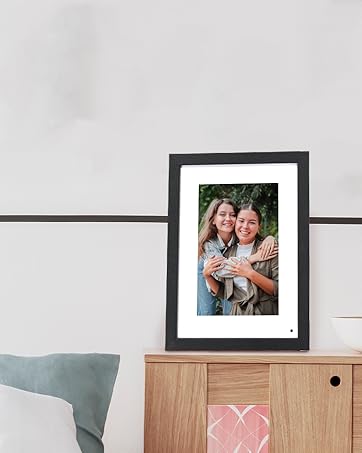
Image: The PhotoShare MyLuma frame displaying a photo with digital effects applied, including borders, stickers, and captions, demonstrating customization options.
اضافي ځانګړتیاوې:
- ساعت او کیلنڈر: Access these features through the frame's touchscreen interface.
- هوا: View local weather updates on your frame.
- اتومات فعال/بند: Configure schedules for the frame to power on and off automatically in the settings menu.
ساتنه
To ensure the longevity and optimal performance of your PhotoShare MyLuma frame, follow these maintenance guidelines:
- د سکرین پاکول: د ټچ سکرین د نرمۍ سره پاکولو لپاره د نرم، لینټ نه پاک ټوکر څخه کار واخلئ. د سختو داغونو لپاره، لږ څهampټوکر د اوبو یا سکرین خوندي کلینر سره ومینځئ. د سخت کیمیاوي موادو څخه ډډه وکړئ.
- د بهر پاکوالی: Wipe the frame's body and fabric back with a dry, soft cloth. Do not use abrasive materials or liquids directly on the fabric.
- کله چې په استعمال کې نه وي بریښنا بند کړئ: If storing the frame for an extended period, power it off and unplug it from the electrical outlet.
- د سختو شرایطو څخه ډډه وکړئ: چوکاټ د لوړې تودوخې، د اوږدې مودې لپاره مستقیم لمر وړانګو، یا لوړې رطوبت ته مه ښکاره کوئ.
د ستونزو حل کول
If you encounter issues with your PhotoShare MyLuma frame, refer to the following common problems and solutions:
| ستونزه | احتمالي حل |
|---|---|
| چوکاټ نه چالانېږي. | ډاډ ترلاسه کړئ چې د بریښنا اډاپټر په خوندي ډول د چوکاټ او کار کونکي بریښنایی آوټ لیټ دواړو سره وصل دی. یو بل آوټ لیټ هڅه وکړئ. |
| د وائی فای سره وصل نشو. | Verify your Wi-Fi password is correct. Ensure the frame is within range of your Wi-Fi router. Restart your router and the frame. If changing routers, you may need to reset network settings on the frame. |
| Photos/Videos are not appearing. | Confirm the frame is connected to Wi-Fi. Check the PhotoShare app or email account to ensure content was sent successfully. Verify the frame is paired correctly with your account. |
| سکرین غیر ځواب ورکوونکی دی. | Perform a soft reset by pressing and holding the power button until the frame restarts. If the issue persists, contact customer support. |
مشخصات
| فیچر | تفصیل |
|---|---|
| د ماډل شمیره | FML07WL |
| د سکرین اندازه | ۷۸۷ انچه |
| قرارداد | 1280x800 |
| د محصول ابعاد | 4.8 x 6.97 x 0.99 انچه |
| د توکي وزن | ۲.۴۵ پونډه |
| ارتباط | وای فای |
| مطابقت لرونکې وسیلې | شخصي کمپیوټر، سمارټ فون، ټابلیټ |
| جوړونکی | په ساده ډول سمارټ کور |
تضمین او ملاتړ
Simply Smart Home provides technical support for its products. For warranty information or assistance with your PhotoShare MyLuma frame, please refer to the contact information provided with your product packaging or visit the official Simply Smart Home website. You may also contact customer support via their toll-free number for direct assistance.


