1. پیژندنه
The ASUS Prime B860M-A WiFi-CSM is a micro-ATX motherboard designed to provide a stable and reliable foundation for your PC build. It supports the latest Intel Core Ultra Processors (Series 2) via the Intel LGA 1851 Socket and features DDR5 memory support, PCIe 5.0, two M.2 slots (one supporting PCIe 5.0), Wi-Fi 6E, 2.5Gb Ethernet, and USB Type-C connectivity. This manual provides detailed instructions for setting up, operating, and maintaining your motherboard.
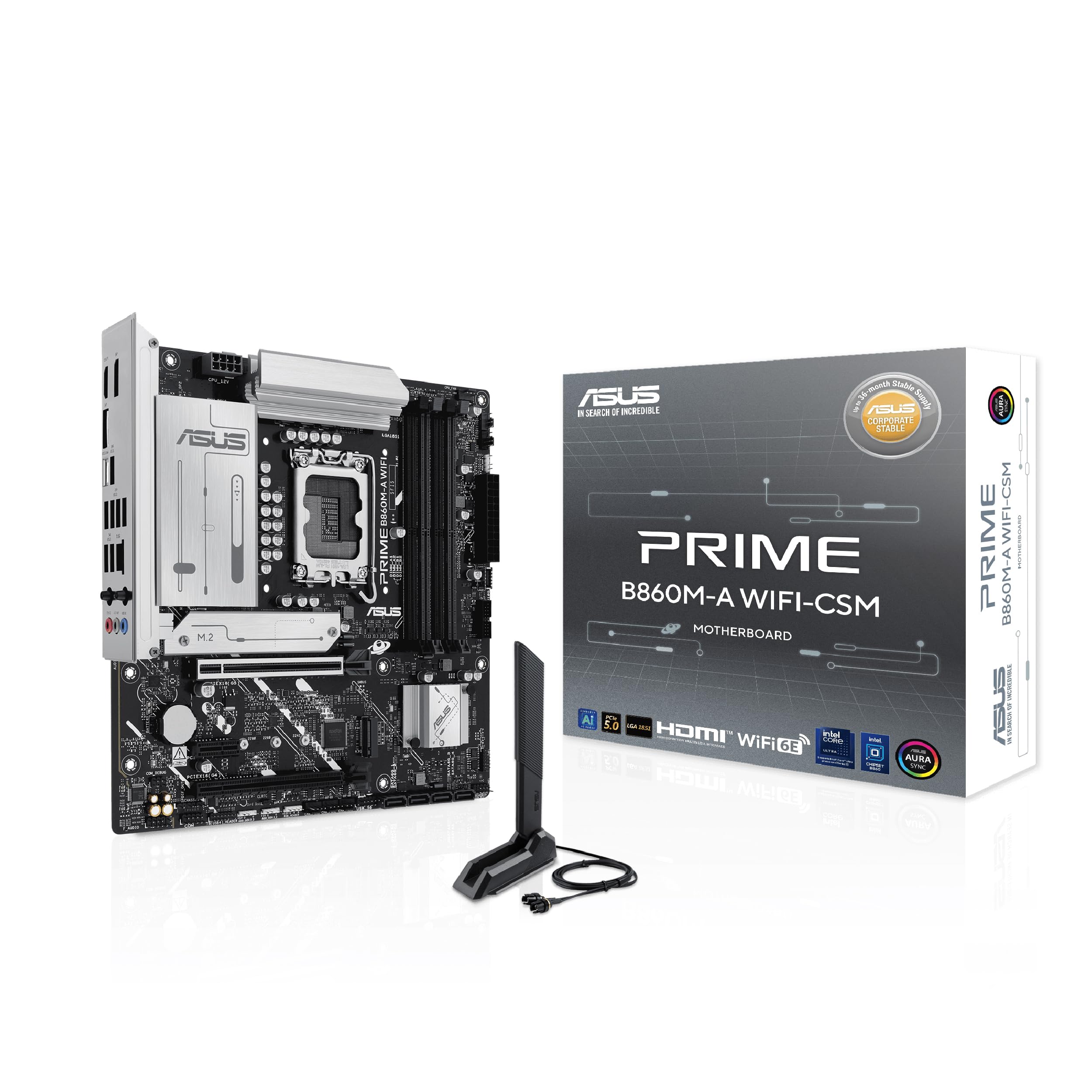
Figure 1: ASUS Prime B860M-A WiFi-CSM Motherboard Overview
کلیدي ځانګړتیاوې
- د انټل LGA 1851 ساکټ: Ready for Intel Core Ultra Processors (Series 2).
- د DDR5 حافظې ملاتړ: Enhanced performance for demanding applications.
- PCIe 5.0: One PCIe 5.0 x16 slot for next-generation graphics cards and one PCIe 5.0 M.2 slot for high-speed storage.
- دوه ګونی M.2 سلاټونه: Two M.2 slots, including one with PCIe 5.0 support and an M.2 heatsink to prevent thermal throttling.
- Wi-Fi 6E & 2.5Gb Ethernet: Stable and low-latency network connectivity.
- د بریښنا قوي حل: 7+1+1+1 80A DrMOS power stages and 8-pin ProCool power connector for stable power delivery.
- د USB ډول-C: USB 20Gbps Type-C® port for fast data transfer.
- ASUS Corporate Stable Model (CSM): Designed for stable and reliable operation in commercial environments.

Figure 2: ASUS Corporate Stable Model (CSM) ensures long-term stability and reliability.
2. د بسته محتويات
ډاډ ترلاسه کړئ چې ټول توکي ستاسو د مور بورډ په کڅوړه کې شتون لري. که کوم توکي زیانمن شوي یا ورک شوي وي، نو خپل پرچون پلورونکي سره اړیکه ونیسئ.
- PRIME B860M-A WIFI-CSM Desktop Motherboard
- 2 x SATA 6Gb/s کیبلونه
- ۱ x د ASUS وای فای کیو انتن
- 1 x M.2 ربړ بسته
- د M.1 SSD لپاره 2 x سکرو کڅوړه
- 1 x د ACC ایکسپریس فعالولو کلیدي کارت
- 1 x د چټک پیل لارښود

Figure 3: Motherboard and included accessories.
۱. د مور بورډ ترتیب
Familiarize yourself with the various components and connectors on your ASUS Prime B860M-A WiFi-CSM motherboard.

شکل ۱: پورته څخه ښکته view of the motherboard highlighting key areas.
شاته I/O پینل
The integrated I/O panel protects ports, enhances functionality, and provides a clean aesthetic. It includes a variety of ports for connecting peripherals and displays.

Figure 5: Rear I/O panel with diverse connectivity options including USB Type-C 20Gbps, USB Type-A 10Gbps, and USB Type-A 5Gbps ports.
4. ترتیب او نصب کول
4.1 د CPU نصب کول
Carefully align your Intel LGA 1851 processor with the socket on the motherboard. Ensure the notches on the CPU match the alignment keys on the socket. Gently lower the CPU into place and secure it with the retention arm.
۴.۳ د حافظې (RAM) نصب کول
This motherboard supports DDR5 memory modules. Open the retention clips on the DIMM slots. Align the notch on the DDR5 memory module with the key in the DIMM slot. Press down firmly on both ends of the memory module until the clips snap into place.

Figure 6: M.2 slots with varying length support (42mm, 60mm, 80mm) and an M.2 heatsink for optimal performance.
۵.۳ ذخیره (M.2 SSDs، SATA ډرایو) نصب کول
The motherboard features two M.2 slots. For M.2 SSDs, remove the M.2 heatsink (if present), insert the M.2 SSD into the slot, and secure it with the provided M.2 screw and rubber package. The heatsink protects the M.2 slot, preventing performance degradation (throttling) of M.2 storage due to heat generated during long data transfers. For SATA drives, connect the SATA data cables (included) to the SATA 6Gb/s ports on the motherboard and to your storage devices.
4.4 Expansion Cards (GPU, other PCIe cards)
Insert your graphics card or other PCIe expansion cards into the appropriate PCIe slots. The primary PCIe 5.0 x16 slot features a reinforced metal sheath (SafeSlot) to securely mount video cards and enable high-speed data transfer.

Figure 7: SafeSlot, a reinforced metal sheath, ensures secure mounting and high-speed data transfer for video cards.
۱.۸ د پردیو او مخکینۍ پینل سره نښلول
Connect your USB devices, Ethernet cable, audio devices, and front panel connectors (power button, reset button, USB ports, audio jacks) to the corresponding headers on the motherboard. The ASUS WiFi Q-Antenna can be easily snapped into place without needing to turn fasteners, providing stable Wi-Fi connectivity.

Figure 8: The Q-Antenna offers easy installation for stable Wi-Fi connection.
5. عملیاتي لارښوونې
5.1 BIOS تنظیم کول
The BIOS (Basic Input/Output System) is firmware that initializes your hardware during startup. To enter the BIOS setup utility, press the ړنګول key during the Power-On Self-Test (POST). Here you can configure system settings, boot order, and monitor hardware status. Refer to the detailed BIOS manual available on the ASUS support webد پرمختللو ترتیباتو لپاره سایټ.
۲.۴ سافټویر او ډرایورونه
After installing your operating system, install the necessary drivers for your motherboard components (chipset, audio, LAN, Wi-Fi, etc.) from the included support DVD or the ASUS official webسایټ. د سم ډرایورونو نصب کول غوره فعالیت او ثبات تضمینوي.
5.3 نښلول
The motherboard supports Wi-Fi 6E for stable wireless connections and 2.5Gb Ethernet for high-speed wired networking. It also features a USB Type-C 20Gbps port, a USB Type-A 10Gbps port, and two USB Type-A 5Gbps ports for diverse connectivity needs.

شکل 9: پایview of connectivity (Wi-Fi 6E, 2.5Gb Ethernet, USB Type-C 20Gbps, PCIe 5.0) and cooling (ASUS Fan Xpert 2+) features.
6. ساتنه
6.1 د یخولو سیسټم
The motherboard is equipped with multiple heatsinks and hybrid fan headers controlled through ASUS Fan Xpert 2+ to manage temperatures effectively. Ensure proper airflow within your PC case and regularly clean dust from fans and heatsinks to maintain optimal cooling performance.
6.2 BIOS تازه معلومات
په دوره یي ډول د ASUS ملاتړ وګورئ website for BIOS updates. BIOS updates can improve system stability, add support for new hardware, and enhance performance. Follow the instructions provided by ASUS carefully when performing a BIOS update.
7. ستونزه حل کول
که تاسو د خپل مور بورډ سره ستونزې سره مخ شئ، نو لاندې عام ستونزې حل کولو مرحلو ته مراجعه وکړئ:
- بریښنا نشته/بوټ نشته: Ensure all power cables (24-pin ATX, 8-pin CPU) are securely connected. Check if the power supply is functioning correctly.
- نه ښودنه: Verify that your monitor is connected to the correct display output (HDMI or DisplayPort) on your graphics card or motherboard. Reseat your graphics card and RAM modules.
- د سیسټم بې ثباتي/خرابی: Check for loose connections. Ensure all drivers are up-to-date. Test memory modules individually. Monitor CPU and GPU temperatures.
- د شبکې د اتصال مسلې: Verify Ethernet cable connection or Wi-Fi antenna installation. Ensure network drivers are installed correctly.
- BIOS Issues: If you cannot enter BIOS or experience unexpected behavior, try clearing the CMOS (Complementary Metal-Oxide-Semiconductor) by removing the CMOS battery for a few minutes or using the Clear CMOS jumper (refer to the motherboard manual for location).
For more detailed troubleshooting, consult the comprehensive user manual available on the ASUS support webسایټ
8. مشخصات
| فیچر | مشخصات |
|---|---|
| برانډ | ASUS |
| لړۍ | PRIME B860M-A WIFI-CSM |
| د توکي ماډل شمیره | PRIME B860M-A WIFI-CSM |
| د CPU ساکټ | LGA 1851 |
| مطابقت لرونکي پروسیسرونه | د انټل کور الټرا پروسسرونه (دوهمه لړۍ) |
| د چپسیټ ډول | Intel B860 |
| د RAM حافظې ټیکنالوژي | DDR5 |
| د حافظې سرعت | ۸۲۰۰ میګاهرتز (او سي) |
| د محصول ابعاد | 9.6 x 9.6 x 1.9 inches (Micro-ATX) |
| د توکي وزن | ۲.۴۵ پونډه |
| رنګ | تور |
| پلیټ فارم | وینډوز 10، وینډوز 11 |
9. تضمین او ملاتړ
This ASUS motherboard comes with a manufacturer's warranty. For detailed warranty information, including terms, conditions, and registration, please refer to the warranty card included in your package or visit the official ASUS support website. ASUS also provides technical support and driver downloads through their webسایټ
For AI-related features and software, you may find additional information and opportunities to unlock AI potential for your business by visiting the ASUS AI Potential webسایټ.


