1. پیژندنه
Welcome to the user manual for your BOOX Go Color 7 (Gen 2) E-Paper Tablet. This device combines the benefits of an E-Ink display with the versatility of Android 13, offering a unique reading and note-taking experience. This manual provides essential information to help you get started and make the most of your device.

Image 1.1: The BOOX Go Color 7 (Gen 2) E-Paper Tablet, showcasing its color note-taking capabilities.
۲. په بکس کې څه دي؟
Upon unboxing your BOOX Go Color 7 (Gen 2), please ensure all the following items are present:
- BOOX Go Color 7 (Gen 2) E-Paper Tablet
- USB کیبل
- Quick Start Guide (may be digital or printed)

Image 2.1: The standard package contents for the BOOX Go Color 7 (Gen 2).
3. ابتدايي ترتیب
3.1 د وسیلې چارج کول
Before first use, fully charge your BOOX Go Color 7 (Gen 2). Connect the provided USB cable to the device's USB-C port and a compatible power adapter (not included) or computer USB port. The charging indicator will show the charging status.
3.2 بریښنا کول / بندول
- د فعالولو لپاره: Press and hold the power button (usually located on the side or top edge) until the BOOX logo appears.
- د بریښنا بندولو لپاره: Press and hold the power button, then select 'Power Off' from the options that appear on the screen.
- د بیا پیلولو لپاره: Press and hold the power button, then select 'Restart'.
3.3 د وای فای سره نښلول
- From the home screen, swipe down from the top to access the Quick Settings panel.
- Tap the Wi-Fi icon to enable it.
- د وای فای ترتیباتو د خلاصولو لپاره د وای فای آیکون ټایپ او ونیسئ.
- له لیست څخه خپل مطلوب شبکه غوره کړئ او که غوښتنه وشي نو پټنوم دننه کړئ.
3.4 Google Account and Play Store Setup
The BOOX Go Color 7 (Gen 2) runs on Android 13 and supports the Google Play Store. To download applications, you will need to log in with your Google account. Navigate to Settings > Accounts and add your Google account. Once added, you can access the Google Play Store application to install compatible apps.

Image 3.1: The Google Play Store on the BOOX Go Color 7 (Gen 2), allowing access to a wide range of Android applications.
4. ستاسو وسیله چلول
۲.۱ نیویګیشن او کارن انٹرفیس
The device features a touch-sensitive E-Ink display for navigation. Swipe, tap, and pinch gestures are supported. Physical page-turn buttons are located on the side for convenient reading.

Image 4.1: Ergonomic page-turn buttons and water-repellent protection are key features of the device.
۳.۲ د لوستلو تجربه
The 7-inch color E-Ink display is designed for comfortable reading, reducing eye strain compared to traditional LCD screens. It supports various file formats including EPUB, MOBI, PDF, TXT, DOC/DOCX, and HTML/HTM. Adjust font size, line spacing, and screen refresh modes for optimal viewing.

Image 4.2: The device's color E-Ink screen renders images and text clearly.
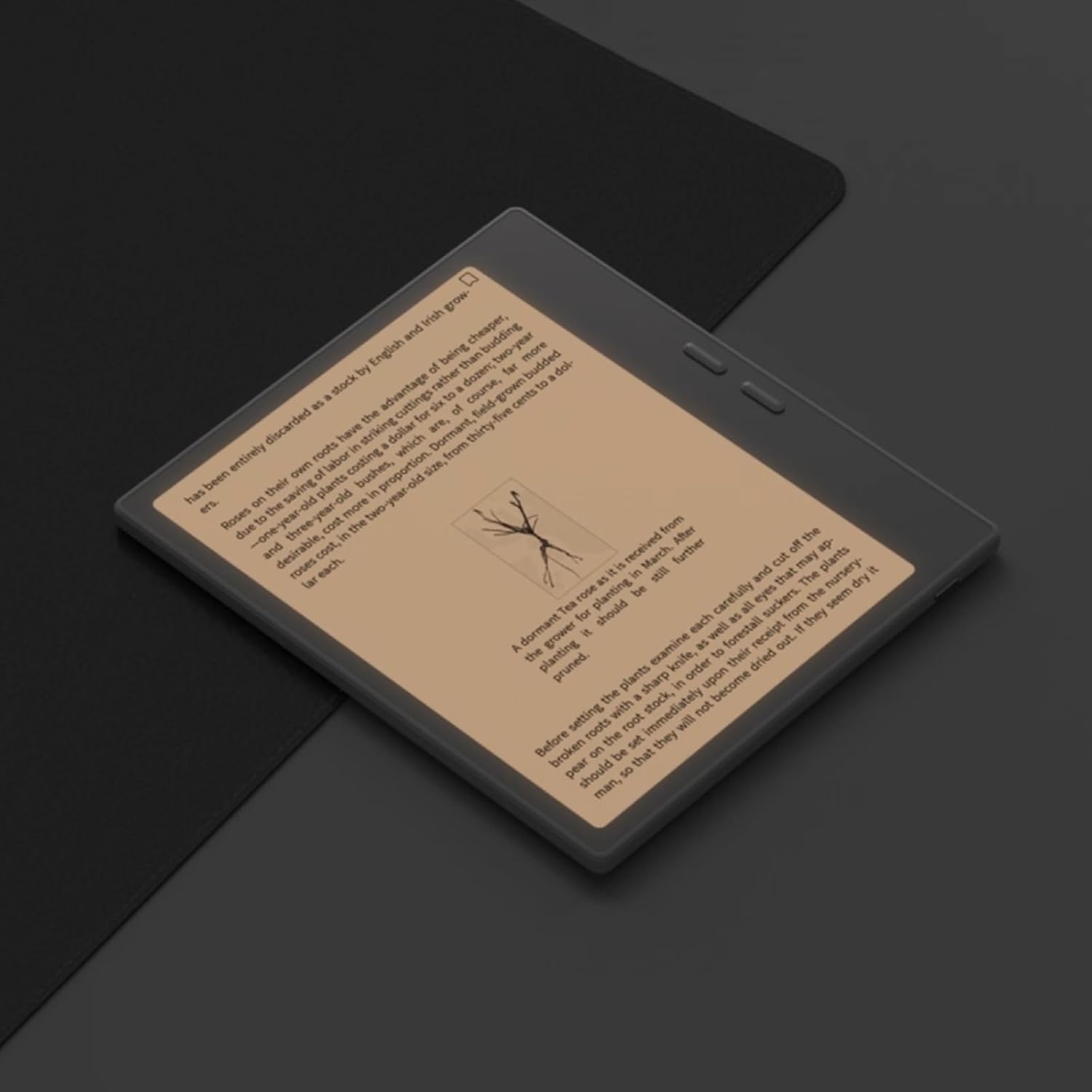
Image 4.3: Reading text on the E-Paper display.
4.3 Note-Taking and Drawing
The device supports stylus input for note-taking, sketching, and annotating documents. Utilize various brush types, colors, and shapes to personalize your notes. Features like handwriting-to-text conversion and checklist creation enhance productivity.
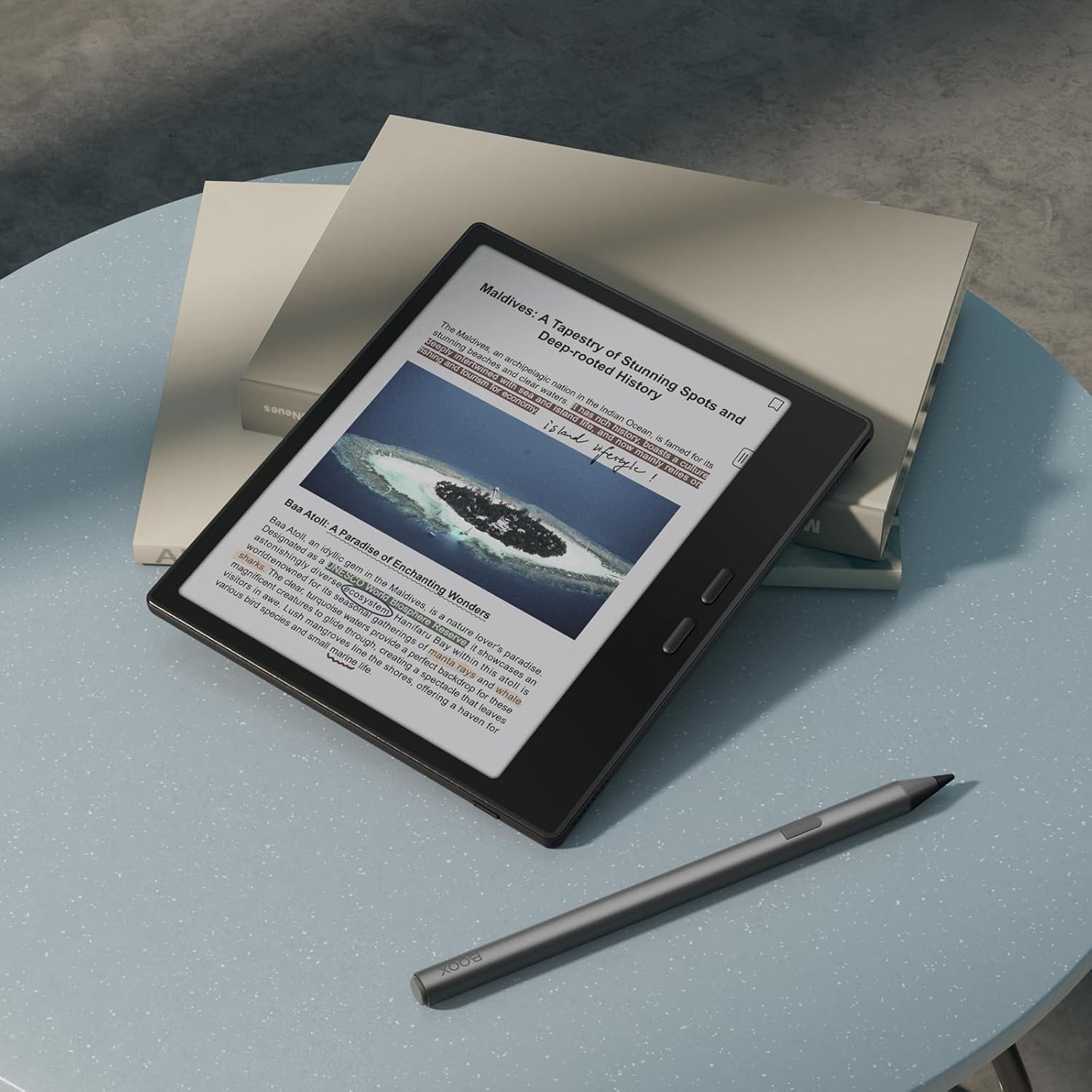
Image 4.4: The tablet supports stylus input for annotations and notes.

Image 4.5: The note-taking interface offers a range of customization options for brushes and colors.

Image 4.6: Drawing and shape tools available in the note-taking application.

انځور ۶: پخوانیample of handwriting being converted into digital text on the device.
Image 4.8: The checklist feature for managing tasks and ideas.
4.4 File مدیریت او ذخیره کول
The device comes with 64GB of internal storage. It also supports expandable storage via a microSD card slot, allowing for vast libraries of books and documents. Files can be transferred via USB cable, cloud services, or BOOXDrop.
5. ساتنه
5.1 د وسیلې پاکول
Use a soft, lint-free cloth to gently wipe the screen and body of the device. Avoid using harsh chemicals, abrasive materials, or excessive moisture, as these can damage the E-Ink display and internal components. The device offers water-repellent protection, but it is not fully waterproof.
5.2 د بیټرۍ پاملرنه
To prolong battery life, avoid exposing the device to extreme temperatures. Charge the device regularly, but avoid leaving it fully charged or fully depleted for extended periods. The device uses a Lithium-ion battery.
5.3 د سافټویر تازه معلومات
BOOX provides regular firmware updates to improve performance and add new features. It is recommended to keep your device's software up to date. You can check for updates in the device settings. BOOX promises at least 3 years of firmware updates for each product.
6. ستونزه حل کول
6.1 عام مسایل او حلونه
- Screen Flickering or Lag: This can occur with certain applications or refresh modes. Adjust the refresh mode settings within the application or system settings. Experiment with different modes (e.g., Normal, Speed, A2, X) to find the optimal balance for your activity.
- Display Appears Dark or Colors are Faded: E-Ink color displays inherently have less vibrant colors and can appear darker than backlit LCD screens. Ensure the front light is adjusted to a comfortable level. The color display technology is still evolving, and its characteristics are different from traditional tablets.
- د بیټرۍ لنډ ژوند: High screen brightness, frequent Wi-Fi/Bluetooth usage, and demanding applications can reduce battery life. Optimize settings, reduce brightness, and close unused apps.
- Stylus Incompatibility: Ensure you are using a compatible stylus. While some EMR styluses may work, BOOX often recommends specific models for optimal performance.
- وسیله بې ځوابه: If the device becomes unresponsive, perform a forced restart by pressing and holding the power button for approximately 10-15 seconds until the device powers off and restarts.
7. مشخصات
| فیچر | مشخصات |
|---|---|
| برانډ | BOOX |
| د ماډل نوم | Go Color 7 gen2 |
| عملیاتي سیسټم | Android 13 |
| د سکرین اندازه | 7 انچونه (18 سانتي متره) |
| ټیکنالوژي ښکاره کول | E-Ink Color |
| د ښودلو ریزولوشن | 1600 x 1200 |
| د حافظې د ذخیره کولو ظرفیت | 64 جي بي |
| RAM | 4 GB (implied by fast system from reviews) |
| د ارتباط ټیکنالوژي | USB، بلوتوث |
| ځانګړي ځانګړتیاوې | USB OTG support, Water-repellent protection, Ergonomic page-turn buttons |
| د بیټرۍ ډول | لیتیم آیون |
| د محصول ابعاد | ۱۱۷ لیتره x ۲۶ واټ x ۲۲ ساعته سانتي متره |
| ملاتړ شوی File شکلونه | EPUB, MOBI, PDF, TXT, DOC/DOCX, HTML/HTM |
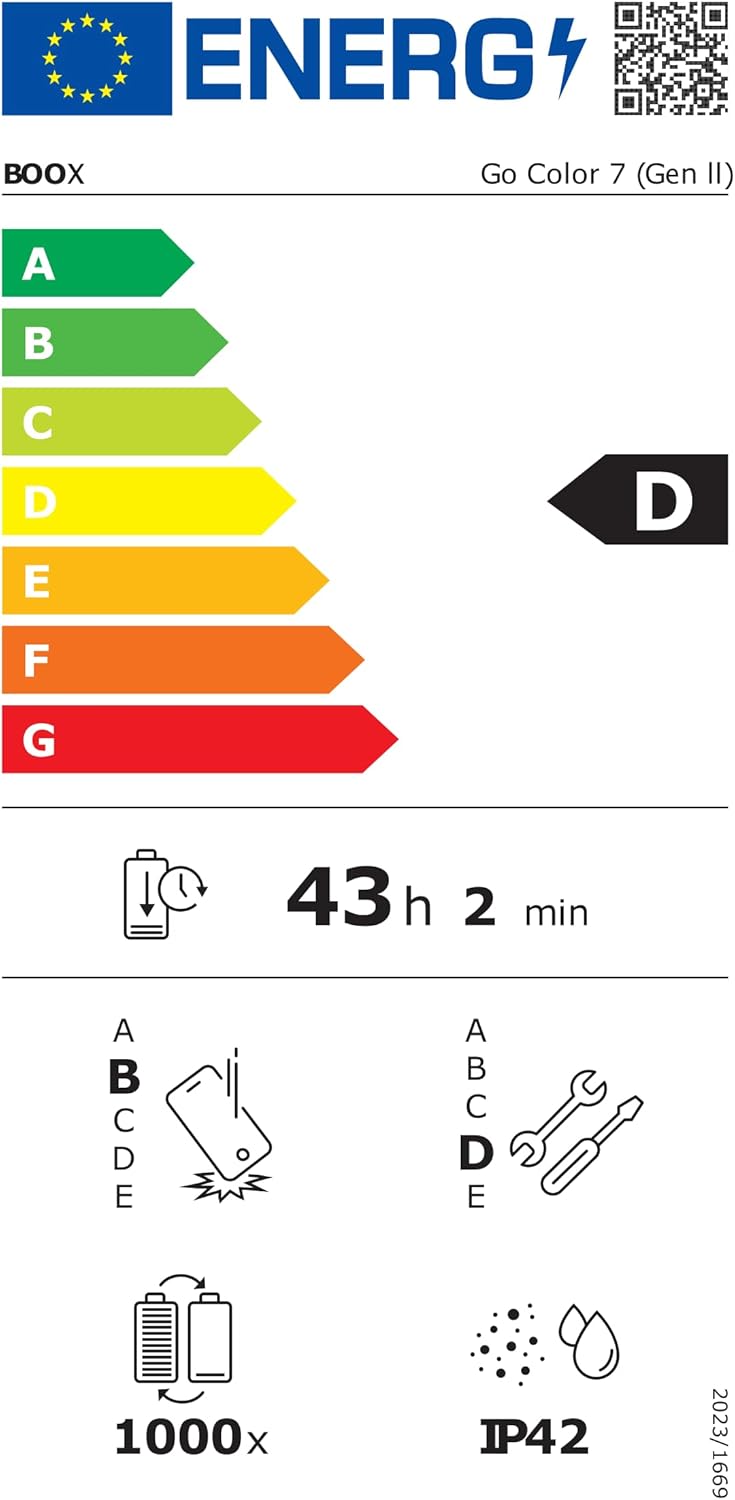
Image 7.1: EU Energy Label for the BOOX Go Color 7 (Gen 2). For more details, visit eprel.ec.europa.eu/qr/2417181.
8. تضمین او ملاتړ
۸.۱ د جوړونکي تضمین
The BOOX Go Color 7 (Gen 2) comes with a 2-year manufacturer's warranty. This warranty covers defects in materials and workmanship under normal use. Please retain your proof of purchase for warranty claims.
8.2 د پیرودونکي ملاتړ
For technical assistance, troubleshooting, or warranty inquiries, please visit the official BOOX help center. BOOX offers official customer service and aims to respond to inquiries within 24 hours. You can also find FAQs and support resources on their webسایټ
8.3 Software Updates and Cloud Storage
BOOX provides at least 3 years of firmware updates for the device. Additionally, each user receives 10GB of free cloud storage for their documents and notes.


