1. پیژندنه
This manual provides essential instructions for the safe and effective operation of your xTool F2 Ultra Single 60W MOPA Fiber Laser Engraver. Please read this manual thoroughly before initial use to ensure proper setup, operation, and maintenance. Retain this document for future reference.
The xTool F2 Ultra is a high-performance fiber laser engraver designed for precision engraving and cutting on various metal materials. It features a 60W MOPA laser, dual 48MP AI cameras, and advanced software capabilities to streamline your projects.
2. محصول ختم شوview
The xTool F2 Ultra Single 60W MOPA Fiber Laser Engraver is engineered for versatility and efficiency in metal processing. Key features include:
- 60W MOPA Fiber Laser: Capable of 3D embossing, deep engraving, color engraving, and cutting up to 2mm metal. Supports black marking on aluminum, laser cleaning, and thin metal welding.
- Ultra-Fast Engraving: Operates at speeds up to 15,000mm/s for rapid project completion.
- Dual 48MP AI Cameras: Enhances positioning accuracy to 0.2mm and provides precise alignment and detail for complex designs.
- د مصنوعي ذهانت په مرسته چلېدونکي ځانګړتیاوې: Includes auto-detection of materials, suggested settings, one-click focus, and preview functions for optimized results.
- لویه کاري ساحه: Standard working space of 8.7" x 8.7" (220 x 220 mm), expandable to 8.7" x 19.7" (220 x 500 mm) with an optional auto conveyor for batch processing.
- تړل شوی ډیزاین: د عملیاتو په جریان کې ښه خوندیتوب چمتو کوي.

Figure 2.1: The xTool F2 Ultra Single 60W MOPA Fiber Laser Engraver.

Figure 2.2: Feature comparison of xTool F2 Ultra with other laser engravers, emphasizing speed, camera, metal cutting, exclusive technology, working area, and safety.

شکل 2.3: پایview of AI-powered features including auto-ID materials, AI color recognition, AI design, and AI modeling for 3D engraving.
3. ترتیب کول
The xTool F2 Ultra is designed for straightforward setup. For detailed, step-by-step instructions, please refer to the Quick Start Guide included with your product packaging or available on the official xTool support webسایټ
۲.۱ د بکس خلاصول او ځای پر ځای کول
- په احتیاط سره د بسته بندۍ څخه ټولې برخې لرې کړئ.
- Place the engraver on a stable, level surface in a well-ventilated area. Ensure adequate space around the machine for operation and heat dissipation.
- Connect the power cable and any necessary accessories as indicated in the Quick Start Guide.
3.2 د سافټویر نصب کول
Download and install the xTool Creative Space software from the official xTool website. Follow the on-screen prompts for installation. This software is essential for controlling the engraver and designing your projects.
3.3 ابتدايي محاسبه
Perform the initial calibration steps as guided by the xTool Creative Space software. This typically involves camera calibration and focus adjustment to ensure precise engraving.
4. عملیاتي لارښوونې
Operating the xTool F2 Ultra involves using the xTool Creative Space software to design, prepare, and execute engraving or cutting tasks.
4.1 Software Interface and Design
The xTool Creative Space software provides an intuitive interface for creating or importing designs. Utilize its features for text, shapes, and image manipulation.

Figure 4.1: The xTool Creative Space software interface, showing design and project management features.
4.2 Material Preparation and Settings
- Place your material securely within the engraver's working area.
- Utilize the dual 48MP AI cameras for precise positioning and preview of your design on the material. The AI can auto-detect materials and suggest optimal settings.
- Select the appropriate material type and adjust laser parameters (power, speed, passes) within the software. For color engraving on metals, refer to the pre-set color files for a wide range of vibrant results.

شکل 4.2: مثالample of a color matrix for metal engraving, demonstrating the range of colors achievable with the 60W MOPA laser.
4.3 Executing Engraving/Cutting
- After confirming your design and settings, initiate the engraving or cutting process through the software.
- Monitor the process through the viewing window. Ensure proper ventilation is maintained.
4.4 Auto Streamline Production (with optional conveyor)
For high-volume orders, the optional auto conveyor expands the working area and enables automated batch processing. This feature allows for continuous feeding of materials, significantly increasinد تولید وړتیا.
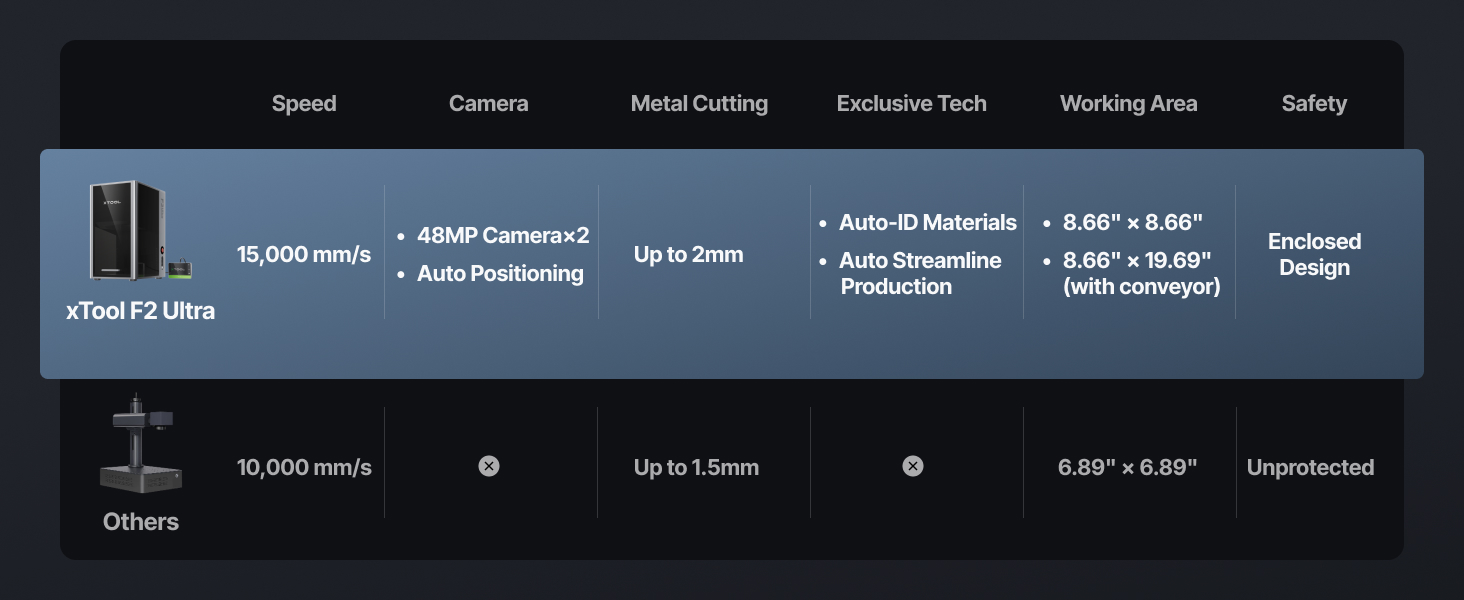
Figure 4.3: The xTool F2 Ultra integrated with an auto conveyor, demonstrating its capability for streamlined batch production.
5. ساتنه
Regular maintenance ensures the longevity and optimal performance of your xTool F2 Ultra. Always power off and unplug the machine before performing any maintenance.
- پاکول: Regularly clean the interior of the machine, especially the lens and mirrors, using appropriate cleaning solutions and lint-free cloths. Dust and debris can affect laser performance.
- د وینټیلیشن سیسټم: Ensure the exhaust system is clear and free of obstructions to maintain proper air circulation and fume extraction.
- د فرم ویئر تازه معلومات: Periodically check for and install firmware updates for the engraver and software updates for xTool Creative Space to benefit from performance improvements and new features.
6. ستونزه حل کول
This section addresses common issues you might encounter. For more comprehensive troubleshooting, refer to the official xTool support resources.
6.1 عام مسایل او حلونه
| مسله | احتمالي لامل | د حل لاره |
|---|---|---|
| Engraving is inaccurate or misaligned. | Improper camera calibration; material not flat; incorrect focus. | Recalibrate the camera. Ensure material is flat and secured. Perform one-click auto-focus. |
| لیزر نه ډزې کوي یا کمزوری محصول. | Laser head obstruction; dirty lens; incorrect power settings. | Check for obstructions. Clean the laser lens. Verify power settings in software. |
| Software connection issues. | USB cable issue; driver not installed; software glitch. | Ensure USB cable is securely connected. Reinstall software drivers. Restart software and engraver. |
| Unexpected material burning or poor results. | Incorrect material settings (power/speed); material not suitable. | Adjust power and speed settings. Consult the material library for recommended parameters. Ensure material compatibility. |
If issues persist, please contact xTool customer support for further assistance.
7. مشخصات
| مشخصات | تفصیل |
|---|---|
| د محصول ابعاد | 16.88 x 11.57 x 20.5 انچه |
| د توکي ماډل شمیره | MXF-K003-002 |
| د توکي وزن | ۲.۴۵ پونډه |
| د لیزر ډول | 60W MOPA Fiber Laser |
| د نقاشۍ سرعت | تر 15,000mm/s پورې |
| کیمرې | Dual 48MP AI Cameras |
| کاري ساحه | 8.7" x 8.7" (220 x 220 mm) standard; 8.7" x 19.7" (220 x 500 mm) with optional auto conveyor |
| جوړونکی | Makeblock Co., Ltd. |
8. د تضمین معلومات
For detailed warranty terms and conditions, please refer to the official xTool website or the warranty card included with your product. Warranty coverage typically includes manufacturing defects and specific components for a defined period. Keep your proof of purchase for warranty claims.
9. ملاتړ
xTool offers comprehensive support for its products. If you require assistance, please utilize the following channels:
- د بریښنالیک ملاتړ: Contact xTool's support team via email for technical inquiries and assistance.
- ژوندۍ خبرې اترې: Access live chat support on the official xTool webد ریښتیني وخت مرستې لپاره سایټ.
- د تلیفون ملاتړ: Contact xTool via phone for direct assistance.
- Online Community/Facebook Group: Join the xTool community for peer support, tips, and shared projects.
- رسمي Webسایټ: لیدنه www.xtool.com for FAQs, tutorials, and the latest software/firmware downloads.

شکل 9.1: پایview of xTool's multi-channel customer support options.


