1. پیژندنه
This manual provides detailed instructions for the setup, operation, maintenance, and troubleshooting of the RGBlink NDI PTZ Camera Controller (RGBBKT). This device is designed for professional video production environments, offering comprehensive control over various PTZ cameras using multiple protocols.
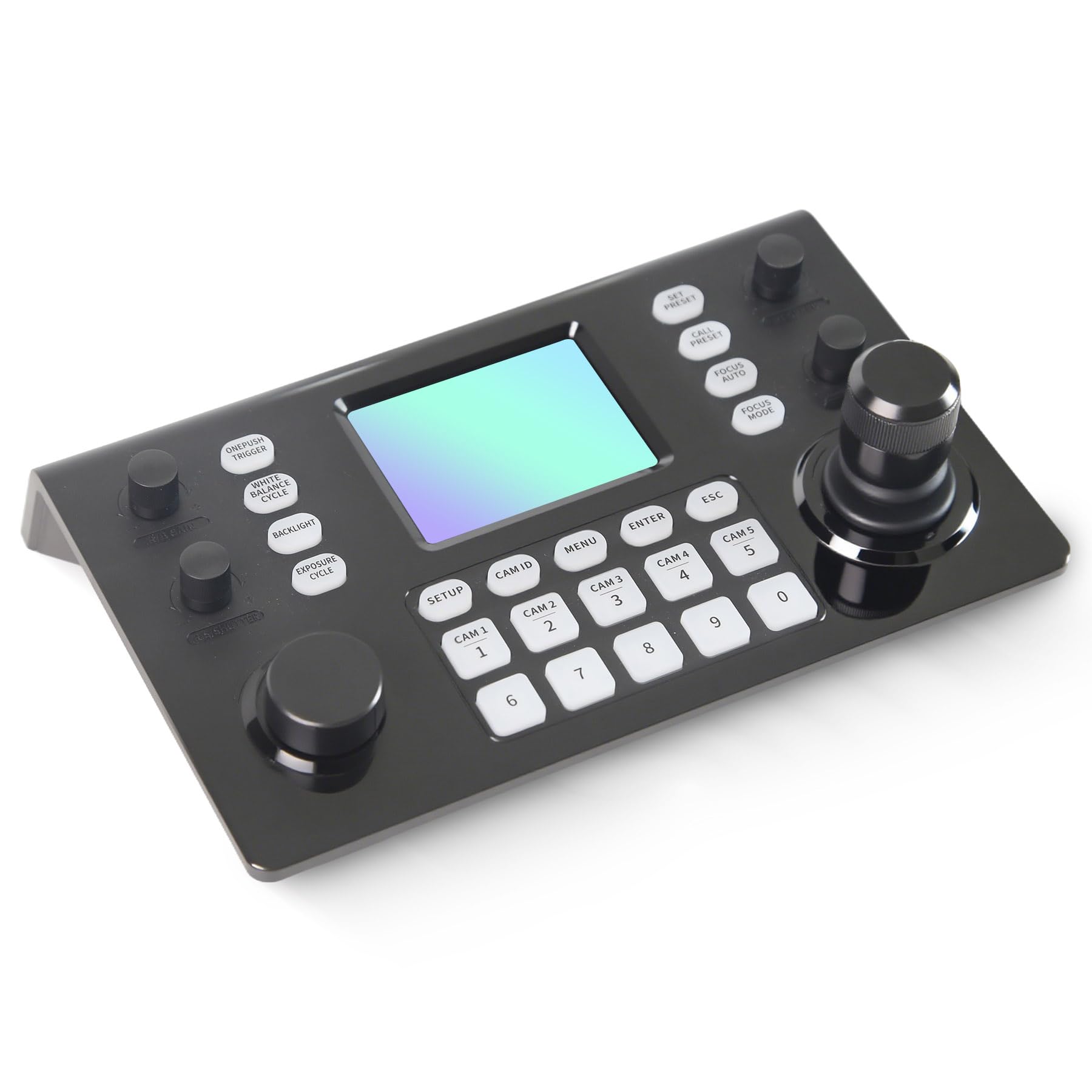
Image 1.1: RGBlink NDI PTZ Camera Controller (RGBBKT).
2. ترتیب کول
Follow these steps to set up your RGBlink NDI PTZ Camera Controller.
۲.۱ د بسته بندۍ خلاصول او لومړنۍ تفتیش
- په احتیاط سره د بسته بندۍ څخه ټولې برخې لرې کړئ.
- ډاډ ترلاسه کړئ چې د بسته بندۍ په لیست کې لیست شوي ټول توکي شتون لري.
- Inspect the controller for any signs of physical damage. If damage is found, contact your dealer immediately.
۲.۳ د کنټرولر سره نښلول
The RGBlink NDI PTZ Camera Controller supports various connection methods for power and camera control.
- په ایترنیټ باندې بریښنا (PoE): Connect a single RJ45 Ethernet cable from a PoE-enabled network switch to the controller's LAN port. This provides both power and network connectivity.
- د بهرنۍ بریښنا اډاپټر: If PoE is not available, connect the provided power adapter to the DC 12V input port and to a power outlet.
- د کیمرې اړیکې:
- Ethernet (IP Control): Connect PTZ cameras to the same network as the controller via RJ45 Ethernet cables. The controller supports VISCA over IP, ONVIF v2.42, and NDI v5.5 protocols.
- سریال کنټرول: For cameras supporting serial communication, use RS232, RS422, or RS485 interfaces. Connect the appropriate cables from the controller's serial ports to the cameras.

Image 2.1: Rear panel connections including RS-232, RS-422, LAN (PoE), and Power Input.

انځور ۶: پخوانیample connection diagram showing PTZ Controller, PoE Switch, PTZ Cameras, Audio Mixer, and Computer.

Image 2.3: Diagram illustrating IP camera connections via a network switch.
2.3 د شبکې تشکیلات
For IP-based camera control, ensure the controller and cameras are on the same network segment. The controller supports automatic detection of NDI-enabled PTZ cameras.
- Access the controller's web د خپل IP پتې په داخلولو سره انٹرفیس a web browser. (Refer to the device's display or network tools to find the IP address).
- The default login credentials are typically 'admin' with a blank password. It is recommended to set a strong password immediately.
- په دننه کې web interface, configure camera protocols (e.g., ONVIF, VISCA over IP) and enter camera-specific user credentials if required.

Image 2.4: NDI|HX camera search and control interface on the controller.
3. عملیات
This section details the operational functions of the RGBlink NDI PTZ Camera Controller.
3.1 اوورview د کنټرولونو
The controller features a 3.49" LCD display, a 3D joystick, various knobs, and a numeric keypad for intuitive control.

Image 3.1: The controller's 3.49-inch LCD display.

انځور ۲: تفصیلي view of the 3D joystick and multi-function knobs.

Image 3.3: Layout of the controller's buttons and numeric keypad area.
3.2 د کیمرې انتخاب
- د چټک انتخاب تڼۍ: Use the dedicated CAM 1-5 buttons for quick selection of up to 5 cameras.
- عددي کیپډ: For cameras beyond the quick select buttons (up to 255), press the د CMA ID button, then enter the camera number using the numeric keypad, and press ننوتل.

Image 3.4: The controller's ability to manage multiple cameras.
3.3 د PTZ کنټرول
- جوسټک: The 3D joystick controls pan (left/right), tilt (up/down), and zoom (rotate the joystick).
- د PT سرعت نوب: Adjusts the gimbal movement speed for pan and tilt.
- Zoom Knob: Provides precise zoom control, especially useful in preview حالت
3.4 Image Parameter Adjustment
- IRIS/SHUTTER Knob: Rotate to adjust aperture and shutter speed. Press to switch control modes.
- R/B GAIN Knob: Rotate to adjust red and blue gain. Press to switch control modes.
- FOCUS Button: فشار ورکړئ آټو فوکس button to switch the camera to auto focus mode.
- EXPOSURE Button: Cycles through exposure modes (Aperture Priority, Shutter Priority, Gain Priority, Manual Exposure, Auto Exposure).
- BACKLIGHT Button: Toggles the camera's backlight mode.
- WHITE BALANCE CYCLE Button: Cycles through white balance modes (Indoor, Outdoor, Manual, Auto).
- ONE PUSH TRIGGER Button: When white balance is set to "One-Push White Balance", press this button to initiate a one-push white balance calibration.

Image 3.5: Functions of buttons and knobs on the left side of the controller.

Image 3.6: Functions of buttons and knobs on the right side of the controller, including preset controls.
3.5 مختاړي
- SET PRESET Button: Press to enter preset position mode. Use the numeric keys to enter the preset number (0-9) and press ننوتل خوندي کول. مطبوعاتي ESC د وتلو لپاره
- CALL PRESET Button: Press to enter preset recall mode. Use the numeric keys to enter the preset number (0-9) and press ننوتل to recall. Press ESC د وتلو لپاره
- The controller supports saving and recalling up to 255 presets per camera.
3.6 د مینو نیویګیشن
- د مینو تڼۍ: Press to open or close the camera settings menu. In menu control mode, the joystick controls navigation (up, down, left, right), ننوتل confirms selections, and ESC acts as a back button.
4. ساتنه
Proper maintenance ensures the longevity and optimal performance of your RGBlink NDI PTZ Camera Controller.
4.1 پاکول
- د کنټرولر بهرنۍ برخه پاکولو لپاره نرم، وچ ټوکر وکاروئ.
- د سختې خاورې لپاره، لږ څهampټوکر د اوبو یا یو نرم، غیر خارښونکي پاکولو محلول سره ومینځئ.
- Avoid using harsh chemicals, solvents, or abrasive materials, as these can damage the surface and display.
- Ensure no liquids enter the device through openings or ports.
4.2 ذخیره کول
- کله چې د اوږدې مودې لپاره نه کارول کیږي، کنټرولر په یخ او وچ ځای کې د مستقیم لمر وړانګو او سختې تودوخې څخه لرې وساتئ.
- وسیله له دوړو او رطوبت څخه خوندي کړئ.
5. ستونزه حل کول
دا برخه د هغو عامو ستونزو حلونه وړاندې کوي چې تاسو ورسره مخ کیدی شئ.
۱ برېښنا نشته
- د بریښنا سرچینه وګورئ: ډاډ ترلاسه کړئ چې د بریښنا اډاپټر په خوندي ډول د کنټرولر او کاري بریښنا سایټ دواړو سره وصل دی.
- د PoE چک: If using PoE, verify that the Ethernet cable is connected to a PoE-enabled port on your network switch and that the switch is powered on.
- د کیبل بشپړتیا: Inspect the power cable and Ethernet cable for any damage.
5.2 Cannot Control Camera
- د شبکې ارتباط: For IP cameras, ensure the controller and cameras are on the same network and can communicate. Check network cables and IP addresses.
- د پروتوکول نشتوالی: Verify that the correct control protocol (e.g., VISCA over IP, ONVIF, NDI, Pelco-D/P) is selected on both the controller and the camera.
- د کیمرې پیژند: Ensure the correct camera ID is selected on the controller.
- د ننوتلو اسناد: If the camera requires authentication, confirm that the correct username and password are configured in the controller's web انٹرفیس
- سریال پیوستون: For serial control, check RS232/RS422/RS485 cable connections and ensure baud rates and addresses match between the controller and camera.
- فرم ویئر: Ensure both the controller and cameras have the latest firmware installed. Visit the RGBlink support webد تازه معلوماتو لپاره سایټ.
۷.۳ د LCD ښودنې ستونزې
- نه ښودنه: ډاډ ترلاسه کړئ چې کنټرولر فعال دی.
- خړ نمایش: Check if there are any brightness settings on the controller that can be adjusted.
6. مشخصات
| فیچر | تفصیل |
|---|---|
| ماډل | RGBBKT |
| ابعاد (L x W x H) | ۰.۲۵ x ۷.۲۸ x ۱۱.۲۱ انچه (تقریبا ۶.۳۵ x ۱۸۴.۹ x ۲۸۴.۷ ملي متره) |
| وزن | ۱.۹ پونډه (تقریبا ۰.۸۶ کیلوګرامه) |
| ښودل | ۲.۴ انچه LCD |
| پروتوکولونه کنټرول کړئ | VISCA over IP, ONVIF v2.42, NDI v5.5, Pelco-D/P |
| انٹرفیسونه | RS232, RS422, RS485, RJ45 Ethernet (PoE) |
| Camera Capacity | Up to 255 PTZ cameras |
| د بریښنا انډول | PoE or DC 12V (external adapter) |
| جویسټک | High-precision Hall sensor 3D joystick |

Image 6.1: Controller dimensions and typical usage environments.

Image 6.2: Visual representation of supported protocols including RJ45, RS485, RS422, RS232, ONVIF, NDI, Pelco-D, Pelco-P, and Visca.
۸. د محصول ویډیو مظاهره
Watch the official product video for a visual demonstration of the RGBlink NDI PTZ Camera Controller's features and operation.
Video 7.1: Official demonstration of the RGBlink PTZ Camera Controller Joystick, showcasing multi-camera control and key features.
8. تضمین او ملاتړ
For warranty information, technical support, or service inquiries, please contact RGBlink customer service or visit their official webسایټ
- جوړونکی: Xiamen RGBlink Science & Technology Co.,Ltd.
- رسمي Webسایټ: www.rgblink.com (یادونه: دا یو ځای ساتونکی دی URL, please refer to your product packaging or official documentation for the correct support webسایټ)
- د اړیکو معلومات: Refer to the RGBlink official website for the most current contact details for technical support and warranty claims.


