1. پیژندنه
This manual provides instructions for the safe and efficient operation of your vretti Bluetooth Thermal Label Printer, model B0FNW9FCS5. Please read this manual thoroughly before using the device and retain it for future reference.
2. د خوندیتوب معلومات
- ډاډ ترلاسه کړئ چې پرنټر د بریښنا سرچینې سره د سم حجم سره وصل دیtage.
- پرنټر د اوبو یا ډیر رطوبت سره مه مخ کوئ.
- پرنټر په مستقیم لمر وړانګو یا د تودوخې سرچینو ته نږدې کېښودلو څخه ډډه وکړئ.
- د پرنټر د جلا کولو یا ترمیم کولو هڅه مه کوئ. د وړ خدماتو پرسونل سره اړیکه ونیسئ.
- د ماشومانو د لاسرسي څخه لرې وساتئ.
- Use only vretti approved accessories and power adapters.
3. د بسته محتويات
ډاډ ترلاسه کړئ چې ټول توکي په کڅوړه کې شتون لري:
- vretti Bluetooth Thermal Label Printer (Model B0FNW9FCS5)
- د بریښنا اډاپټر
- USB کیبل
- د چټک پیل لارښود
- Sample Labels (50 premium labels)
4. ترتیب کول
4.1 فزیکي اړیکه
- Connect the power adapter to the printer and then to a power outlet.
- Connect the USB cable from the printer to your computer (if using USB connection).
- د بریښنا سویچ په کارولو سره پرنټر چالان کړئ.
۳.۲ د لیبلونو بارول
The printer features an integrated paper bin designed for easy label loading.
- د پرنټر پورتنۍ پوښ خلاص کړئ.
- Place the roll of thermal labels into the integrated paper bin. Ensure the labels feed from the bottom of the roll and the printable side faces upwards.
- Adjust the guide rails to fit the width of your labels snugly, without creasing them. The printer supports label widths from 0.78 inches (19mm) to 4.6 inches (116mm).
- Feed the first label through the print mechanism until it is positioned correctly.
- پورتنۍ پوښ وتړئ.

شکل 4.2.1: Label loading into the integrated paper bin. The visualization window allows monitoring label supply. Adjustable guide rails ensure proper label alignment for various sizes like 2"x3", 3"x3", and 4"x6".
۳.۵ د موټر چلوونکي او سافټویر نصبول
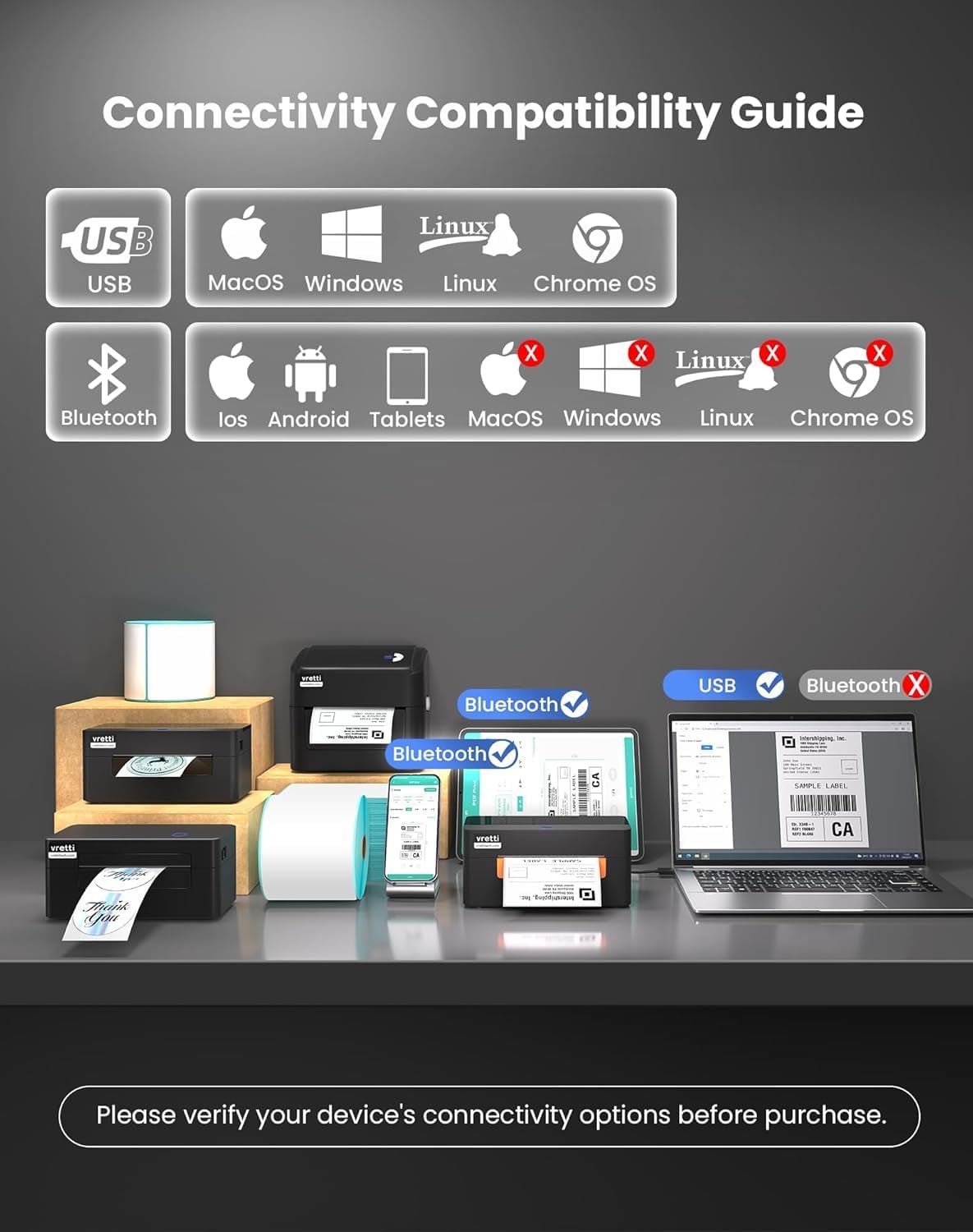
The vretti printer offers dual connectivity options: USB and Bluetooth.

شکل 4.3.1: Connectivity Compatibility Guide. USB connection is compatible with MacOS, Windows, Linux, and Chrome OS. Bluetooth connection is compatible with iOS, Android, and Tablets. Bluetooth is not supported for MacOS, Windows, Linux, or Chrome OS.
4.3.1 USB Connection (Windows/Mac/Linux/ChromeOS)
For most operating systems, the printer is designed for "Plug & Play" functionality. Connect the USB cable, and your system should automatically detect and install the necessary drivers within approximately 60 seconds. If drivers do not install automatically, refer to the included Quick Start Guide or the manufacturer's website for manual driver installation instructions.
شکل 4.3.2: The vretti label printer is designed for quick deployment, allowing users to master its operation rapidly, often within 2 minutes for basic setup.
4.3.2 Bluetooth Connection (iOS/Android/Tablets)
- Ensure Bluetooth is enabled on your mobile device or tablet.
- Turn on the vretti printer.
- On your device, search for available Bluetooth devices and select the vretti printer (e.g., "vretti Printer" or similar).
- د جوړه کولو پروسې بشپړولو لپاره هر ډول د پردې پرامپټس تعقیب کړئ.
- Install the vretti printing application from your device's app store (e.g., Apple App Store, Google Play Store) to manage print jobs.
5. عملیاتي لارښوونې
۴.۱ د چاپ لیبلونه
The vretti thermal label printer uses direct thermal printing technology, eliminating the need for toner or ink. It is optimized for 4x6 inch shipping labels and barcodes.
- Ensure labels are properly loaded (refer to Section 4.2).
- هغه سند یا اپلیکیشن پرانیزئ چې تاسو یې چاپ کول غواړئ.
- د اپلیکیشن مینو څخه "چاپ" غوره کړئ.
- Choose the vretti printer from the list of available printers.
- Adjust print settings as needed, such as label size (e.g., 4x6 inches) and orientation.
- د چاپ کار پیل کړئ.

شکل 5.1.1: The printer delivers 203 dpi resolution, ensuring clear and scannable barcodes with a 99.99% recognition rate for labels such as DHL 4x6 shipping labels and QR codes.

شکل 5.1.2: The vretti printer offers a print speed of 152 mm/s, capable of producing 72 labels per minute. Its direct thermal technology eliminates ink/toner, leading to significant cost savings and a print head lifespan three times longer than standard printers.
6. ساتنه
۵.۱ د چاپ سر پاکول
The printer features automatic cleaning functionality. However, if print quality degrades, manual cleaning may be necessary.
- پرنټر بند کړئ او د بریښنا سرچینې څخه یې خلاص کړئ.
- پورتنۍ پوښ خلاص کړئ.
- Gently wipe the print head with a lint-free cloth lightly dampد isopropyl الکول سره ختم شوی.
- د چاپ سر ته اجازه ورکړئ چې په بشپړه توګه وچ شي مخکې لدې چې پوښ وتړئ او پرنټر چالان کړئ.
6.2 عمومي پاکول
Wipe the exterior of the printer with a soft, dry cloth. Do not use abrasive cleaners or solvents.
7. ستونزه حل کول
| ستونزه | احتمالي لامل | د حل لاره |
|---|---|---|
| پرنټر نه چالانېږي | برېښنا نشته، د برېښنا اډاپټر خراب دی | د بریښنا اتصالونه وګورئ، یو بل سوري هڅه وکړئ. |
| د چاپ کیفیت خراب دی | Dirty print head, incorrect label type, low-quality labels | Clean the print head (Section 6.1). Ensure you are using thermal labels. Try new labels. |
| لیبلونه په سمه توګه نه تغذیه کیږي | Labels improperly loaded, guide rails not adjusted | Reload labels, adjust guide rails (Section 4.2). |
| د بلوتوث له لارې نشي نښلول کیدی | Bluetooth not enabled, incorrect pairing, device incompatibility | Ensure Bluetooth is on. Re-pair the device. Confirm your device is compatible (iOS/Android/Tablets only). |
| Printer not recognized by computer (USB) | Driver issue, faulty USB cable, incorrect port | Try a different USB port or cable. Reinstall drivers if necessary. |
8. مشخصات
| فیچر | تفصیل |
|---|---|
| برانډ | vretti |
| د ماډل شمیره | B0FNW9FCS5 |
| د چاپ ټیکنالوژي | مستقیم حرارتي |
| د چاپ حل | 203 dpi |
| د چاپ سرعت | Up to 152 mm/s (72 labels/min) |
| د لیبل پراخوالی | ۱.۵۷" - ۴.۱" (۴۰ ملي متره - ۱۰۴ ملي متره) |
| ارتباط | USB (Windows/Mac/Linux/ChromeOS), Bluetooth 5.0 (iOS/Android/Tablets) |
| د شیټ اعظمي ظرفیت | 500 labels (integrated bin) |
| ابعاد (L x W x H) | ۷۱.۲ x ۲۷.۶ x ۴۵.۹ سانتي متره (تقریبا) |
| د بریښنا سرچینه | خارجي ځواک اډیپټر |
9. تضمین او ملاتړ
vretti products are manufactured to high-quality standards. For warranty information and technical support, please refer to the warranty card included with your product or visit the official vretti website. Please have your model number (B0FNW9FCS5) and purchase date available when contacting support.


