1. پیژندنه
The VEDINDUST HDMI Splitter Extend is designed to connect a single HDMI source, such as a laptop or PC, to two HDMI displays simultaneously. This device supports both screen extension and duplication modes, allowing for enhanced multitasking or mirrored content display. It is compatible with Windows and macOS operating systems and supports resolutions up to 4K@60Hz on one output and 1080P@60Hz on the other.
This manual provides detailed instructions for setting up, operating, and troubleshooting your HDMI splitter to ensure optimal performance.
2. د بسته محتويات
مهرباني وکړئ تصدیق کړئ چې لاندې ټول توکي ستاسو په کڅوړه کې شامل دي:
- VEDINDUST HDMI Splitter Extend Unit
- HDMI کیبل
- USB-A 3.0 Cable
- د کارن لارښود

شکل 2.1: Package Contents. The image displays the VEDINDUST HDMI Splitter unit, one HDMI cable, one USB-A 3.0 cable, and a user manual, representing all items included in the product packaging.
3. محصول ختم شوview
The VEDINDUST HDMI Splitter Extend features a robust aluminum casing for optimal heat dissipation and electromagnetic compatibility, ensuring durability and stable performance. It is designed for easy connection and operation.
3.1 وسیله وسیله
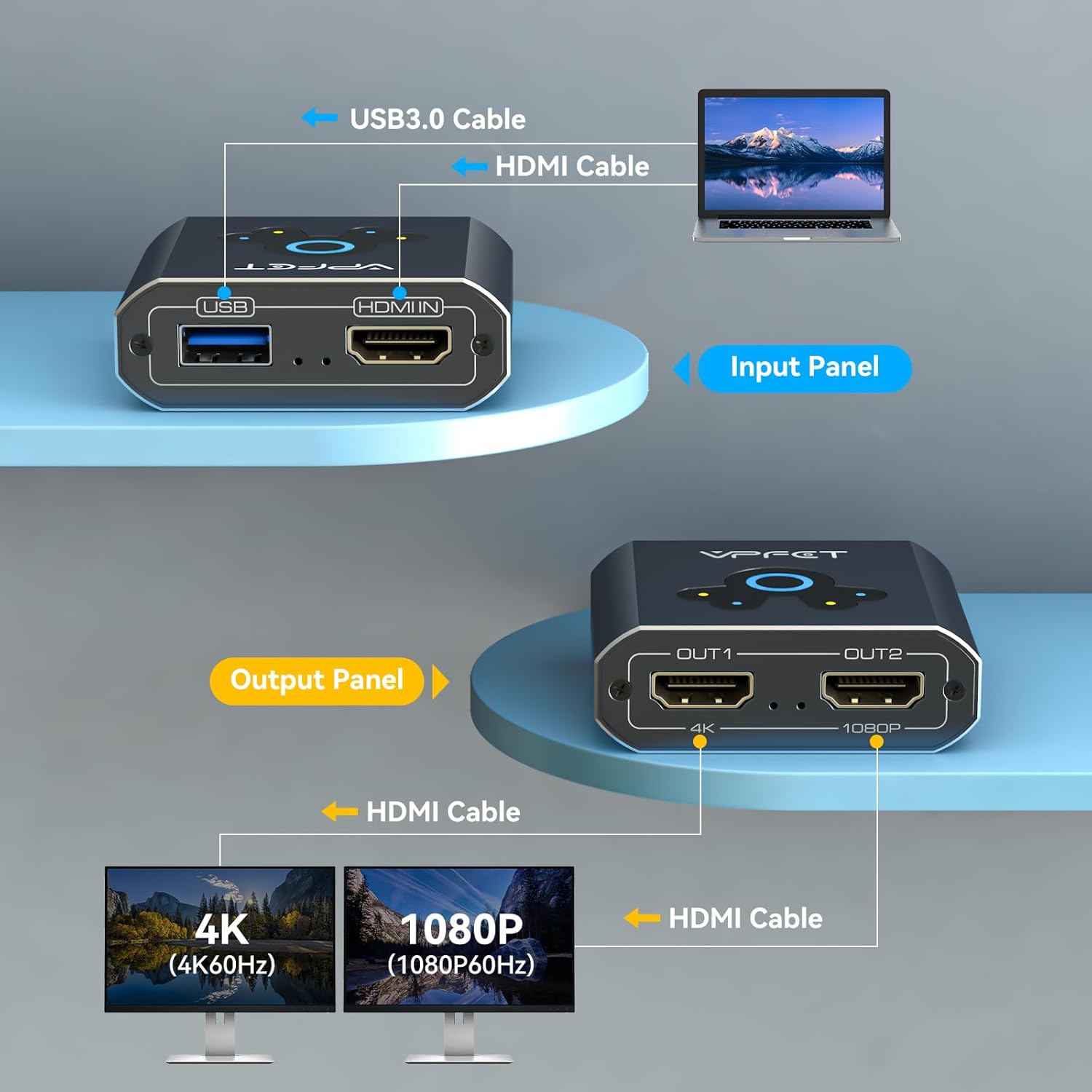
شکل 3.1: Input and Output Panels. This diagram illustrates the connections on the device: the input side features a USB 3.0 port and an HDMI IN port, while the output side provides two HDMI OUT ports, clearly marked for their maximum supported resolutions (OUT1 for 4K, OUT2 for 1080P).
- په پورټ کې HDMI: Connects to the HDMI output of your computer (laptop or desktop).
- د USB 3.0 پورټ: Connects to a USB port on your computer. This connection is essential for power and driver installation, which determines the output resolution.
- HDMI OUT1 Port: Connects to your primary display. Supports up to 4K@60Hz resolution.
- HDMI OUT2 Port: Connects to your secondary display. Supports up to 1080P@60Hz resolution.
3.2 مطابقت لرونکی وسایل

شکل 3.2: Compatible Input and Output Devices. This image clarifies that the splitter is compatible with PC and laptop input sources, and monitors, TVs, and projectors as output displays. It explicitly states that HDMI source devices other than computers are not supported.
The splitter is designed for use with computers (laptops and desktop PCs) as input sources. It is compatible with various output displays including monitors, televisions, and projectors. Please note that it does not support HDMI source devices other than computers (e.g., gaming consoles, media players).
۴. د تنظیم لارښوونې
Follow these steps to properly set up your VEDINDUST HDMI Splitter Extend:
شکل 4.1: Installation Driver Steps. This visual guide outlines the four essential steps for setting up the HDMI splitter, emphasizing the critical driver installation process for both Windows and macOS systems.
- د USB کیبل سره وصل کړئ: Connect the provided USB-A 3.0 cable from the splitter's USB port to an available USB port on your computer. This connection is crucial for both power and driver functionality.
- د ډرایور نصب کول:
- د وینډوز سیسټمونو لپاره: After connecting the USB cable, your computer should automatically recognize the device and prompt for driver installation. If not, manually locate and run the driver file from the virtual disk that appears.
- د macOS سیسټمونو لپاره: After connecting the USB cable, install and open the 'USB Display.app'. This application must remain running in the background for the splitter to function correctly.
مهم: The USB connection and driver installation are mandatory for the device to operate and achieve the specified resolutions.
- د HDMI کیبلونه وصل کړئ: Connect an HDMI cable from your computer's HDMI output to the HDMI IN port on the splitter. Then, connect HDMI cables from the splitter's OUT1 and OUT2 ports to your respective monitors, TVs, or projectors.
- پاور آن: Ensure all devices (computer and displays) are powered on.
5. عملیاتي لارښوونې
Once the splitter is set up, you can configure your display settings on your computer for either screen extension or duplication.
5.1 ښودل حالتونه

شکل 5.1: Supported Display Modes. This image demonstrates the three primary display configurations: extending the desktop across three screens (A-B-C), extending with one duplicated screen (A-B-B), and mirroring the primary display across all screens (A-A-A), all supported on Windows and macOS.
- Screen Duplication (Mirror Mode): Both connected monitors will display the exact same content as your computer's primary screen. This is useful for presentations or sharing content.
- Screen Extension (Extend Mode): Your computer's desktop will be extended across the two connected monitors, allowing you to have different content on each screen. This is ideal for multitasking and increasing your workspace.
5.2 Configuring Display Settings
To switch between duplication and extension modes, you must adjust the display settings within your computer's operating system:
- د وینډوز لپاره: Right-click on your desktop, select 'Display settings', and then choose 'Extend these displays' or 'Duplicate these displays' as needed. You can also rearrange the displays.
- د macOS لپاره: Go to 'System Settings' (or 'System Preferences'), then 'Displays'. Here you can arrange your displays and select 'Mirror Displays' or use them as separate extended desktops.
5.3 Resolution Output

شکل 5.2: HDMI Dual Display Adapter Output. This image illustrates the maximum resolution capabilities of each output port: OUT1 supports up to 4K@60Hz, while OUT2 supports up to 1080P@60Hz, allowing for a dual-monitor setup with varying display qualities.
- بهر 1: Supports a maximum resolution of 4K@60Hz. To achieve 4K@60Hz output, ensure both the HDMI cable and the USB cable are connected to a compatible USB 3.0 port on your computer.
- بهر 2: Supports a maximum resolution of 1080P@60Hz.
The output resolution is also dependent on the USB version connected to your computer. When connected to a computer's USB 3.0 port, the maximum resolution for OUT1 is 4K@60Hz and for OUT2 is 1080P@60Hz. When connected to a USB 2.0 port, the maximum resolution for both outputs will be limited to 720P.
6. ستونزه حل کول
If you encounter issues with your VEDINDUST HDMI Splitter Extend, please refer to the following common solutions:
- نه ښودنه/تور سکرین:
- Ensure all HDMI and USB cables are securely connected.
- Verify that the USB cable is connected to your computer and the necessary drivers are installed and running (especially for macOS, ensure 'USB Display.app' is active).
- Check your computer's display settings to ensure the external monitors are detected and configured for either extend or duplicate mode.
- د مختلفو HDMI کیبلونو یا مانیټرونو سره ازموینه وکړئ ترڅو د نیمګړتیاوو څخه مخنیوی وکړئ.
- Incorrect Resolution/Lower Resolution Than Expected:
- Confirm that the USB cable is connected to a USB 3.0 port on your computer for optimal resolution (1080P for USB 3.0, 720P for USB 2.0).
- Ensure the driver is correctly installed and updated.
- Verify that your monitors support the desired resolution.
- Remember that OUT1 supports up to 4K@60Hz, while OUT2 supports up to 1080P@60Hz.
- Flickering Screen or Unstable Connection:
- Ensure the USB cable provides sufficient power. Try connecting to a different USB port or using a powered USB hub if available.
- د نورو بریښنایی وسیلو څخه د هر ډول مداخلې لپاره چیک کړئ.
- د خپل کمپیوټر ګرافیک ډرایورونه تازه کړئ.
- د موټر چلوونکي د نصبولو ستونزې:
- For Windows, try running the driver installation file د یو مدیر په توګه.
- For macOS, ensure you have granted necessary permissions for the 'USB Display.app' to run.
- که چیرې د نصبولو پرمهال مداخله وکړي، نو د انټي ویروس سافټویر په موقت ډول غیر فعال کړئ.
7. مشخصات
| برانډ | VEDINDUST |
| د ماډل شمیره | 2025102103 |
| ابعاد | 20 x 13.2 x 3.8 سانتي متره |
| وزن | 150 ګرامه |
| د ننوتلو بندرونه | 1x HDMI IN, 1x USB 3.0 |
| د تولید بندرونه | 2x HDMI OUT (OUT1, OUT2) |
| Max Resolution (OUT1) | 4K@60Hz |
| Max Resolution (OUT2) | 1080P@60Hz |
| Video Bandwidth (OUT1) | تر 18 Gbps پورې |
| Video Bandwidth (OUT2) | تر 3.2 Gbps پورې |
| مطابقت لرونکې وسیلې | PC, Laptop, TV, Monitor, Projector |
| عملیاتي سیسټمونه | Windows XP/7/8/10/11, macOS |
| مواد | المونیم جasing |
8. تضمین او ملاتړ
VEDINDUST is committed to providing high-quality products and customer satisfaction. While specific warranty details are not provided in this manual, if you encounter any issues with your VEDINDUST HDMI Splitter Extend, please contact our customer support team immediately.
Our professional support staff will assist you with troubleshooting and provide a suitable solution. Please refer to the contact information provided on the product packaging or the official VEDINDUST webد ملاتړ لپاره سایټ.


