1. محصول ختم شوview
The ORICO K5Mini-VB-480GB-OR is a compact and portable magnetic external Solid State Drive (SSD) designed for expanding storage on various devices, including smartphones, tablets, and laptops. Featuring a durable aluminum alloy construction and a strong magnetic attachment, it offers high-speed data transfer and reliable performance.
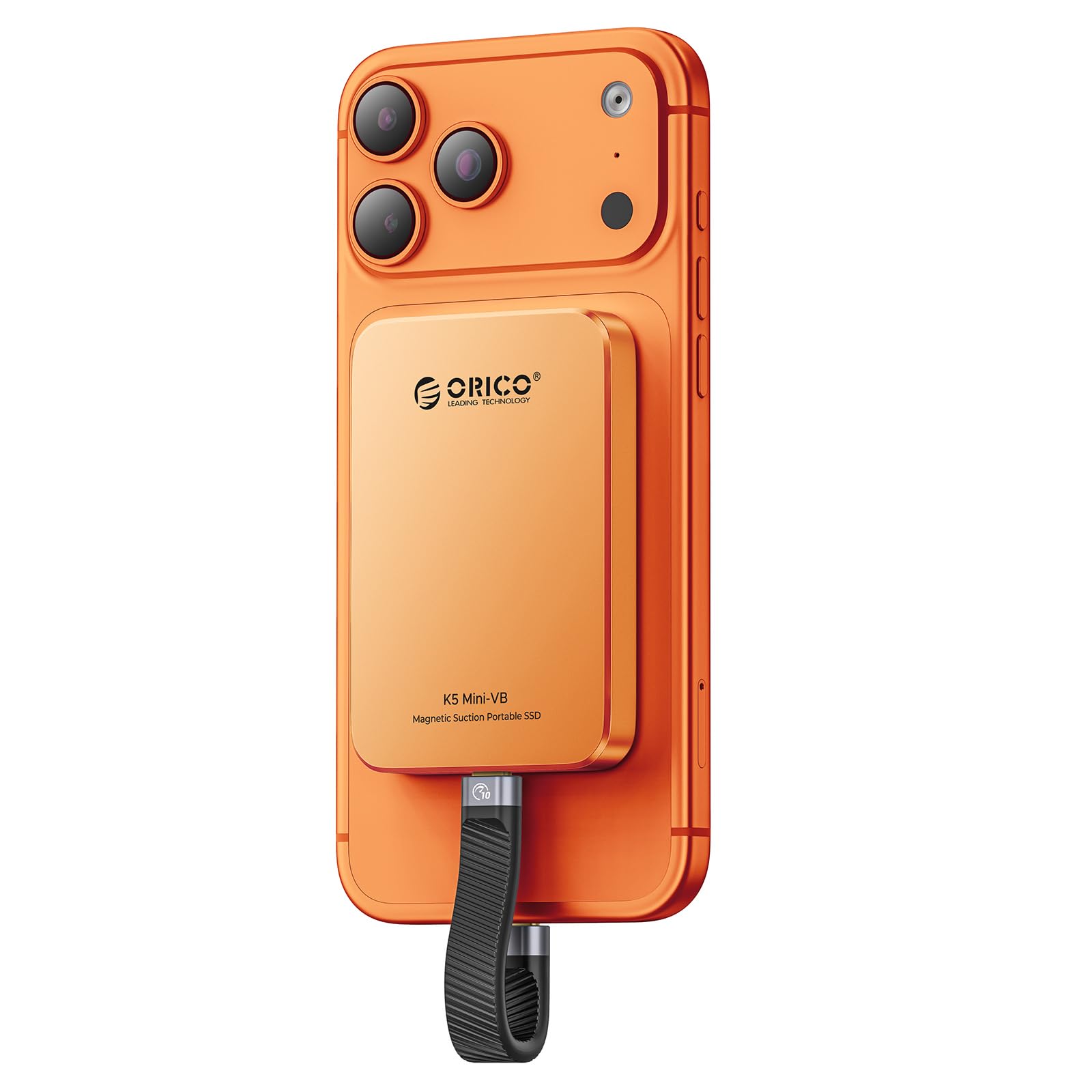
Image 1.1: The ORICO K5Mini-VB-480GB-OR Magnetic External SSD in Cosmic Orange.
کلیدي ځانګړتیاوې:
- قوي مقناطیسي ضمیمه: Securely attaches to compatible devices, including MagSafe-enabled iPhones, and can be used with other devices via an included magnetic ring.
- د تیز رفتار ډیټا لیږد: Offers read speeds up to 460MB/s and a data transfer rate of 5Gbps (USB 3.0 interface) for quick file لیږدونه
- کمپیکٹ او پورټ ایبل ډیزاین: Ultra-small (2.4 x 3.55 x 0.42 inches) and lightweight (0.13 lbs) for easy portability.
- دوامدار ساختمان: Aluminum alloy body facilitates rapid heat dissipation and ensures data security.
- پراخه مطابقت: Compatible with iPhone 15/16 series, USB-C Android smartphones, laptops, and tablets.
۴. د تنظیم لارښوونې
Follow these steps to set up your ORICO Magnetic External SSD with your device.
2.1 Attaching the SSD
The SSD features a strong magnetic design for easy attachment to compatible devices.

Image 2.1: The magnetic ring included with the SSD allows for magnetic attachment to devices without built-in magnetic capabilities, such as non-MagSafe iPhone cases or Android phones.
- For MagSafe-compatible iPhones (iPhone 15/16 series): Simply align the SSD with the back of your iPhone. The magnetic attraction will secure it in place.
- For other devices (e.g., non-MagSafe iPhones, Android phones): Use the included magnetic attraction ring. Attach the ring to the back of your phone or phone case. Ensure the ring is centered for optimal magnetic hold. Once the ring is attached, the SSD can be magnetically secured to it.
۴.۱ د SSD نښلول
Connect the SSD to your device using the provided USB-C cable.
- Connect one end of the USB-C cable to the ORICO SSD.
- Connect the other end of the USB-C cable to the USB-C port on your smartphone, tablet, or laptop.
- Note for iPhone 14 and earlier models: These models require a Lightning adapter. The ORICO LC10 Lightning adapter is recommended. Adapters from other brands may not be supported.
3. عملیاتي لارښوونې
Once connected, the ORICO SSD functions as an external storage device. It is plug-and-play, meaning no special drivers are typically required.
3.1 Data Transfer with iPhone (iPhone 15/16 Series)
To transfer photos and videos from your iPhone to the SSD:

Image 3.1: Step-by-step guide for connecting and saving files from an iPhone 15/16 series to the ORICO SSD.
- لومړی ګام: Connect the SSD to your iPhone 15/16 Series.
- لومړی ګام: Open your Photos app, select the photos/videos you wish to transfer.
- لومړی ګام: Tap the Share icon (usually a square with an arrow pointing up) and select "Save to Files ".
- لومړی ګام: په Files app, tap "Browse".
- لومړی ګام: Select "ORICO" from the locations.
- لومړی ګام: Tap "Save" to complete the transfer.
یادونه: This process is not applicable for iPhone 14 and earlier models (iPhone 13, iPhone 12, iPhone 11, iPhone XS, iPhone XR, iPhone X, iPhone SE).
3.2 Data Transfer with Android Phone
د لیږد لپاره files from your Android phone to the SSD:

Image 3.2: Step-by-step guide for connecting and copying files from an Android phone to the ORICO SSD.
- لومړی ګام: Connect the SSD to your Android phone.
- لومړی ګام: Open your phone's "Files" or "File Manager" application.
- لومړی ګام: د ځای ځای ته لاړ شئ files you wish to transfer (e.g., "Images").
- لومړی ګام: غوره کړئ fileتاسو غواړئ کاپي کړئ.
- لومړی ګام: Choose the "ORICO" drive as the destination.
- لومړی ګام: Tap "Copy" or "Move" to complete the transfer.
3.3 Usage with Laptops and Tablets
The SSD can be used with laptops and tablets that have a USB-C port. Connect the SSD using the provided cable. The device will appear as an external drive in your operating system's file سپړونکی (د مثال په توګه، File Explorer on Windows, Finder on macOS, Files app on iPadOS/Android tablets). You can then drag and drop fileSSD ته او له هغه څخه.
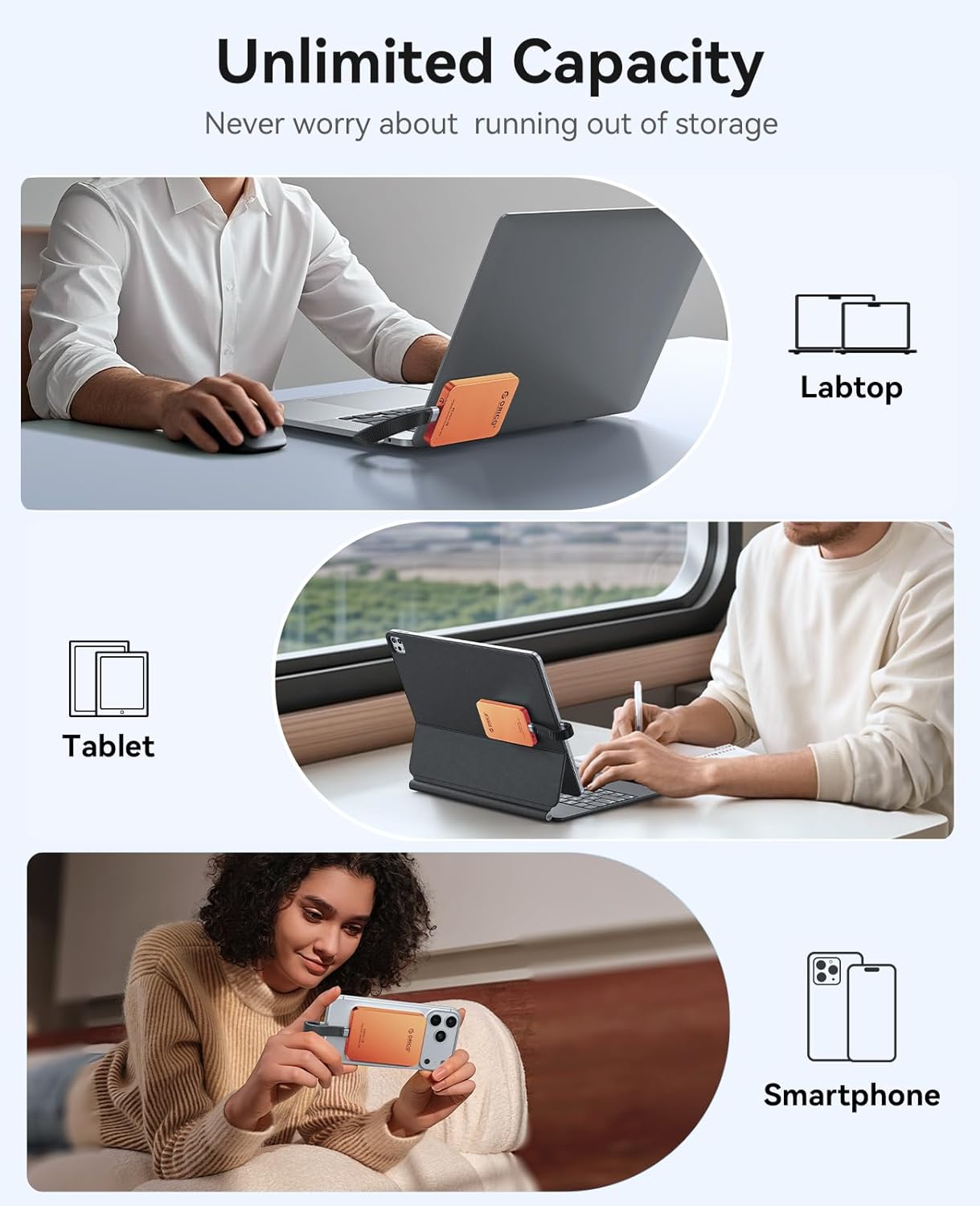
Image 3.3: The ORICO SSD can be used to expand storage for laptops, tablets, and smartphones.
4. ساتنه
Proper maintenance ensures the longevity and optimal performance of your ORICO SSD.
- پاکول: Use a soft, dry, lint-free cloth to clean the exterior of the SSD. Avoid using liquid cleaners or solvents, as they may damage the device.
- ذخیره کول: Store the SSD in a cool, dry place away from direct sunlight, extreme temperatures, and strong magnetic fields when not in use.
- سمبالول: While the aluminum alloy body is durable, avoid dropping the SSD or subjecting it to strong impacts.
- په خوندي ډول وباسئ: Always safely eject the SSD from your computer or device before disconnecting it to prevent data corruption.
5. ستونزه حل کول
If you encounter issues with your ORICO SSD, refer to the following common troubleshooting steps.
- SSD ندی موندل شوی:
- ډاډ ترلاسه کړئ چې د USB-C کیبل په خوندي ډول د SSD او ستاسو وسیله دواړو سره وصل دی.
- Try using a different USB-C port on your device.
- د کیبل ستونزو د له منځه وړلو لپاره د یو بل USB-C کیبل سره ازموینه وکړئ.
- خپل وسیله بیا پیل کړئ او بیا د نښلولو هڅه وکړئ.
- For iPhones 14 and earlier, ensure you are using a compatible Lightning adapter (ORICO LC10 recommended).
- د لیږد ورو سرعت:
- Ensure your device's USB port supports USB 3.0 or higher for optimal speeds. Older USB 2.0 ports will result in slower transfers.
- Verify the cable used is a high-quality USB 3.0 (or higher) compatible cable.
- نور هغه غوښتنلیکونه بند کړئ چې ممکن د سیسټم سرچینې کاروي یا د شالید معلوماتو لیږد ترسره کوي.
- د مقناطیسي ضمیمې مسلې:
- Ensure the magnetic ring (if used) is properly centered and securely attached to your device or case.
- Check for any obstructions or thick cases that might weaken the magnetic connection.
- د معلوماتو فساد:
- Always safely eject the SSD before disconnecting it from your device.
- If data corruption occurs, you may need to reformat the drive (this will erase all data). Back up important data regularly.
6. مشخصات
Detailed technical specifications for the ORICO K5Mini-VB-480GB-OR Magnetic External SSD.

Image 6.1: The ORICO K5Mini SSD is designed to be light, small, and thin.
| فیچر | تفصیل |
|---|---|
| د ماډل شمیره | K5Mini-VB-480GB-OR |
| د ډیجیټل ذخیره کولو ظرفیت | 480 جي بي |
| د هارډ ډیسک انٹرفیس | USB 3.0 |
| د ارتباط ټیکنالوژي | USB |
| برانډ | ORICO |
| ځانګړی ځانګړنه | Portable, Magnetic Attachment |
| د هارډ ډیسک توضیحات | د سولیډ ریاست ډرایو |
| مطابقت لرونکې وسیلې | سمارټ فون، ټابلیټ، لیپ ټاپ |
| رنګ | Cosmic Orange |
| د لوستلو سرعت | په ثانیه کې 460 میګابایټ |
| د معلوماتو د لیږد کچه | 5 ګیګابایټ په ثانیه کې |
| د تړلو موادو | د المونیم مصر |
| ابعاد (L x W x H) | 3.55 x 2.4 x 0.42 انچه (نږدې) |
| وزن | 0.13 پونډه (تقریبا) |

Image 6.2: The ORICO SSD offers high-speed data transmission for efficient file سمبالول
7. تضمین او ملاتړ
ORICO provides comprehensive support for its products.
7.1 د تضمین معلومات
دا محصول د یو سره راځي د جوړونکي ۱۲ میاشتې تضمین. مهرباني وکړئ د تضمین ادعاوو لپاره د پیرود ثبوت وساتئ. تضمین د عادي استعمال لاندې د موادو او کاریګرۍ نیمګړتیاوې پوښي.
7.2 د پیرودونکي ملاتړ
For technical assistance, troubleshooting, or warranty inquiries, please contact ORICO customer support through their official website or the retailer where the product was purchased. You may find contact information on the ORICO official webسایټ یا د محصول بسته بندۍ دننه.
When contacting support, please have your product model number (K5Mini-VB-480GB-OR) and purchase details readily available.


