پیژندنه
This manual provides essential information for the operation and maintenance of your Visual Land Prestige ELITE 7Q-KC tablet. Please read this manual thoroughly before using your device to ensure proper functionality and longevity.
The Prestige ELITE 7Q-KC is a 7-inch Quad Core Android tablet designed for portable use, offering smooth performance for streaming, web browsing, and various applications. It features a 7-inch screen with 5-point capacitive multi-touch and 8GB of internal storage.
چمتو کول
1. د بسته بندۍ او ابتدايي تفتیش
په احتیاط سره د بسته بندۍ څخه ټولې برخې لرې کړئ. ډاډ ترلاسه کړئ چې لاندې لیست شوي ټول توکي شتون لري او زیانمن شوي ندي:
- Prestige ELITE 7Q-KC Tablet
- د کی بورډ قضیه
- د بریښنا اډاپټر
- USB کیبل
- د کارونکي لارښود (دا لاسوند)
2. د ټابلیټ چارج کول
Before first use, fully charge the tablet. Connect the power adapter to the tablet's charging port and plug it into a power outlet. The charging indicator will illuminate. A full charge typically takes approximately 3-4 hours.
3. Attaching the Keyboard Case
Align the tablet with the designated slot in the keyboard case. Gently press the tablet into place until it is securely seated. The keyboard connects via a USB port on the tablet.
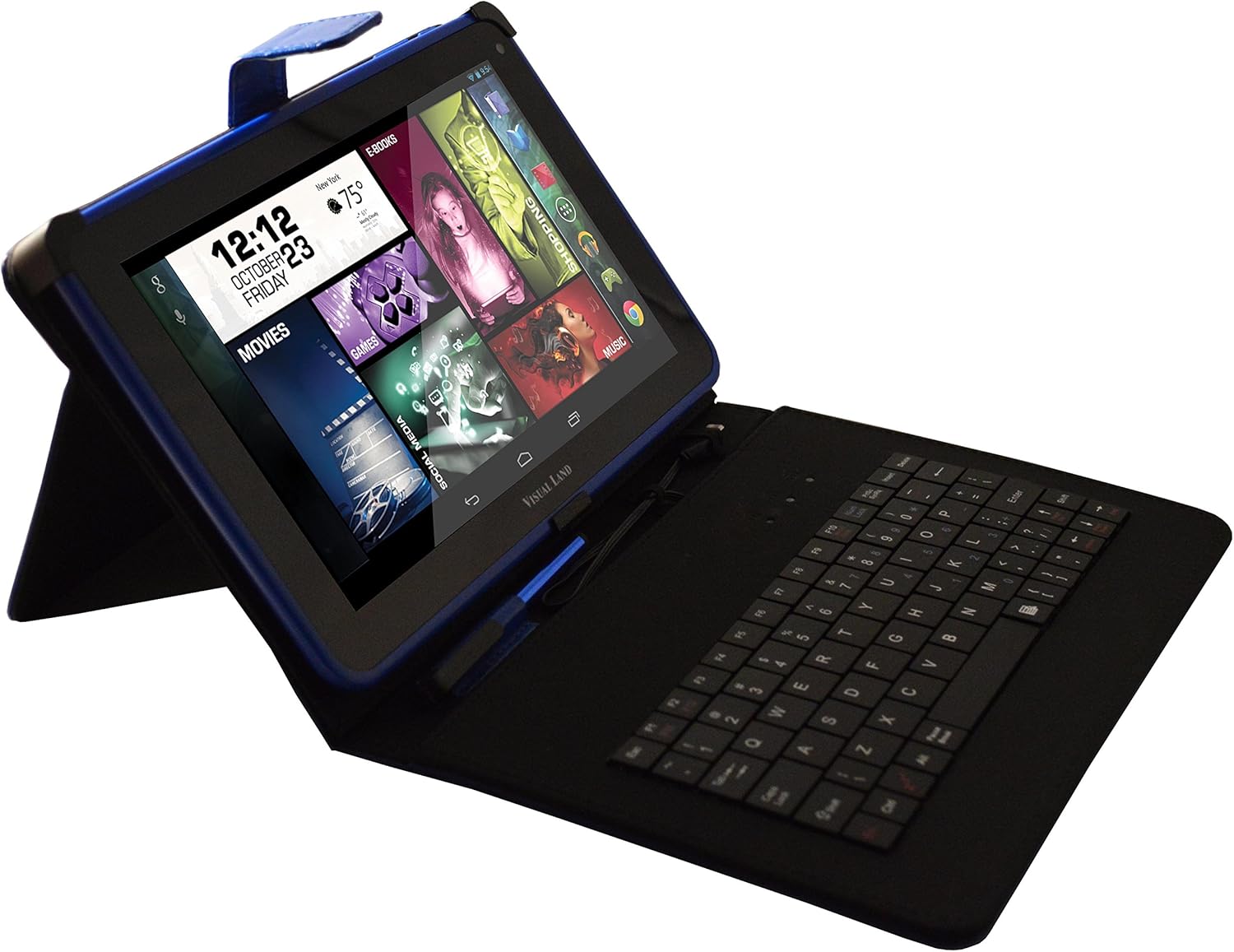
Image: Prestige ELITE 7Q-KC tablet inserted into its matching blue keyboard case, viewed from an angle, showing the tablet screen and the physical keyboard.
4. د پاور کول او ابتدايي ترتیب
Press and hold the power button located on the side of the tablet until the screen illuminates. Follow the on-screen prompts to complete the initial setup, including language selection, Wi-Fi connection, and Google account setup.
عملیاتي لارښوونې
1. بنسټیز نیویګیشن
The tablet operates on Android 4.4 KitKat. Use touch gestures for navigation:
- ټایپ: یو توکي غوره کړئ یا یو اپلیکیشن خلاص کړئ.
- سوائپ: د سکرینونو یا لیستونو له لارې سکرول وکړئ.
- د زوم کولو لپاره پنچ: په انځورونو کې زوم ان یا آوټ کړئ یا web پاڼې
- اوږد فشار: د شرایطو مینو ته لاسرسی ومومئ یا عکسونه حرکت وکړئ.
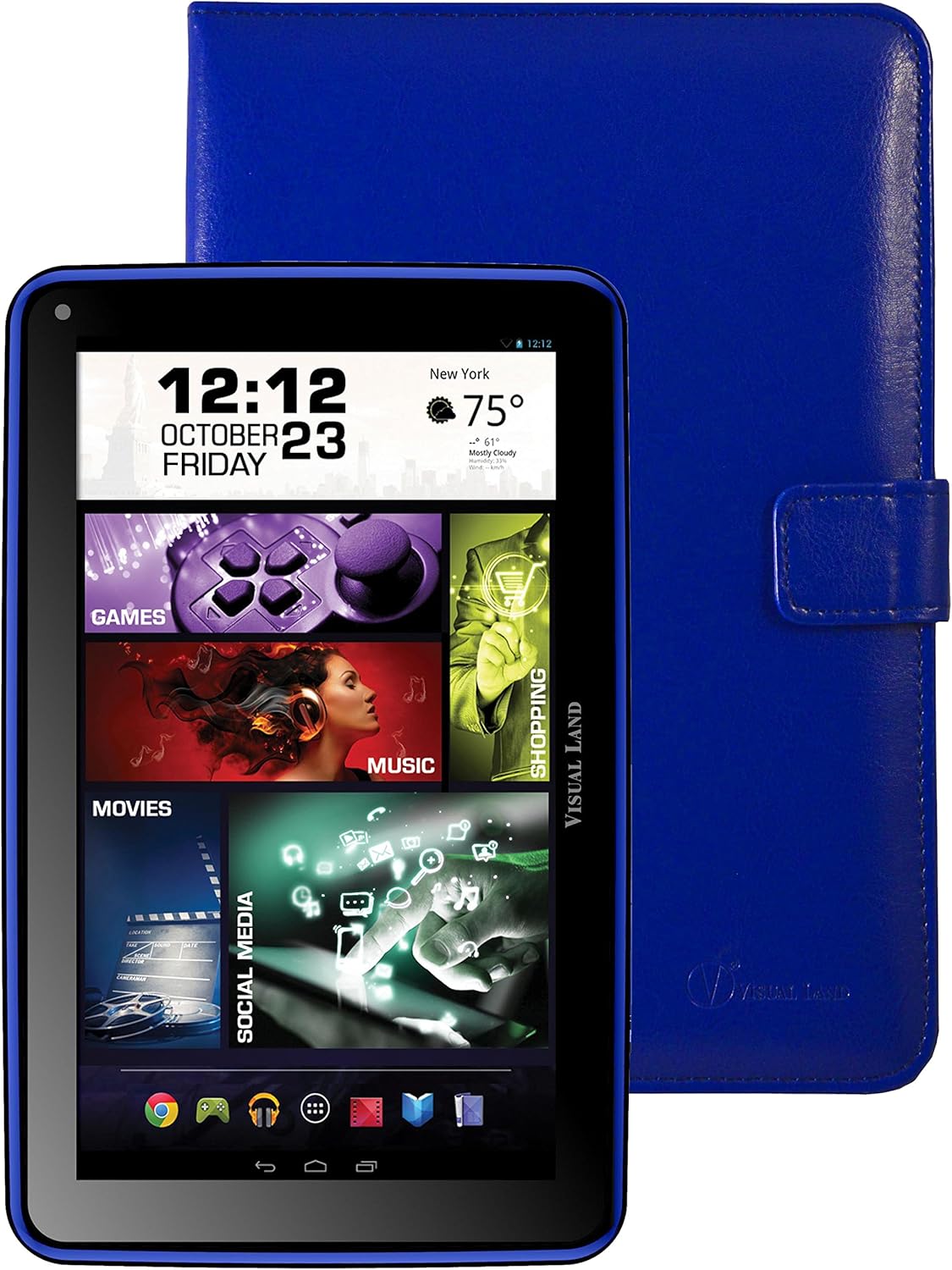
انځور: مخکینۍ برخه view of the Prestige ELITE 7Q-KC tablet displaying the Android home screen with various app icons and widgets, including a clock, weather, and media shortcuts.
2. د وای فای سره نښلول
- ورتګ ترتیبات.
- وټاکئ وای فای.
- وای فای بدل کړئ On.
- له لیست څخه خپل مطلوب شبکه غوره کړئ او که اړتیا وي نو پټنوم دننه کړئ.
3. Using the Keyboard Case
Once connected, the keyboard case functions as a standard external keyboard. Ensure the tablet is properly seated and the USB connection is firm. The keyboard allows for faster typing and navigation within applications.
4. Accessing Google Play Store
The tablet comes with Google Play pre-installed. Tap the Play Store icon to browse and download applications, games, movies, music, and books. A Google account is required for full access.
ساتنه
۱. د ټابلیټ پاکول
د ټابلیټ سکرین او بدن پاکولو لپاره د نرم، لینټ نه پاک ټوکر څخه کار واخلئ. د سختو داغونو لپاره، لږ څهampد اوبو یا سکرین کلینر سره ټوکر په ځانګړي ډول د برقیاتو لپاره ډیزاین شوی. د سخت کیمیاوي موادو یا خړوبونکي موادو کارولو څخه ډډه وکړئ.
2. د بیټرۍ پاملرنه
- د ټابلیټ د لوړې تودوخې سره د مخ کیدو څخه ډډه وکړئ.
- بیټرۍ ته اجازه مه ورکوئ چې په مکرر ډول په بشپړه توګه خارج شي.
- Charge the tablet regularly to maintain battery health.
3. د سافټویر تازه معلومات
د غوره فعالیت او امنیت ډاډمن کولو لپاره په دوره یي ډول د سیسټم تازه معلومات وګورئ. لاړ شئ ترتیبات > د ټابلیټ په اړه > سیسټم تازه کول.
د ستونزو حل کول
| ستونزه | احتمالي لامل | د حل لاره |
|---|---|---|
| ټابلیټ نه چالانېږي. | د بیټرۍ ټیټه کچه؛ د سیسټم خرابوالی. | ټابلیټ لږ تر لږه د 30 دقیقو لپاره چارج کړئ. که بیا هم ځواب نه ورکوي، د بریښنا تڼۍ د 10-15 ثانیو لپاره فشار ورکړئ او ونیسئ ترڅو بیا پیل کړئ. |
| د وای فای اتصال ستونزې. | غلط پټنوم؛ د حد څخه بهر؛ د روټر ستونزه. | Verify Wi-Fi password. Move closer to the router. Restart the router and the tablet. |
| د ټچ سکرین بې ځوابه. | د سافټویر لنډمهاله ستونزه؛ د سکرین محافظت مداخله. | Restart the tablet. Ensure the screen is clean. If using a screen protector, ensure it is properly applied or temporarily remove it to test. |
| کیبورډ کار نه کوي. | Loose connection; tablet not recognizing. | Ensure the tablet is securely connected to the keyboard case via the USB port. Restart the tablet. |
If problems persist, refer to the support section or contact customer service.
مشخصات
| فیچر | تفصیل |
|---|---|
| د ماډل شمیره | ME-7Q-KC-8GB-BLU |
| عملیاتي سیسټم | د Android 4.4 KitKat |
| پروسیسر | 1.2 GHz Quad Core (Allwinner chipset) |
| RAM | 1 GB DDR3 |
| داخلي ذخیره | 8 جي بي |
| د سکرین اندازه | ۷۸۷ انچه |
| د سکرین ریزولوشن | ۲۵۶۰x۱۶۰۰ پکسلز |
| بې سیم ارتباط | 802.11bgn Wi-Fi |
| USB بندرونه | 1 (USB 2.0) |
| د بیټرۍ ژوند | Approximately 8 Hours (average use) |
| ابعاد (LxWxH) | 7.5 x 0.4 x 4.7 انچه |
| د توکي وزن | 10.6 اونس |
| رنګ | آبي |

انځور: شاته view of the Prestige ELITE 7Q-KC tablet, showing the blue textured back panel and port labels for USB, MicroSD, DC, and Mic, along with the "Prestige ELITE 7Q" branding.
تضمین او ملاتړ
For warranty information and technical support, please refer to the documentation included with your purchase or visit the official Visual Land webسایټ. د تضمین ادعاوو لپاره د پیرود ثبوت وساتئ.
Visual Land Official Store: Visual Land Store on Amazon


